Introducing the BuddyBoss Integration for Heroic Inbox

A support email lands in your inbox. You’ve got an address and a few lines of text, and that’s all. Is this a paying member or someone who signed up free last week? Do they run three of your groups or just lurk in one? You can’t tell from the email, so you’re guessing before you’ve typed a word.
So you go digging. Out of the inbox, into WP admin, search BuddyBoss, find the profile, scan their groups and recent activity, then back to the ticket to remember what they even asked. Do that on every conversation and it adds up fast. Most days there isn’t time, so you skip it and send something generic. For a membership business, generic is the wrong note to hit.
The root of it is simple enough: your community data lives in one place and your support happens in another. Your agents have been bridging that gap by hand, one ticket at a time.
Today we’re introducing the BuddyBoss Integration for Heroic Inbox. Open a ticket and the sender’s community profile is already there in the sidebar, so your team can reply with the full picture instead of a guess.
What the BuddyBoss Integration does
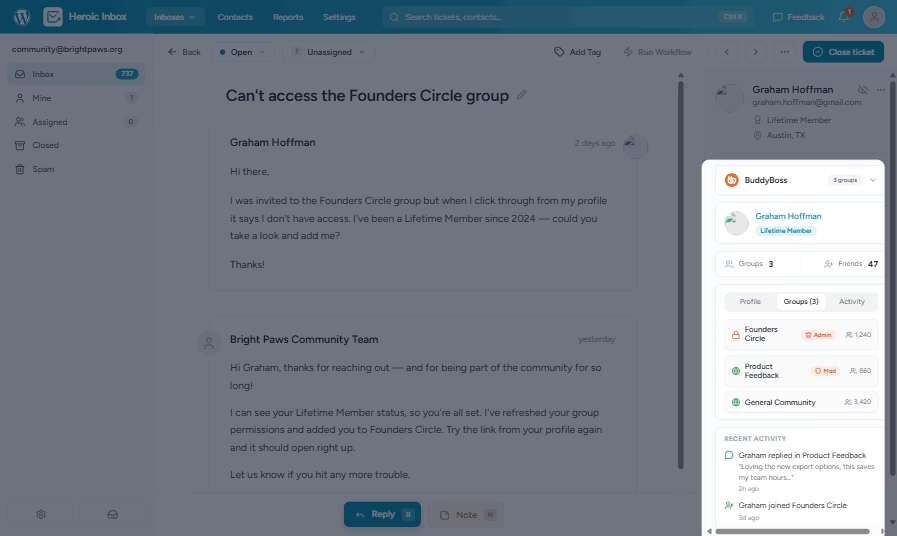
It links Heroic Inbox to your BuddyBoss community and matches the sender’s email address to their member profile. When a ticket comes in, Heroic Inbox finds the right person and pulls their membership tier, group roles, recent activity, custom fields, and connections into a panel next to the conversation. You don’t switch tabs or run a manual lookup to see any of it. The person emailing you stops being an address and becomes a member you recognize.
Know exactly who you’re talking to, the moment you open the ticket
Before you read the first line, you know who you’re dealing with. The sidebar shows the member’s name, avatar, and a link to their full profile, plus their member type, whether that’s Gold Member, Vendor, or whatever tiers you run.
See where they stand in your community
This tells you whether you’re talking to a quiet member or someone who helps run the place. The integration lists every group the person belongs to and their role in each one (admin, moderator, or member), along with each group’s privacy status and member count. A moderator of your biggest group is someone you want to route carefully and answer quickly, and now you can spot them at a glance instead of finding out later.
Read the room before you reply
You also get a quick read on how engaged this person is. Their last five activity items and their connection count sit right in the panel, so you can tell a power user who posts daily from an account that signed up this morning. That shapes how you pitch the reply, from the tone down to how much you need to spell out.
Who the BuddyBoss Integration is for
The fit is sharpest for a handful of people:
- Community and membership site owners who run their own support. If BuddyBoss powers your paid community, course, coaching program, or membership brand, and member emails land on your desk, this was built for you.
- Support managers at community-driven businesses, who need their agents to recognize tiers and VIPs without training every one of them to dig through WP admin.
- Agencies running client community sites on BuddyBoss, whose support teams get member context out of the box with no custom build.
- And anyone who’s tired of opening a second tab just to work out who emailed.
What this looks like in practice
Say a ticket comes in from [email protected]. The subject line is vague and the message is short. Normally you’d guess, or you’d go digging.
Instead, the panel fills in the second you open it, and you read straight down it: Jane Doe, a Lifetime Member, admin of the Founders Circle, which is a private group of 1,240. Forty-seven connections. Last seen replying in Product Feedback two hours ago.
You haven’t typed anything and you already have the parts that matter. This is an engaged member who runs one of your busiest groups and was active a couple of hours ago. So you bump her ticket up the queue, skip the “are you actually a member?” dance, and open with a reply that shows you know who she is. You never left the inbox to do it.
How to turn it on
There’s almost nothing to set up. The integration is designed to switch itself on as soon as it sees BuddyBoss.
Step 1. Update Heroic Inbox and activate the BuddyBoss integration
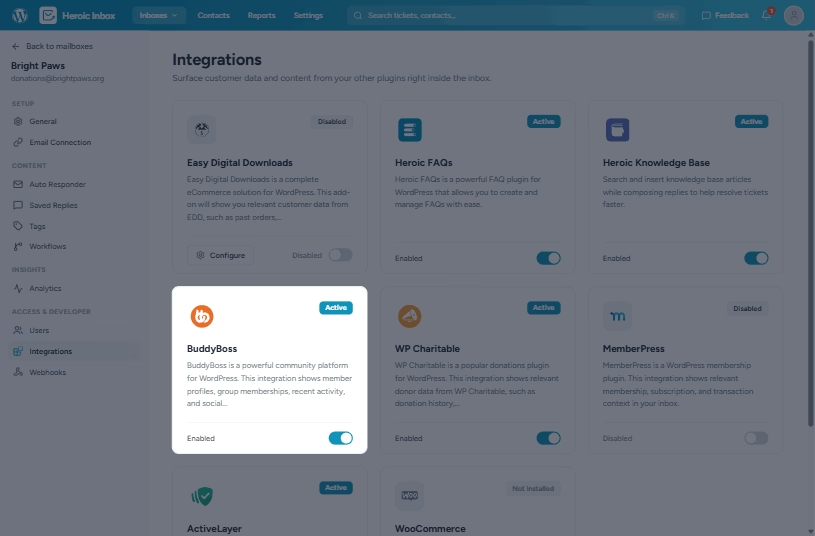
Make sure you’re running the latest version of Heroic Inbox, then activate the BuddyBoss integration.
Step 2. Let it detect your community
You don’t connect anything or map any fields.
Step 3. Tune it per mailbox if you want to
The panel is enabled by default. Keep it on for any mailbox that handles community members, and switch it off for the ones that don’t.
That’s the whole setup. For most teams it takes about a minute, and the context is there on every ticket after that.
Give your team the context they’ve been missing
If you’re already on Heroic Inbox Pro, the BuddyBoss Integration is ready now. Update to the latest version, activate the addon, and the next ticket from a community member shows up with their profile attached.
If you’re not on Pro yet, this is a fair reason to upgrade. Heroic Inbox Pro puts that member context on every conversation, so your agents aren’t guessing or digging through WP admin to place who’s writing in.
And if you run a BuddyBoss community but haven’t tried Heroic Inbox, this is a good look at what it does: it keeps your community and your support in one place.
Thanks, as always, for building your communities with us.






Leave A Comment?
You must be logged in to post a comment.