Heroic KB Blocks – User Guide
Heroic Knowledge Base includes custom blocks that let you build your help site directly in the WordPress editor: a search bar with live results, breadcrumb navigation, category grids and lists, article lists (latest, popular, related), file attachments, helpfulness voting, and a sticky container for sidebars. You can mix and match these blocks on your KB homepage, category and article templates, and any page or post.
Where to find the blocks: In the block editor, click the + (Add block) button and search for the block name (e.g. “KB Search”, “KB Breadcrumbs”) or browse the Heroic KB category. Each block’s sidebar offers options for content, layout, and styling.
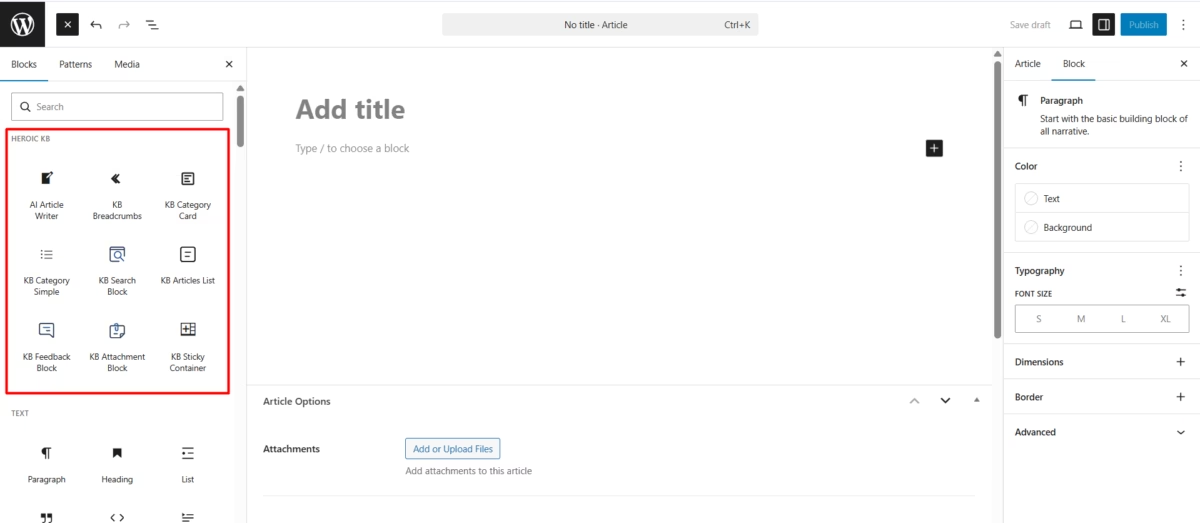
This guide describes each block, how to add it, its main settings, and where it works best. Use the table of contents (if your theme or plugin provides one) to jump to a specific block.
KB Search Block
Add a search box that searches the knowledge base as visitors type, with optional category filter and live suggestions. Place it prominently on the KB homepage and other KB pages.
Where to find the block
- In the block editor, click + (Add block).
- Search for KB Search Block or find it under Heroic KB.
- Insert the block (e.g. at the top of the KB homepage).
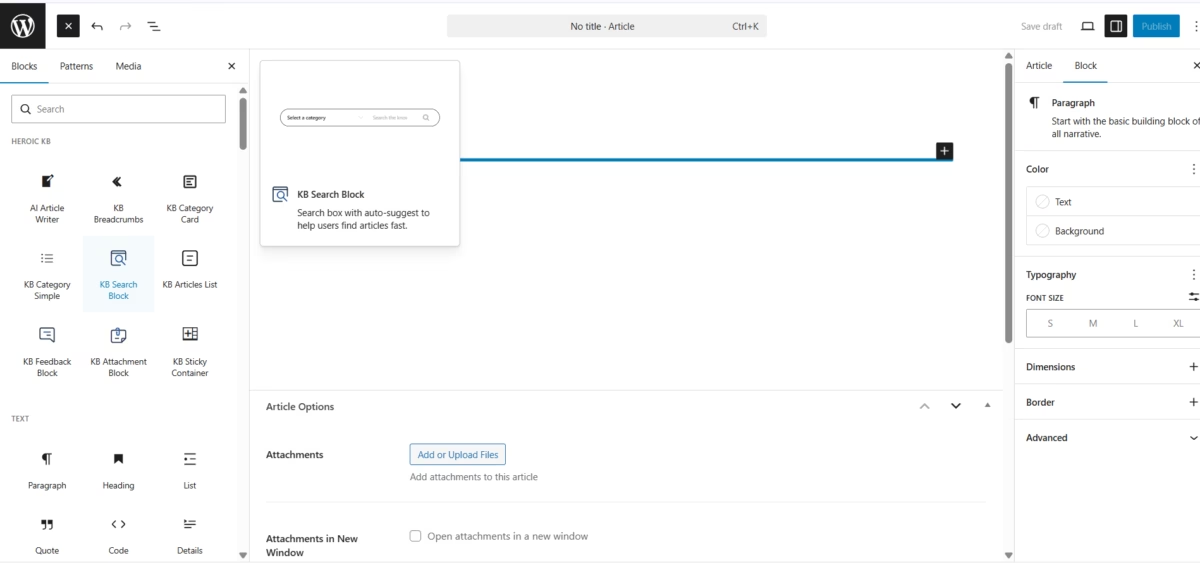
Quick start
- Add the KB Search block where visitors will see it first (e.g. top of KB homepage).
- Set Search Placeholder (e.g. “How can we help?”, “Search our guides…”).
- Optionally turn on Show Icon and set Show Category Filter for larger sites.
- Use block styling to match your theme (colors, border, typography).
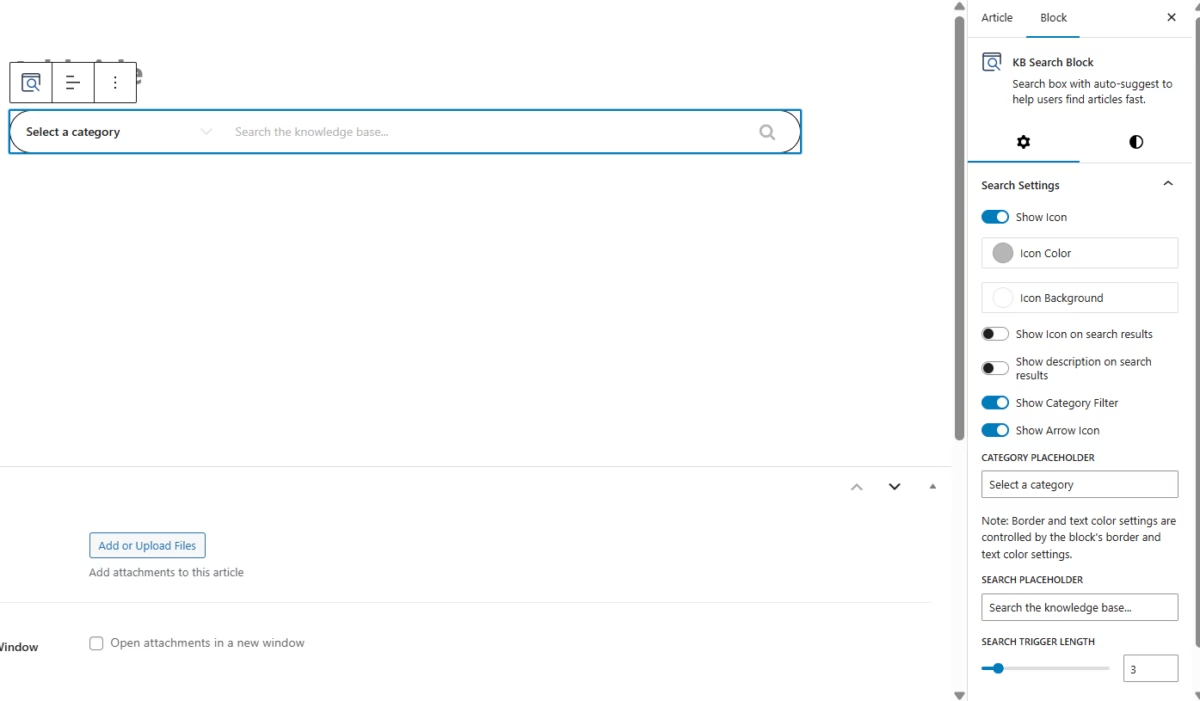
Block settings
| Option | Description |
|---|---|
| Show Icon | Magnifying glass in the search bar |
| Icon Color / Icon Background | Search icon appearance |
| Show Icon on Results | Document icon next to each result in the dropdown |
| Show Description on Results | Show excerpt in the results dropdown |
| Show Category Filter | Dropdown to limit search to a category |
| Category Placeholder | Text when no category selected (e.g. “All Categories”) |
| Search Placeholder | Placeholder in the search input |
| Search Trigger Length | Min characters before search runs (default: 3) |
Styling: block/sidebar options for background, text color, typography, border, padding.
Notes
- Results update as the user types (no full-page reload).
- Enable the category filter for large knowledge bases so users can narrow results.
KB Breadcrumbs
Show where the visitor is in the knowledge base with a clickable path: Home → Knowledge Base → Category → Current page. Helps with navigation and understanding hierarchy.
From the Site Editor
Breadcrumbs usually live in block templates or template parts, not on individual pages. That way they appear on every KB article and category archive with one place to edit.
- Go to Appearance → Editor (Site Editor), then open Templates. To edit where breadcrumbs appear, look for these Heroic Knowledge Base templates (author: Heroic Knowledge Base):
- KB Category Archive — Category archive page for displaying category articles.
- KB Search Results — Search results page for KB articles.
- KB Single Article — Single article template.
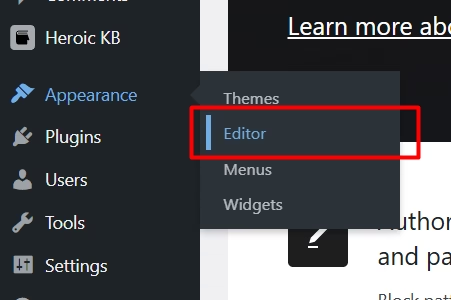
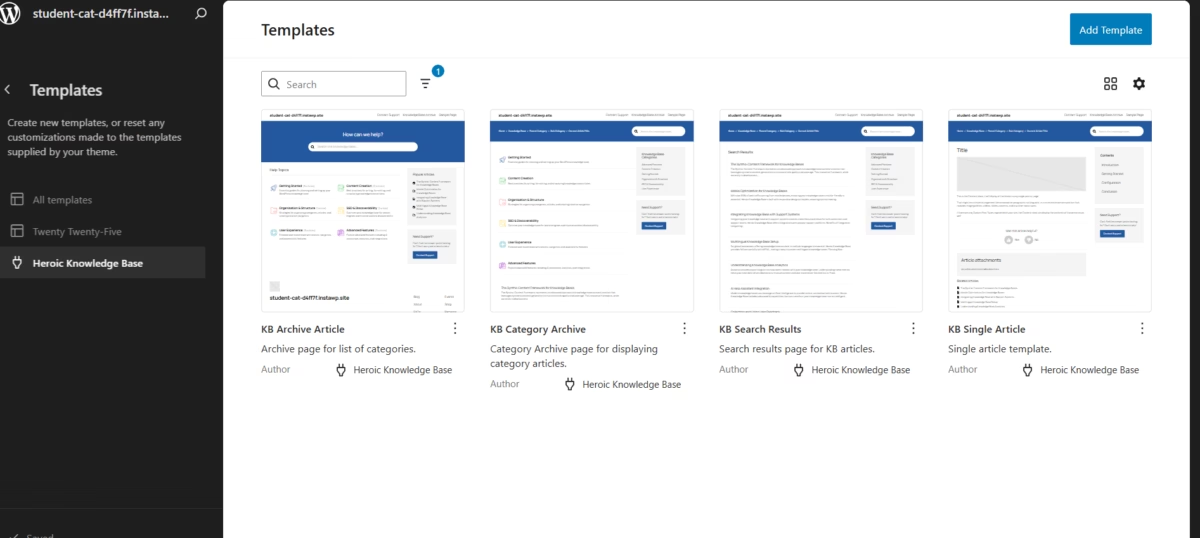
- These templates can use a shared header that includes the KB Breadcrumbs block in a top bar, often alongside the search block. Edit the template or the header section to change where the breadcrumb appears, its layout, or to add it to another KB template.
- To add or move the block: select the template you want (e.g. KB Category Archive or KB Single Article), then in the canvas click into the header area (or the group that contains the breadcrumb), click + (Add block), search for KB Breadcrumbs or Heroic KB, and insert the block. Place it at the top of the content area so it shows on all KB pages that use that template.
Where to find the block (editor)
- In the block editor (page/post or Site Editor template), click + (Add block).
- Search for KB Breadcrumbs or find it under Heroic KB.
- Insert the block at the top of the content area so it appears on every KB page that uses that template (or template part).
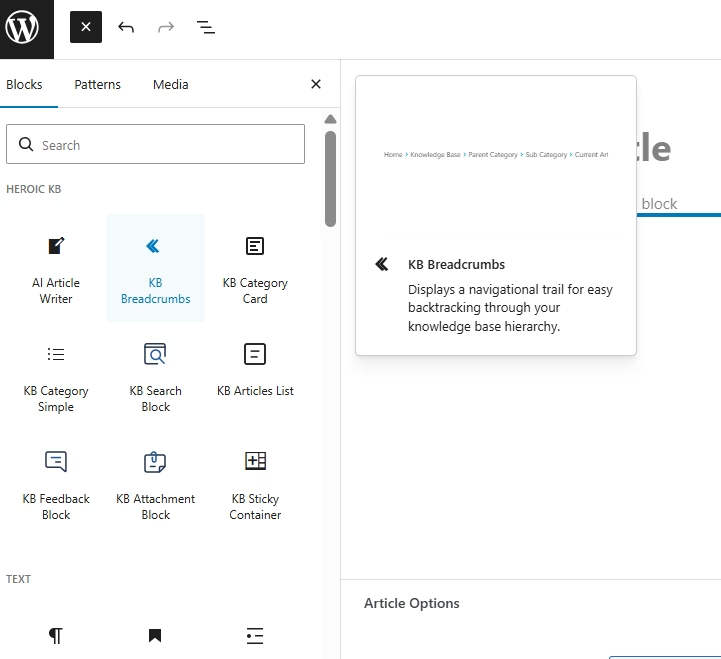
Quick start
- In the Site Editor, open the KB template or template part where you want breadcrumbs (e.g. category archive or its header).
- Add KB Breadcrumbs at the top of the main content or header.
- Set KB Archive Text to the label for your KB home (e.g. “Knowledge Base”, “Help Center”).
- Use Show Home Link to include or omit the site home in the trail.
- Use block styling to match colors, typography, and spacing.
What the trail shows
Home > Knowledge Base > Parent Category > Subcategory > Current Article
Each segment except the current page is a link. The current page is shown as text only.
Block settings
| Option | Description | Default |
|---|---|---|
| KB Archive Text | Label for the knowledge base archive (home) link | “Knowledge Base” |
| Show Home Link | Include the site home as the first link | On |
Styling: colors (links, hover), typography, background, border, spacing.
Notes
- The current page is not linked. Breadcrumbs update automatically based on the current post or archive.
- Works on articles, category archives, and the main KB archive. In block themes, editing the template or shared header in the Site Editor updates breadcrumbs for all KB pages that use it.
KB Category Card
Display knowledge base categories as a grid of cards with icons, descriptions, and article counts. Suited to the KB homepage or any page where you want a visual overview of topics.
Where to find the block
- In the block editor, click + (Add block).
- Search for KB Category Card or find it under Heroic KB.
- Insert the block; use the sidebar to set columns, what to show, and optional article lists.
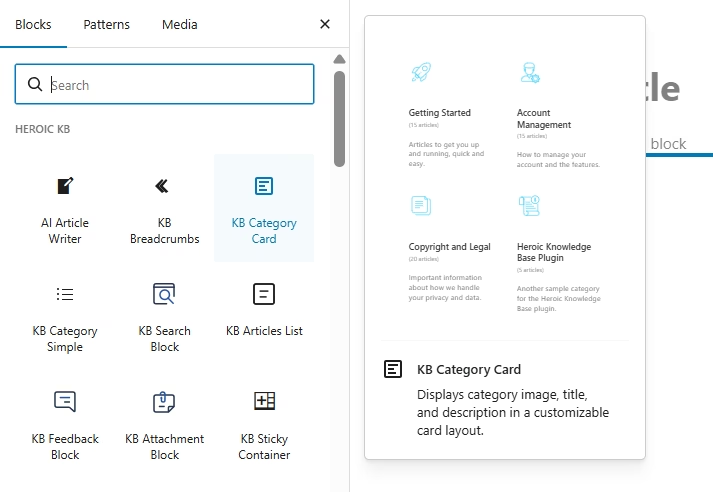
Quick start
- Add the KB Category Card block (e.g. on the KB homepage).
- Set Columns (1–4); 2–3 works well for most layouts.
- Choose Card Type: icon on Top, Left, or Right.
- Turn on Show Category Name, Show Description, Show Icon, Show Article Count as needed.
- Optionally enable Show Article List and set how many articles per card and “View all” link.
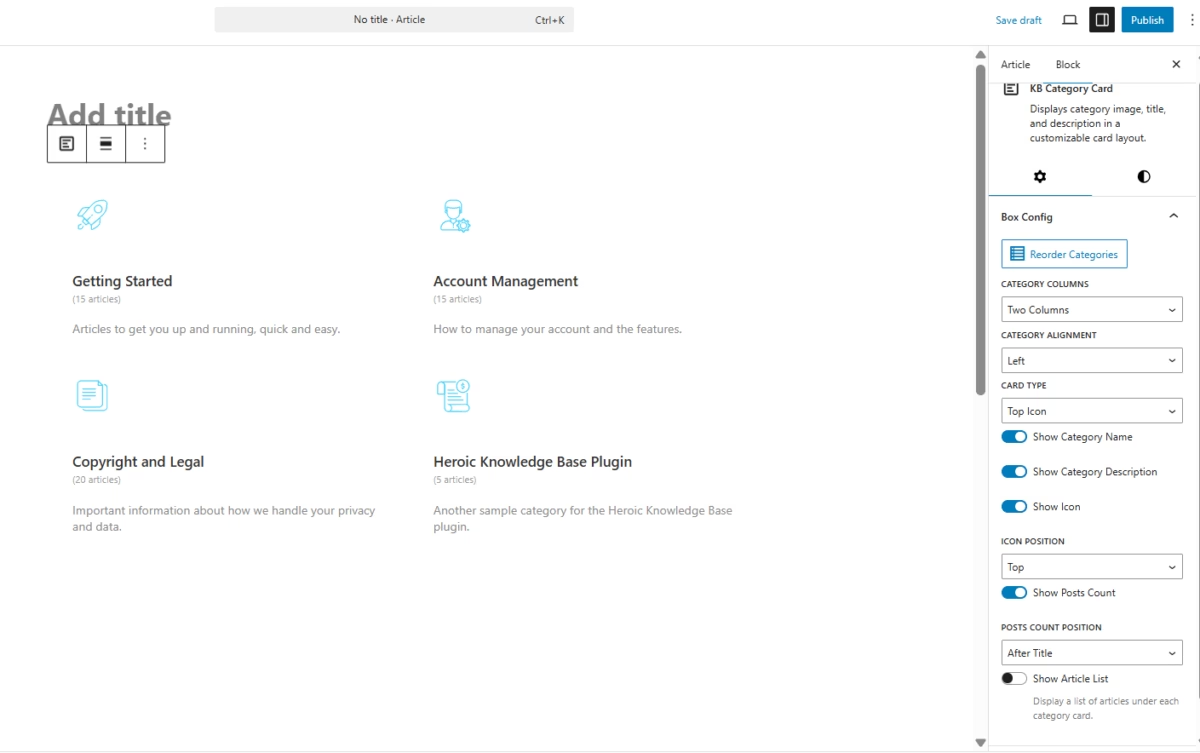
Block settings
Layout: Columns, Alignment, Card Type (Top/Left/Right).
What to display: Show Category Name, Show Description, Show Icon, Show Article Count, Count Position.
Article list (optional): Show Article List, Number of Articles, Show View All Link, Sort By, Sort Order.
Manage Categories: Reorder, hide categories, preview.
Notes
- Article counts include articles in subcategories. Category icons are set in WordPress. Layout responds to smaller screens.
KB Category Simple
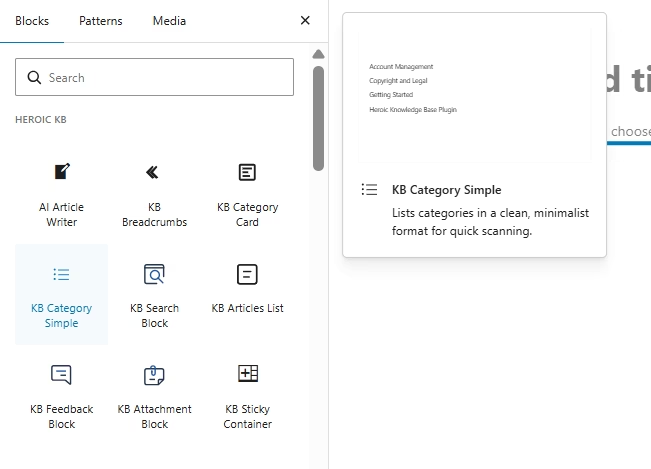
Show knowledge base categories as a plain list of links. Best for sidebars and tight spaces where you need compact navigation without icons or descriptions.
Where to find the block
- In the block editor, click + (Add block).
- Search for KB Category Simple or find it under Heroic KB.
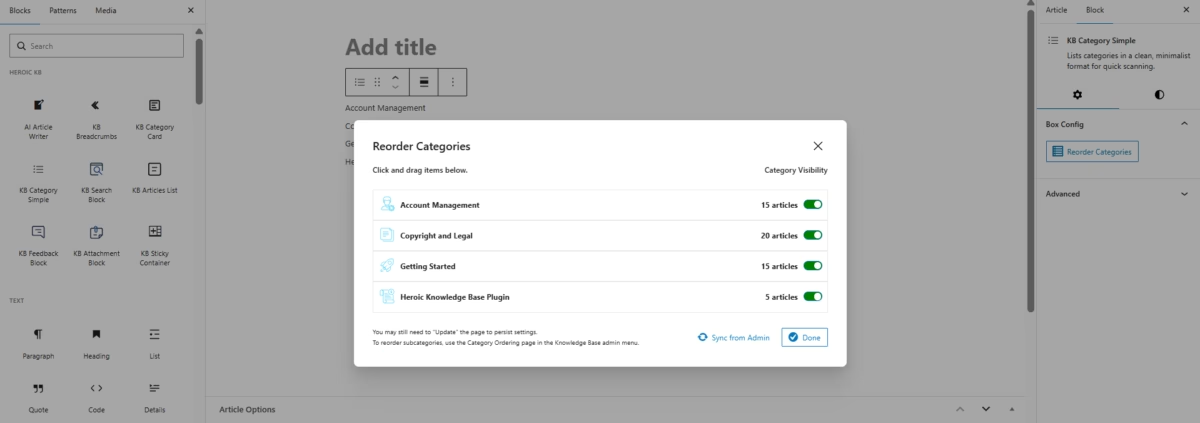
- Insert the block. Use Manage Categories in the sidebar to reorder and show/hide categories.
Quick start
- Add KB Category Simple (e.g. in a sidebar).
- Click Manage Categories to drag-and-drop order and toggle visibility.
- Use block styling for text/link colors, font size, and spacing.
- Optionally wrap in a KB Sticky Container so the list stays visible while scrolling.
Block settings
Manage Categories: Reorder, show/hide categories, view full list.
Styling: Colors (text, links), typography, spacing, shadow.
Simple vs Category Card
| Simple | Category Card | |
|---|---|---|
| Layout | Text list | Card grid |
| Icons / Descriptions / Article count | No | Yes |
| Best for | Sidebars, footers | Homepage, landing |
Notes
- Default order is alphabetical until you set order in Manage Categories. Hidden categories stay in WordPress but do not appear on the front.
KB Articles List
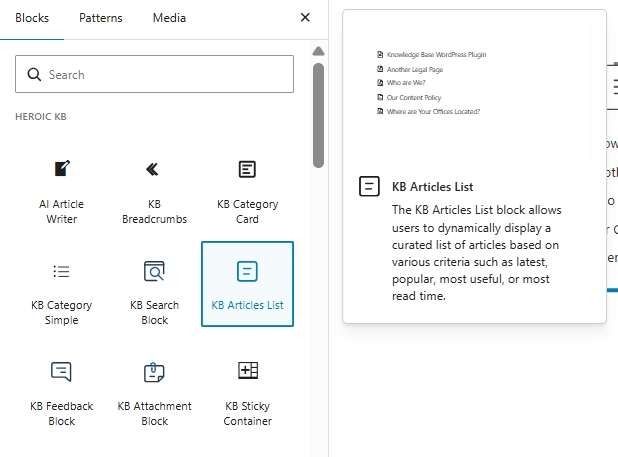
Show a list of knowledge base articles by Latest, Popular, Most Liked, or Related (same category as the current article). The list updates automatically as content or analytics change.
Where to find the block
- In the block editor, click + (Add block).
- Search for KB Articles List or find it under Heroic KB.
- Insert the block and choose the article type and number of articles in the sidebar.
Quick start
- Add the KB Articles List block where you want the list (e.g. homepage, sidebar).
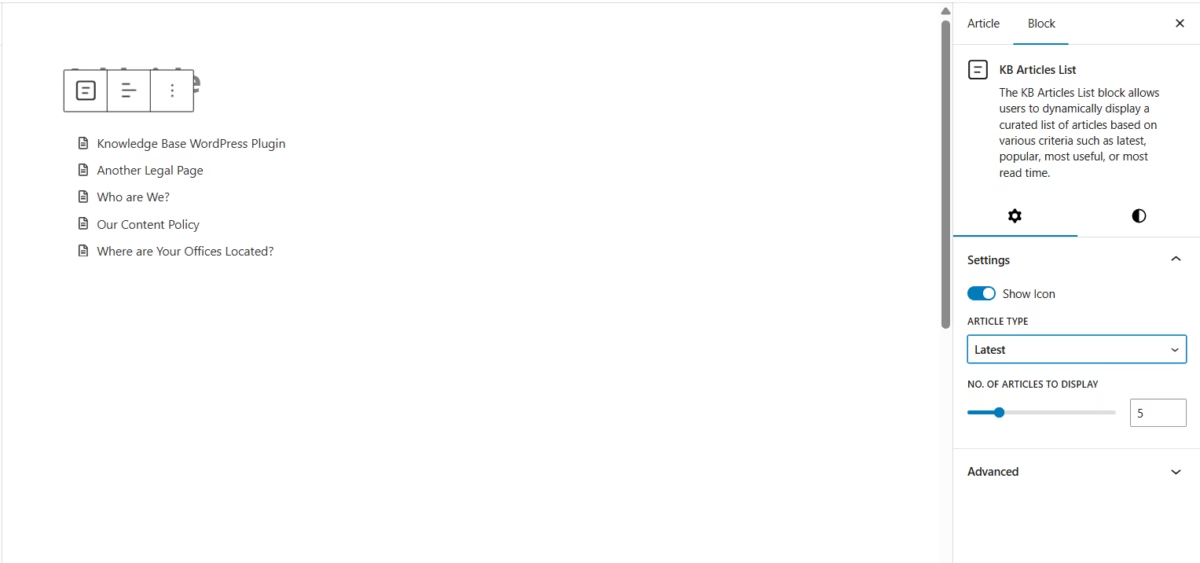
- In the sidebar set Article Type to Latest, Popular, Most Liked, or Related.
- Set Number of Articles (1–20); 5–10 is usually enough.
- Leave Show Icon on unless you want text-only titles.
Block settings
| Option | Description | Default |
|---|---|---|
| Show Icon | Document icon next to each title | On |
| Article Type | Which articles to show | Latest |
| Number of Articles | How many to show (1–20) | 5 |
Article types: Latest (most recent), Popular (most views; requires view tracking), Most Liked (highest helpfulness; requires feedback), Related (same category; only on single article pages).
Styling: text color, link color, typography in block/sidebar.
Where to use
- Homepage – Latest or Popular. Article sidebar – Related. Footer / sidebar – Most Liked.
Common questions
Why is “Most Liked” empty? It only shows articles that have received helpfulness votes. Enable feedback and encourage voting.
Why does “Related” show nothing? Related only works on a single article page and uses the article’s category. Ensure the article has a category and that others exist in that category.
How does “Popular” work? It uses view counts. Enable view tracking in Heroic KB settings.
Notes
- Lists update automatically. Related excludes the current article. Popular and Most Liked depend on analytics/feedback being enabled.
KB Attachment Block
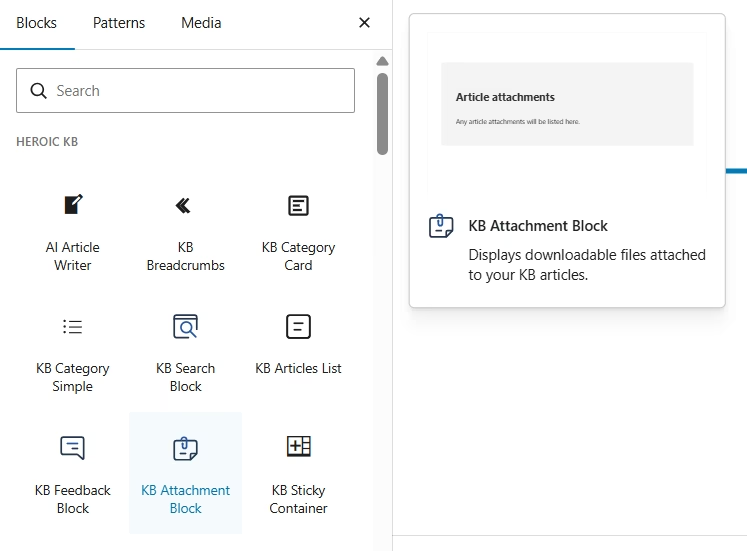
Show downloadable files attached to the current knowledge base article. Use it for PDFs, documents, templates, and other resources linked from the article.
Where to find the block
- Edit a KB article or the article template.
- Click + (Add block) and search for KB Attachment or open Heroic KB.
- Insert the block where you want the attachments to appear (typically after the main content, before the feedback block).
Quick start
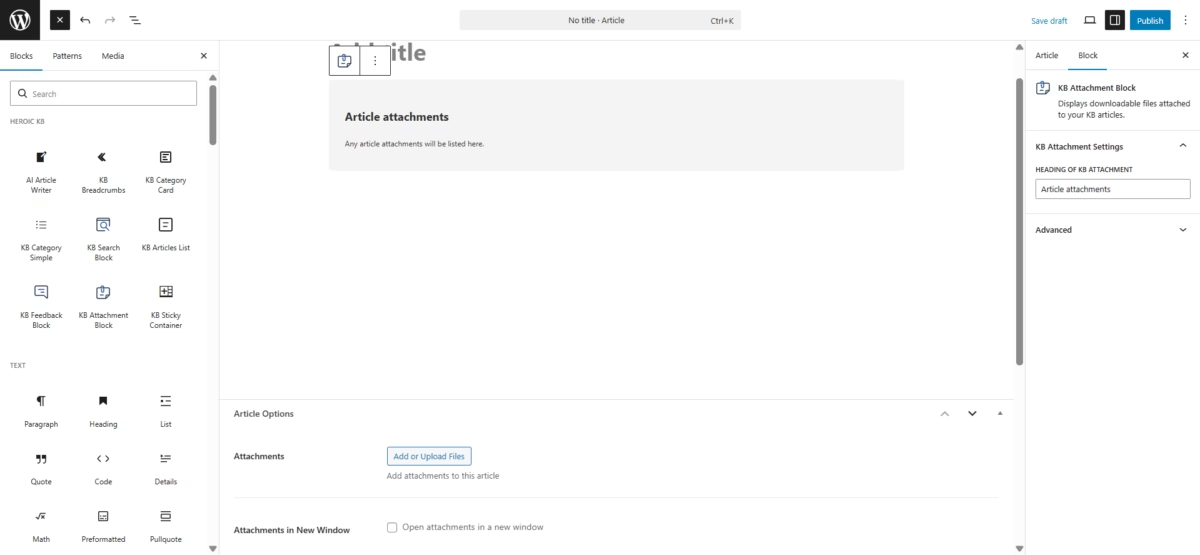
- Add the KB Attachment block to your article (or template).
- Set Heading in the sidebar (e.g. “Article attachments”, “Downloads”, “Resources”).
- Attach files to the article via the WordPress Media Library (upload and attach to the post).
- The block will list those files automatically; if none are attached, it shows nothing.
Block settings
| Option | Description | Default |
|---|---|---|
| Heading | Title above the file list | “Article attachments” |
Styling: usual block/sidebar options.
How attachments are added
Edit the KB article → upload or select files in the Media Library and attach them to the article. The Attachment block displays all files attached to that article. No extra configuration needed.
Supported file types: Any type WordPress supports (e.g. PDF, Word, Excel, images, ZIP, MP3, MP4)
Notes
- If no files are attached, the block does not output anything. Files are served from your WordPress media library. Consider storage and bandwidth for many large files.
KB Feedback Block
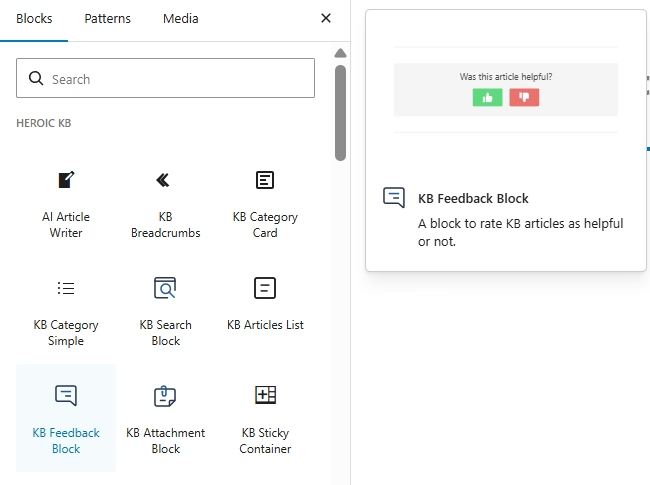
Let visitors rate an article as helpful (yes) or not helpful (no). Use the results to see which articles work well and which to improve. One block per article, usually at the end of the content.
Where to find the block
- Edit a KB article or the article template.
- Click + (Add block) and search for KB Feedback or open Heroic KB.
- Insert the block after the main content (and before or after attachments if you use them).
Quick start
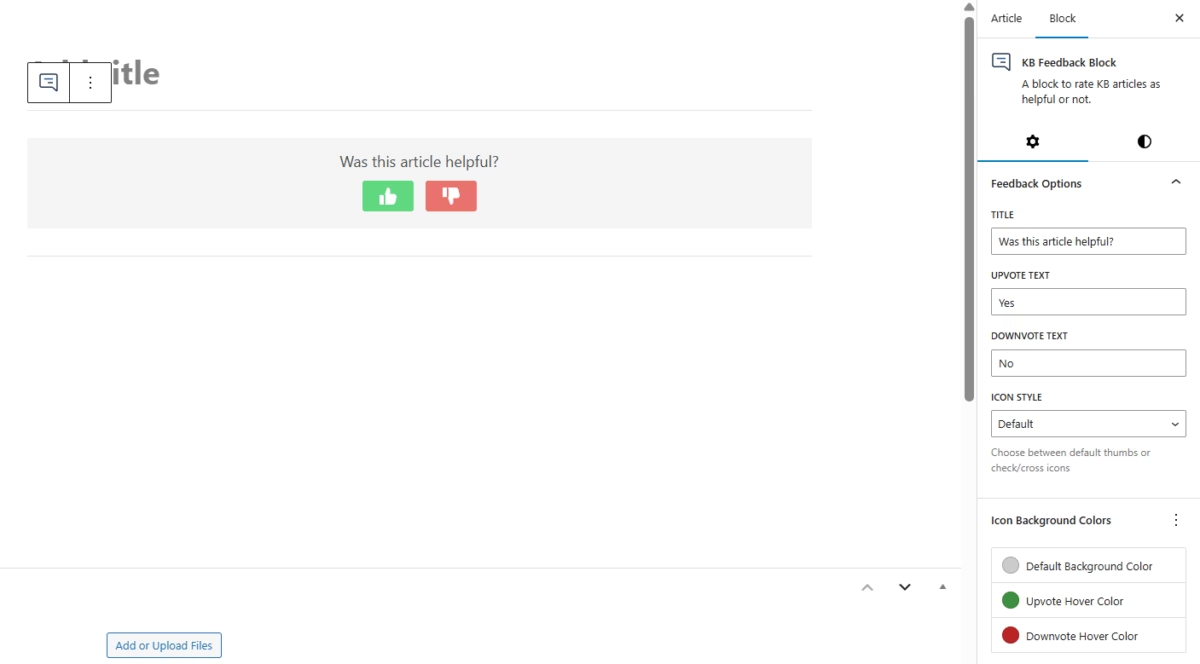
- Add the KB Feedback block at the end of the article (or template).
- Leave Title as “Was this article helpful?” or change it (e.g. “Did this answer your question?”).
- Set Upvote Text and Downvote Text (e.g. “Yes” / “No”).
- Choose Icon Style: Thumbs or Check/Cross. Adjust default and hover colors if needed.
Block settings
| Option | Description | Default |
|---|---|---|
| Title | Question shown to the reader | “Was this article helpful?” |
| Upvote Text / Downvote Text | Button labels | “Yes” / “No” |
| Icon Style | Button icons | Thumbs (or Check/Cross) |
| Icon colors | Default background, Upvote hover, Downvote hover | — |
Styling: background, text, border, spacing.
Notes
- Place the block after the main content so visitors can vote after reading. One feedback block per article is enough.
- Visitors typically vote once per article. Feedback features must be enabled in the plugin for voting to work and for Popular/Most Liked lists to use this data.
KB Sticky Container
Keep a block (or group of blocks) visible at the top of the viewport while the rest of the page scrolls. Use it for sidebars: related articles, category list, table of contents, or quick links.
Where to find the block
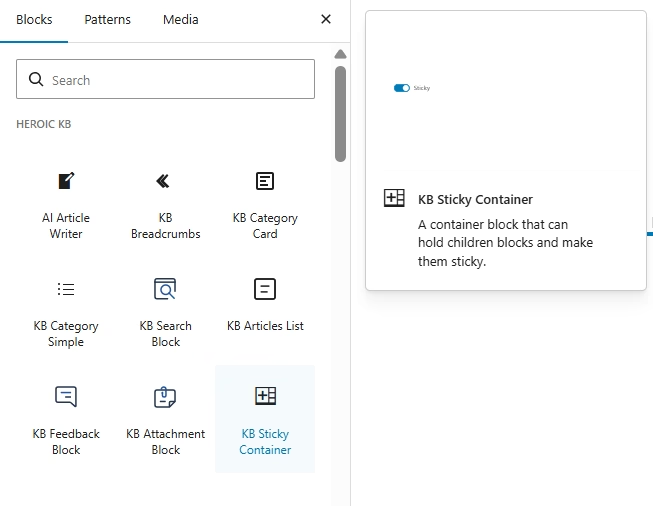
- In the block editor, click + (Add block).
- Search for KB Sticky Container or find it under Heroic KB.
- Insert the block (usually in a sidebar column), then add the blocks you want to stick inside it (e.g. KB Articles List, KB Category Simple).
Quick start
- Create or edit a layout with a main content column and a sidebar (e.g. 70% / 30%).
- In the sidebar column, add KB Sticky Container.
- Inside the container, add blocks such as KB Articles List (Related) or KB Category Simple.
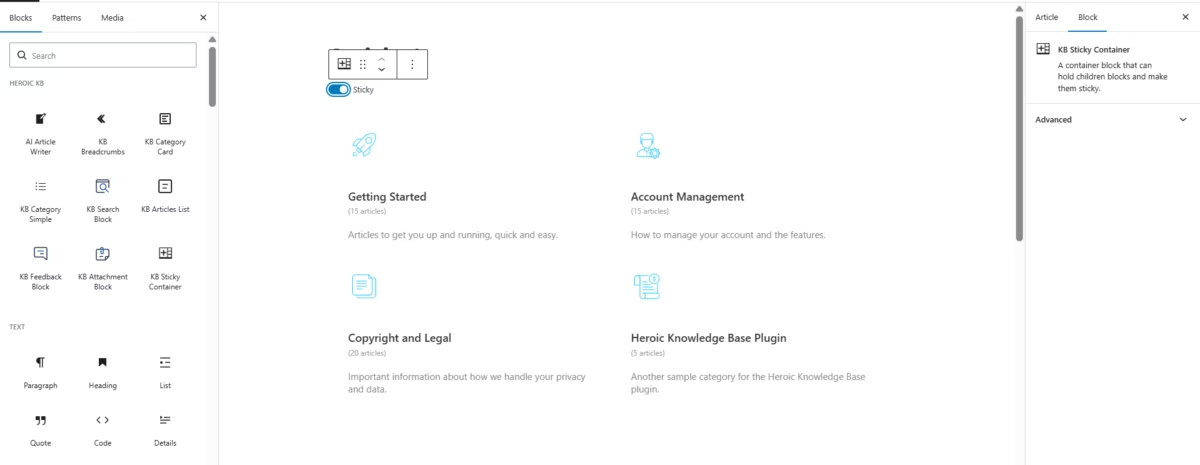
- Ensure Sticky is on in the block sidebar. When the page is long enough to scroll, the sidebar content will stick to the top.
Block settings
| Option | Description | Default |
|---|---|---|
| Sticky | Enable or disable sticky behavior | On |
How it works
When the visitor scrolls down, the content inside the Sticky Container stays at the top of the viewport (within the layout). Sticky only applies when there is enough page height to scroll. Works with any blocks inside the container.
Best uses
- Related articles – Keep “Related articles” visible while reading a long article.
- Category navigation – Category list stays in view.
- Quick links / contact – Keep important links or contact info visible.
Notes
- Use one sticky section per page. Keep the sticky content shorter than the viewport height when possible. Test on mobile.
- Sticky only activates when there is enough content to scroll. Supported in modern browsers.