7 exemples de tickets de help desk informatique et comment les gérer efficacement
 Chris Hadley

La plupart des tickets de help desk ou de support entrent dans quelques catégories familières. En fait, les réinitialisations de mot de passe à elles seules peuvent représenter la moitié des demandes de support informatique.
Répondre sans cesse aux mêmes questions peut être exaspérant. Mais avec la bonne approche (et les bons outils), vous pouvez gérer ces tickets plus rapidement, plus intelligemment et avec le sourire.
Dans ce guide, nous explorerons les tickets courants de help desk informatique et apprendrons à gérer chacun d'eux comme un pro.
Dans ce guide
- Qu'est-ce qu'un ticket de support de help desk ?
- How to Manage Helpdesk Tickets Effectively (Quick Guide)
- Common IT Help Desk Ticket Examples
- 1. Password Reset Request (Forgotten Password)
- 2. New Software or Access Request (Install or Permission Needed)
- 3. Network or Internet Connectivity Issue
- 4. Computer Running Slow or Freezing
- 5. Email Not Working (Send/Receive Problems)
- 6. Employees Onboarding and Offboarding Request
- 7. Positive Feedback or Compliment
- 1. Password Reset Request (Forgotten Password)

Nous testons et recherchons rigoureusement chaque produit que nous recommandons via HeroThemes. Notre processus d'examen. Nous pouvons également gagner une commission si vous effectuez un achat via nos liens.
Qu'est-ce qu'un ticket de support de help desk ?
Un ticket de help desk est simplement un enregistrement du problème ou de la demande d'un client dans un système de suivi.
Chaque ticket contient des détails sur la demande, qui s'en occupe, les mises à jour de statut, etc.
Un système de billetterie, qui fait souvent partie d'un logiciel de helpdesk, permet d'organiser tous ces tickets.
Comment gérer efficacement les tickets de help desk (Guide rapide)
La mise en œuvre de quelques bonnes pratiques peut transformer votre opération de support du chaos à une grande efficacité. Voici le plan d'action :
1. Trier et prioriser
Prenez l'habitude de trier les tickets entrants par urgence et par impact.
Par exemple, une panne système complète affectant tous les utilisateurs devrait être la priorité absolue, tandis qu'un léger inconvénient pour un seul utilisateur peut attendre.
De nombreux outils de helpdesk comme Heroic Inbox vous permettent de définir des priorités ou même d'automatiser de tels tickets.
2. Utiliser un outil de help desk unifié
Un système de helpdesk dédié est indispensable pour gérer les demandes de support.
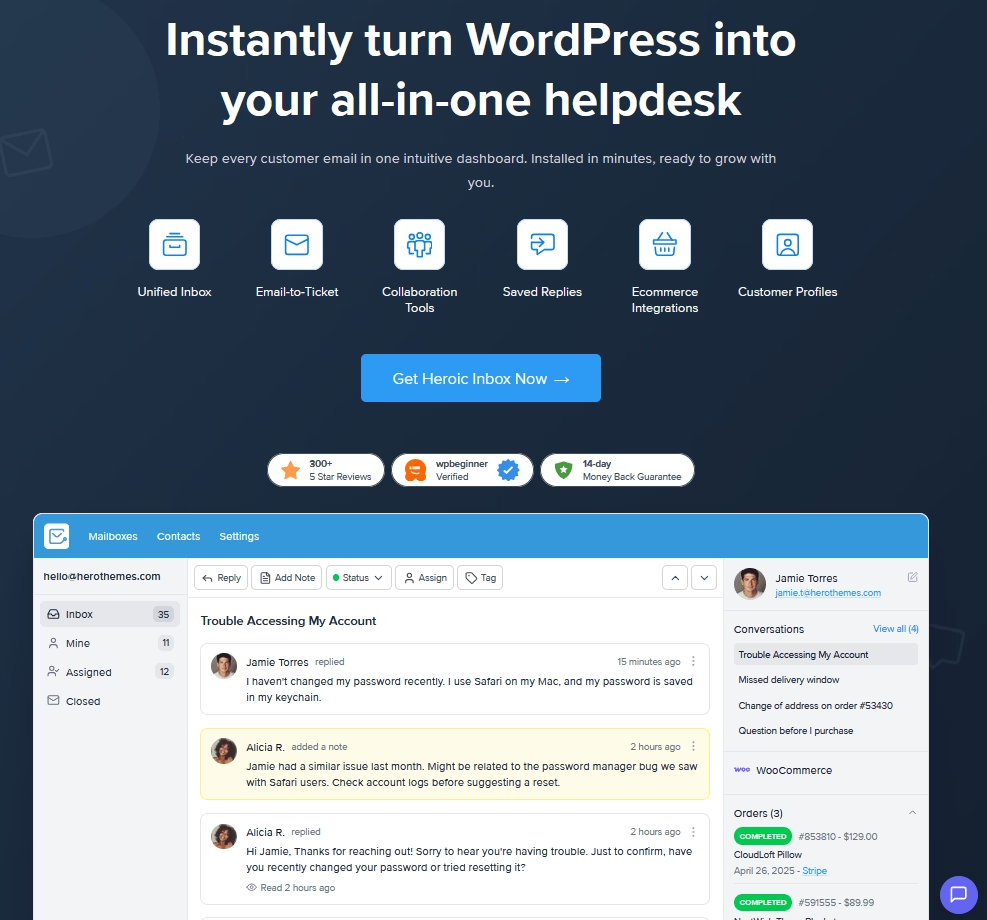
Des outils comme Heroic Inbox centralisent tous les e-mails clients et tickets de support dans une boîte de réception partagée, rendant la gestion des tickets et la collaboration d'équipe un jeu d'enfant.
3. Exploitez les Réponses préenregistrées et les Modèles
Si vous vous surprenez à taper les mêmes phrases tous les jours, arrêtez !
Créez et utilisez des modèles pour les scénarios courants.
Les helpdesks modernes vous permettent de les enregistrer et de les insérer en un clic. Cela garantit la cohérence des réponses et préserve la santé mentale de votre équipe.
4. Activez le libre-service
Donnez aux clients et aux employés les moyens de s'aider eux-mêmes.
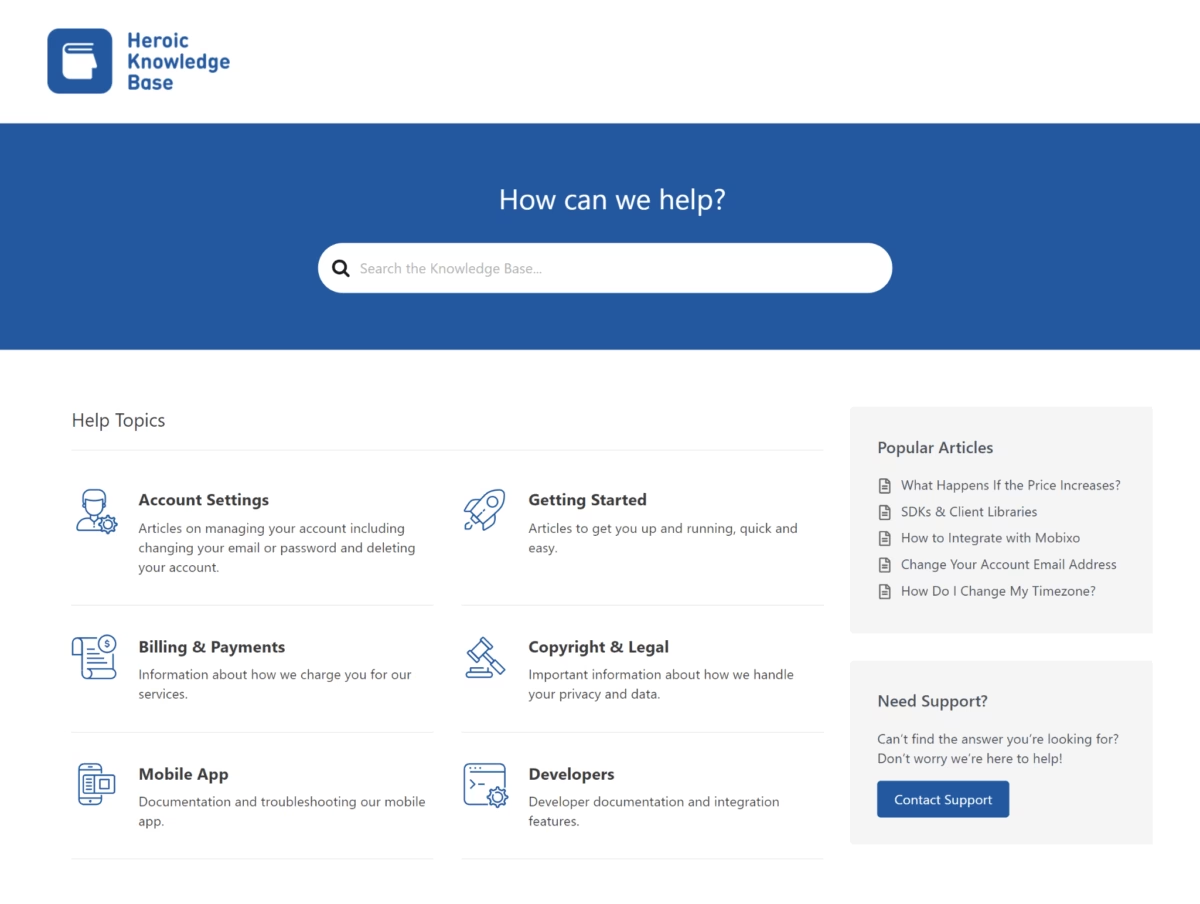
Cela peut être réalisé en créant une base de connaissances complète et en documentant les solutions passées.
Un logiciel comme Heroic Knowledge Base fournit toutes les fonctionnalités nécessaires pour créer et gérer une base de connaissances robuste.
Explorer :
Comment créer un portail en libre-service (Guide étape par étape)
Top 7 des solutions en libre-service en 2026
5. Automatisez les tâches de routine
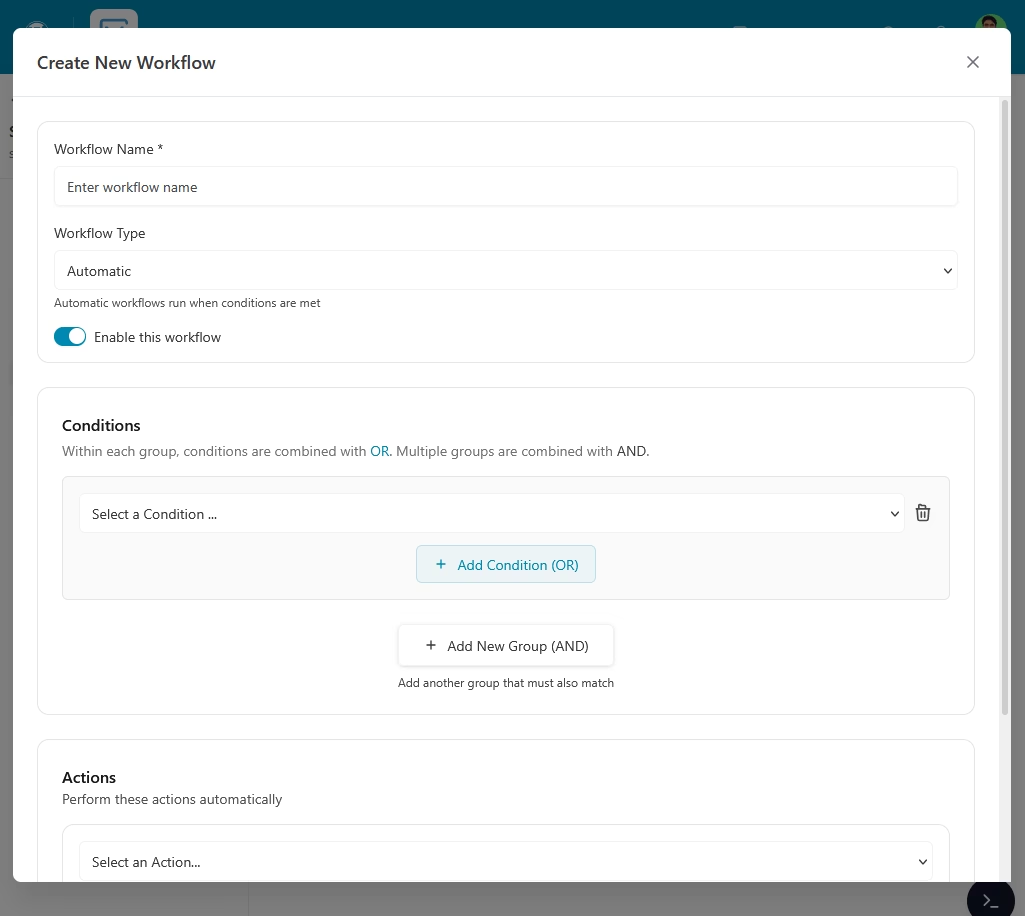
Vous pouvez également automatiser le routage des tickets.
Par exemple, tous les problèmes de « facturation » pourraient être automatiquement dirigés vers l'équipe de facturation. Si un ticket contient des mots-clés comme « remboursement » ou « erreur de paiement », votre système pourrait l'étiqueter ou l'attribuer en conséquence.
6. Mesurer et améliorer
Le suivi de métriques telles que le temps de première réponse, le temps de résolution et la satisfaction client (CSAT) peut révéler des goulots d'étranglement.
Explorer :
Indicateurs de service client à suivre en 2026
Enquêtes de satisfaction client : Outils, meilleures pratiques, modèles + plus
7. Restez empathique et professionnel
C'est appelé support client pour une raison : le contact humain est important.
Les modèles et l'automatisation vous feront gagner du temps, mais assurez-vous que chaque réponse reste personnelle et empathique.
Exemples courants de tickets de help desk informatique
Les équipes de support informatique aident les employés à résoudre les problèmes liés à la technologie. Elles s'occupent des problèmes en coulisses au sein d'une entreprise.
1. Demande de réinitialisation de mot de passe (mot de passe oublié)
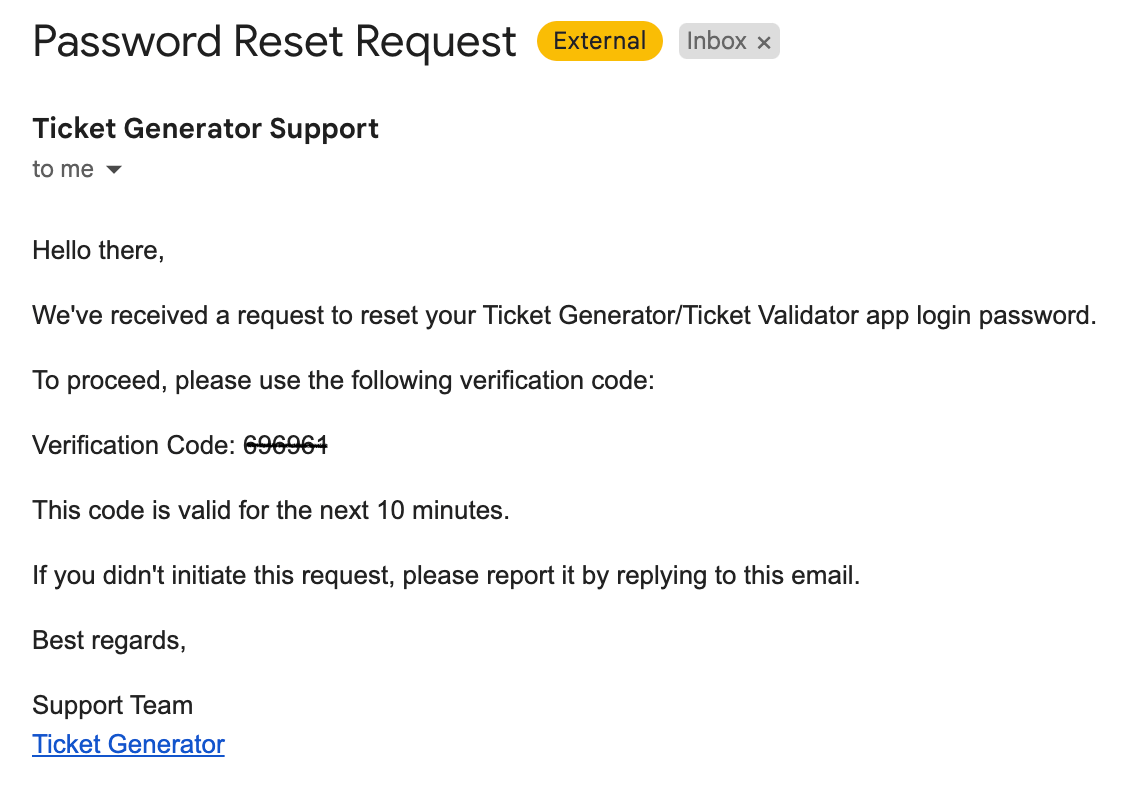
Un employé ne peut pas se connecter à son ordinateur ou à un système interne parce que, surprise, il a oublié son mot de passe (ou celui-ci a expiré).
Oui, les gens oublient leur mot de passe beaucoup et ces demandes peuvent représenter 50 % des tickets de support dans certaines organisations.
Pourquoi cela arrive :
- Les politiques de mot de passe exigent souvent des changements fréquents, et les utilisateurs ont du mal à suivre.
- Les comptes sont également bloqués après trop de tentatives erronées.
- Parfois, c'est le brouillard cérébral du lundi matin. Qui se souvient de ce qu'il a défini vendredi dernier ?
Comment gérer les tickets de réinitialisation de mot de passe :
Tout d'abord, vérifiez l'identité de l'utilisateur, surtout si vous communiquez par e-mail ou par chat. Vous ne voulez pas réinitialiser le mot de passe d'un imposteur.
Il est courant de demander à l'utilisateur de vérifier une information ou, si possible, de l'avoir au téléphone ou en appel vidéo.
Une fois vérifié, utilisez les outils d'administration de votre système pour réinitialiser le mot de passe ou débloquer le compte.
En coulisses, envisagez la prévention. Des réinitialisations fréquentes de mot de passe peuvent indiquer que les utilisateurs pourraient bénéficier d'un système d'authentification unique (SSO) ou d'outils de gestion de mots de passe.
Si la politique le permet, l'activation de fonctionnalités telles que la « réinitialisation de mot de passe en libre-service » peut réduire considérablement la charge de travail informatique.
2. Nouvelle demande de logiciel ou d'accès (installation ou permission requise)
Ces tickets de help desk concernent l'obtention de quelque chose (logiciel, matériel, permissions) plutôt que la réparation de quelque chose de cassé.
Par exemple : « Demande : Veuillez installer l'application XYZ » ou « Besoin d'accès au lecteur partagé des finances ».
Pourquoi cela arrive :
- Les entreprises restreignent souvent la possibilité d'installer des logiciels ou d'accéder à certaines données pour des raisons de sécurité et de contrôle des licences.
- Les nouveaux employés n'ont peut-être pas tous les accès dont ils ont besoin dès le départ, ou les rôles changent et les personnes ont besoin d'outils qu'elles n'avaient pas auparavant.
- Certains logiciels nécessitent l'achat d'une licence, l'informatique doit donc gérer cela de manière centralisée.
Comment gérer cela :
Ces demandes ont généralement un processus. En tant que responsable du support, vous voulez vous assurer que les approbations et le suivi sont corrects, car l'octroi d'accès a souvent des implications en termes de coûts ou de sécurité.
Voici une approche typique :
- Validez la demande. De nombreuses organisations exigent qu'un responsable ou un chef de département approuve les achats de logiciels ou les nouvelles autorisations, surtout s'il y a un coût ou une sensibilité des données.
- Vérifiez la licence et la disponibilité
- Traitez la demande. Une fois que tout semble correct, procédez. S'il s'agit d'un logiciel que le service informatique peut déployer à distance, c'est parfait. De nombreux services informatiques utilisent des outils pour déployer des logiciels sur les machines des utilisateurs à distance. Sinon, vous devrez peut-être planifier une courte session de partage d'écran ou vous rendre au bureau de l'utilisateur pour l'installer.
- Communiquez et documentez la demande.
Si pour une raison quelconque vous ne pouvez pas satisfaire la demande (plus de licences disponibles, ou peut-être que la politique n'autorise pas ce logiciel), soyez transparent.
Proposez des alternatives si possible : « Nous n'avons plus de licences pour Photoshop. J'en ai demandé une supplémentaire au service des achats, ce qui peut prendre 2-3 jours. En attendant, si c'est urgent, nous pouvons installer GIMP comme solution temporaire – c'est un outil gratuit pour l'édition d'images de base. Faites-moi savoir si cela fonctionne comme solution de dépannage. »
Bonnes pratiques
- Si pour une raison quelconque vous ne pouvez pas satisfaire la demande (plus de licences disponibles, ou peut-être que la politique n'autorise pas ce logiciel), soyez transparent. Et proposez des alternatives si possible.
- Suivez les demandes traitées dans vos journaux d'actifs informatiques ou d'autorisations.
- Mettez à jour vos listes de contrôle d'intégration. Par exemple, si chaque nouveau vendeur demande l'accès au CRM, votre processus d'intégration devrait l'inclure.
3. Problème de connectivité réseau ou Internet

Dans un environnement de bureau, le problème peut être lié au réseau câblé ou sans fil. Pour les travailleurs à distance, le problème peut concerner le VPN.
Quoi qu'il en soit, c'est important car la plupart des gens ne peuvent pas faire grand-chose sans réseau de nos jours.
Et il y a de nombreuses raisons de défaillance du réseau :
- Le problème peut concerner la machine de l'utilisateur ou l'infrastructure réseau.
- Problèmes de point d'accès Wi-Fi (AP)
- Panne de service Internet
Comment gérer les tickets de panne réseau :
Premièrement, déterminez l'étendue. S'agit-il d'un seul utilisateur ou de plusieurs ? Vérifiez si plusieurs tickets arrivent simultanément.
S'il s'agit d'un seul utilisateur, il s'agit probablement de son appareil ou de sa connexion spécifiquement.
Ensuite, effectuez un dépannage rapide :
- Vérifier la couche physique
- IP et paramètres
- Tests alternatifs
- Changements spécifiques au VPN
Pour plusieurs utilisateurs ou des problèmes à l'échelle du bureau, escaladez vers un protocole de panne réseau :
- Vérifier le matériel réseau principal
- Vérifiez le statut de votre fournisseur d'accès à Internet s'il pourrait s'agir du FAI.
Si vous identifiez un problème généralisé, communiquez rapidement et largement. N'attendez pas que 50 tickets s'accumulent.
Envoyer un e-mail ou une alerte : « Nous sommes conscients que le réseau du bureau est actuellement hors service et nous enquêtons. L'heure estimée de résolution sera mise à jour prochainement. »
Astuce : Documentez les étapes et la cause dans le ticket pour référence future. Au fil du temps, vous constituerez une base de connaissances des correctifs réseau courants.
4. Ordinateur lent ou bloqué
C'est un ticket d'assistance courant, mais il est délicat car la « lenteur » peut être causée par de nombreuses choses.
Il peut s'agir d'une lenteur générale ou de problèmes logiciels spécifiques.
Souvent, ils vivent avec cela depuis un certain temps et ne contactent qu'à présent.
Un ordinateur lent peut être causé par de nombreuses choses :
- Trop de programmes en arrière-plan.
- Mémoire faible (RAM)
- Problèmes de disque. Un disque dur presque plein peut ralentir les choses.
- Mises à jour ou processus bloqués
- Matériel obsolète
- Limitation thermique
- Bugs logiciels
- Virus/logiciels espions
Voici quelques éléments à considérer lors du dépannage de la vitesse de votre ordinateur :
- Essayez de redémarrer le PC d'abord : Un redémarrage peut effacer les fuites de mémoire et les processus bloqués (et appliquer les mises à jour en attente).
- Vérification des ressources : Utilisez le Gestionnaire des tâches (Windows) ou le Moniteur d'activité (Mac) pour voir ce qui consomme le plus de CPU, de RAM ou de disque.
- Santé et espace disque : Vérifiez l'espace libre. Si le disque (lecteur C:) est plein à 99 %, c'est probablement la cause.
Libérer de l'espace en supprimant les fichiers temporaires, les anciens téléchargements et les programmes inutilisés peut considérablement accélérer les ordinateurs.
De nombreux problèmes de « PC lent » sont résolus en remplaçant un HDD par un SSD si le matériel de l'utilisateur est obsolète. - Mémoire et applications : Quelle quantité de RAM le système possède-t-il ? S'il s'agit de 4 Go, par exemple, et que l'utilisateur a Chrome avec 50 onglets ouverts plus des appels Zoom, l'ordinateur fonctionnera lentement.
- Mises à jour et correctifs : Assurez-vous que le système d'exploitation est à jour et qu'il n'est pas en cours d'installation de mises à jour. Idem pour les pilotes.
- Analyser les logiciels malveillants
- Journaux : Si le problème est le blocage, consultez l'Observateur d'événements (Windows) pour obtenir des indices. Les journaux d'erreurs ou d'événements système peuvent indiquer des erreurs répétées.
- Considérations matérielles : Vérifiez si l'appareil surchauffe. Le ventilateur ne fonctionne peut-être pas correctement ou les aérations sont obstruées.
Plus de conseils :
- Implémentez les correctifs un par un et testez chacun d'eux.
- Si le PC est vraiment ancien, vous devrez peut-être mettre à niveau le matériel ou éventuellement remplacer tout le PC.
5. E-mail ne fonctionne pas (problèmes d'envoi/réception)
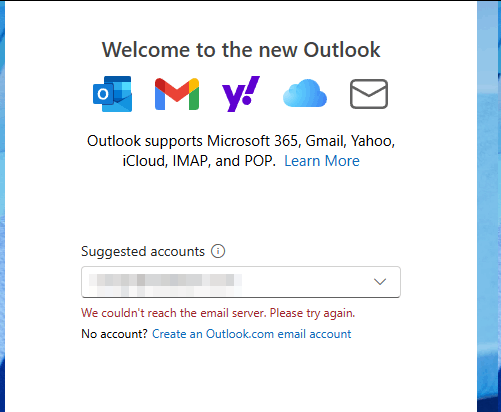
Les erreurs d'e-mail telles que « Impossible de se connecter au serveur de messagerie » ou « Rejet : Votre e-mail n'a pas pu être livré » peuvent provenir de diverses causes :
- Panne de serveur ou de service
- Problèmes de réseau ou de connectivité
- Problèmes logiciels côté client
- Boîte aux lettres pleine ou quota dépassé
- Identifiants incorrects ou changement de mot de passe
- Problèmes de périphérique local
- E-mail bloqué dans la boîte d'envoi
- Filtrage ou règles de spam/courrier indésirable
Comment gérer cela :
Commencez par identifier s'il s'agit d'un problème spécifique à l'utilisateur ou généralisé au système. Demandez autour de vous ou consultez le système de surveillance.
Si tout le monde rencontre des problèmes avec les e-mails, il s'agit d'un incident majeur, et votre attention doit se porter sur l'alerte et la résolution du serveur ou l'appel au support de votre outil et de votre fournisseur d'e-mails.
Ensuite, procédez à un dépannage ciblé :
- Vérifier l'état du client de messagerie
- État du compte : Assurez-vous que leur compte n'a pas été désactivé ou qu'il n'y a rien d'étrange.
- Dépanner le client
- Éventuellement recréer le profil de messagerie s'il semble corrompu. Cela peut résoudre les problèmes de synchronisation.
- Spam/Filtrage : Vérifiez si des e-mails ont été envoyés dans le dossier Courrier indésirable ou filtrés. Peut-être qu'une règle s'y est appliquée. Vérifiez également la quarantaine côté serveur, le cas échéant.
- Problèmes sortants (rejets) : Examinez le message de rejet. Il explique souvent la raison, comme « Boîte aux lettres introuvable » (peut-être que l'adresse du destinataire est incorrecte) ou « Bloqué par la politique ».
Vous devez toujours répondre à ces tickets de manière investigative, encourageante et prioritaire.
Si la correction prend du temps, tenez l'utilisateur informé et proposez des alternatives.
6. Demandes d'intégration et de départ des employés
Le helpdesk informatique doit gérer l'intégration des employés et l'intégration avec grâce.
Chaque fois que quelqu'un de nouveau rejoint ou quitte l'entreprise, l'informatique doit faire le travail préparatoire ou le nettoyage.
L'intégration comprend généralement :
- Création de comptes utilisateurs
- Définition de l'adresse e-mail
- Ajout des employés aux groupes pertinents
- Préparation du matériel
- Installation d'un nouveau bureau
Tandis que le départ comprend généralement :
- Désactivation des comptes
- Collecte de l'équipement
- Préservation des données (comme les archives d'e-mails)
Comment gérer les tickets d'intégration et de départ :
La cohérence et la rigueur sont essentielles. Vous ne voulez pas que la nouvelle personne arrive sans e-mail ou sans les autorisations nécessaires.
Avoir des checklists d'intégration et de départ aide énormément.
Une fois que tout est configuré, testez l'essentiel. Envoyez un e-mail de test à leur nouvelle adresse et assurez-vous qu'ils ont accès aux applications critiques.
Une communication transparente est également requise.
Demandez aux employés si les outils fournis fonctionnent correctement et s'ils savent par où commencer leur travail, ou en cas de départ, mentionnez les politiques importantes de l'entreprise (comme ne pas divulguer les secrets de l'entreprise).
Et assurez-vous de vérifier à nouveau après une semaine que rien n'a été oublié.
Une bonne intégration et un bon départ préviennent également les tickets futurs. Bien faire les choses dès le début est efficace. Alors, traitez les demandes d'intégration comme des tâches de projet.
Explorer :
Meilleures lignes d'objet d'e-mail d'intégration pour les nouveaux utilisateurs, plateformes SaaS
Intégration client : Guide étape par étape avec exemples
7. Retour positif ou compliment
Tous les tickets ne sont pas des problèmes ! Parfois, les clients ou les employés écrivent juste pour dire quelque chose de gentil.
Peut-être qu'ils ont adoré une fonctionnalité, ou qu'un agent de support les a grandement aidés auparavant et qu'ils expriment leur gratitude, ou qu'ils veulent juste féliciter.
Ou cela pourrait venir de votre patron, qui sait 🤷
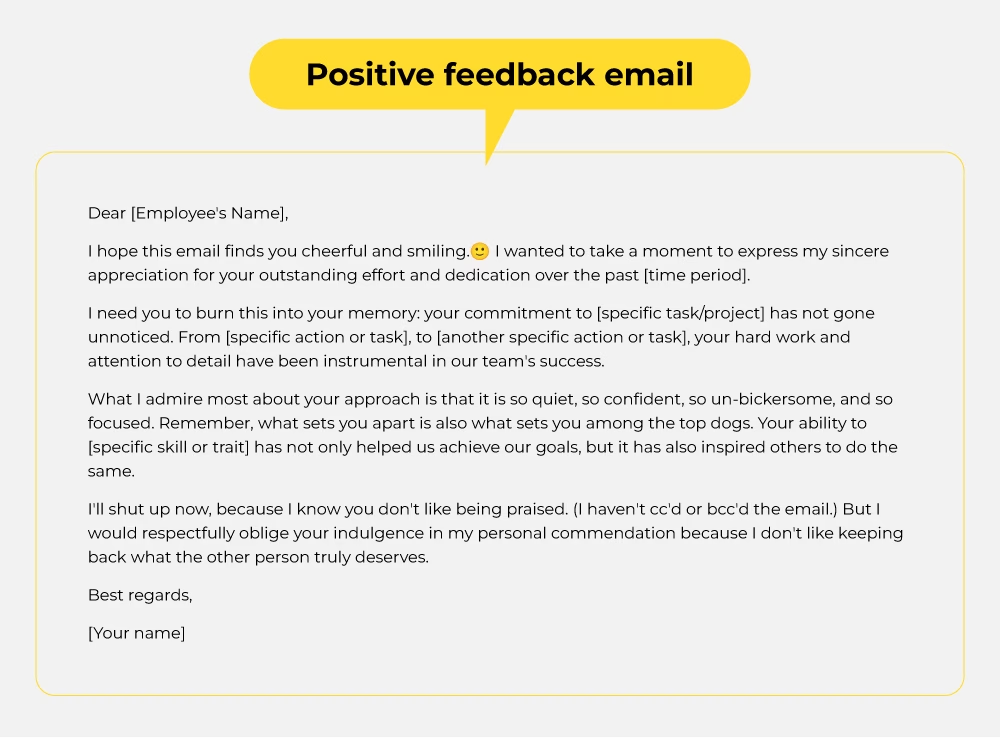
C'est essentiellement l'inverse d'une plainte et une occasion en or de renforcer la bonne volonté.
Comment gérer les tickets de retour positif :
- Exprimez votre gratitude pour leur retour. Faites-leur savoir que cela a égayé votre journée.
- S'ils complimentent un membre spécifique de l'équipe ou une fonctionnalité, assurez-vous de le transmettre en interne.
- Gardez un ton chaleureux et peut-être un peu moins formel (puisque l'ambiance est positive).
- Une longue réponse n'est peut-être pas nécessaire, mais un merci personnalisé est apprécié.
- Si le compliment est énorme (par exemple, ils attribuent à un agent de support le sauvetage de leur journée de travail), vous pourriez même l'élever au rang de témoignage ou demander si vous pouvez l'utiliser à des fins marketing. Initialement, cependant, remerciez-les simplement.
Dernières réflexions
Pour conclure ce guide sur les exemples de tickets de support :
- Faites preuve d'empathie et utilisez un ton centré sur le client.
- Fournissez des solutions claires ou les prochaines étapes.
- Assumez le problème et assurez le suivi.
- Soyez poli et professionnel, en ajustant votre ton en fonction du contexte (décontracté pour les situations positives et formel pour les situations sérieuses).
- Adaptez toujours votre approche aux politiques spécifiques de votre entreprise et à la situation individuelle.
- Dans la mesure du possible, efforcez-vous de dépasser les attentes.
J'espère que ce guide vous fournira une base solide et de l'inspiration pour transformer chaque ticket en une opportunité de fournir un excellent service.
Lectures complémentaires
Comment créer un formulaire de ticket de support, plus des modèles et des exemples
Comment rédiger des FAQ : 9 conseils puissants et exemples
Comment gérer les e-mails de retour et de remboursement : Meilleures pratiques, exemples
Comment répondre aux e-mails de clients en colère
Comment gérer les demandes des clients