Inbox Zero in 2026: A Practical Guide to a Clear, Productive Inbox


Your inbox probably isn’t a disaster. More likely, it’s a slow leak: 40 unread newsletters, a client email you’ve opened twice and still haven’t answered, and a nagging feeling that something important is buried in there.
Microsoft’s research on the “infinite workday” puts the average worker at 117 emails a day, most of them skimmed in under a minute, so you’re far from alone.
Inbox Zero is the method that many people try when the feeling becomes overwhelming, but many abandon it after a few frustrating weeks.
Here at HeroThemes, we’ve spent more than a decade building tools for support teams who live in email, and the people who make the method stick don’t chase an empty folder. They make one quick decision on every message and get back to work.
In this guide I’ll walk you through what Inbox Zero means (and what it doesn’t), then the exact zero inbox strategy I’d set up today.
Short on time? Here’s how to achieve inbox zero in eight steps:
- Archive everything older than two weeks (a controlled “email bankruptcy”).
- Create three folders: @Action, @Waiting For, and @Read Later.
- Make one decision per email: delete, delegate, respond, defer, or do.
- Handle anything that takes under two minutes on the spot.
- Unsubscribe and set filters so less mail lands in your inbox.
- Check email in two or three scheduled sessions instead of all day.
- Save templates for the replies you send every week.
- Close out each day in 10 minutes and review everything on Friday.
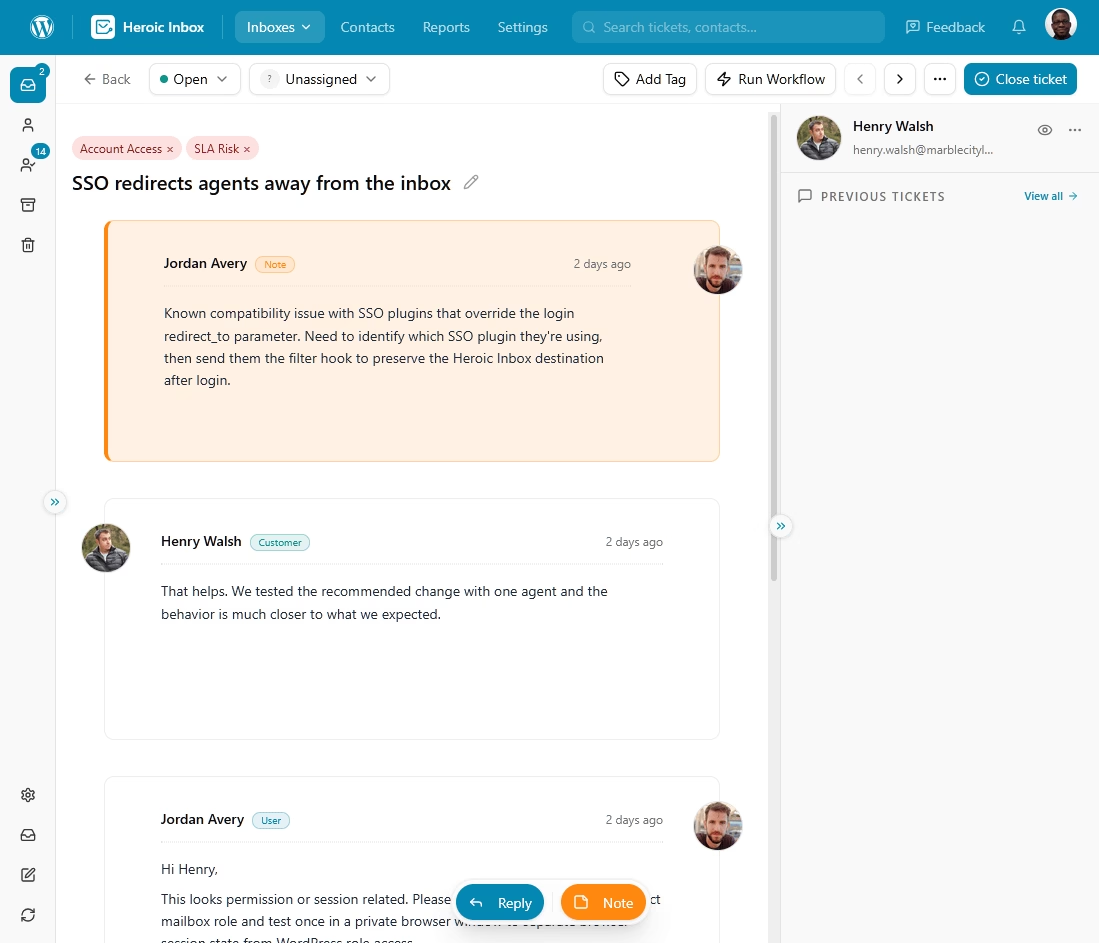
Heroic Inbox
Bring order to your team’s inbox. Manage support emails, assign tasks, and track conversations with Heroic Inbox, all from your WordPress dashboard.
Unlimited users and powerful features.
In This Guide
What Is Inbox Zero?
Inbox Zero is an email management method that treats your inbox as a place to process mail, not a place to store it. Every message gets one quick decision (delete, delegate, respond, defer, or do), so nothing sits there waiting for you to think about it again.
Productivity writer Merlin Mann created the method in 2006, and his “zero” was always about attention, not message count.
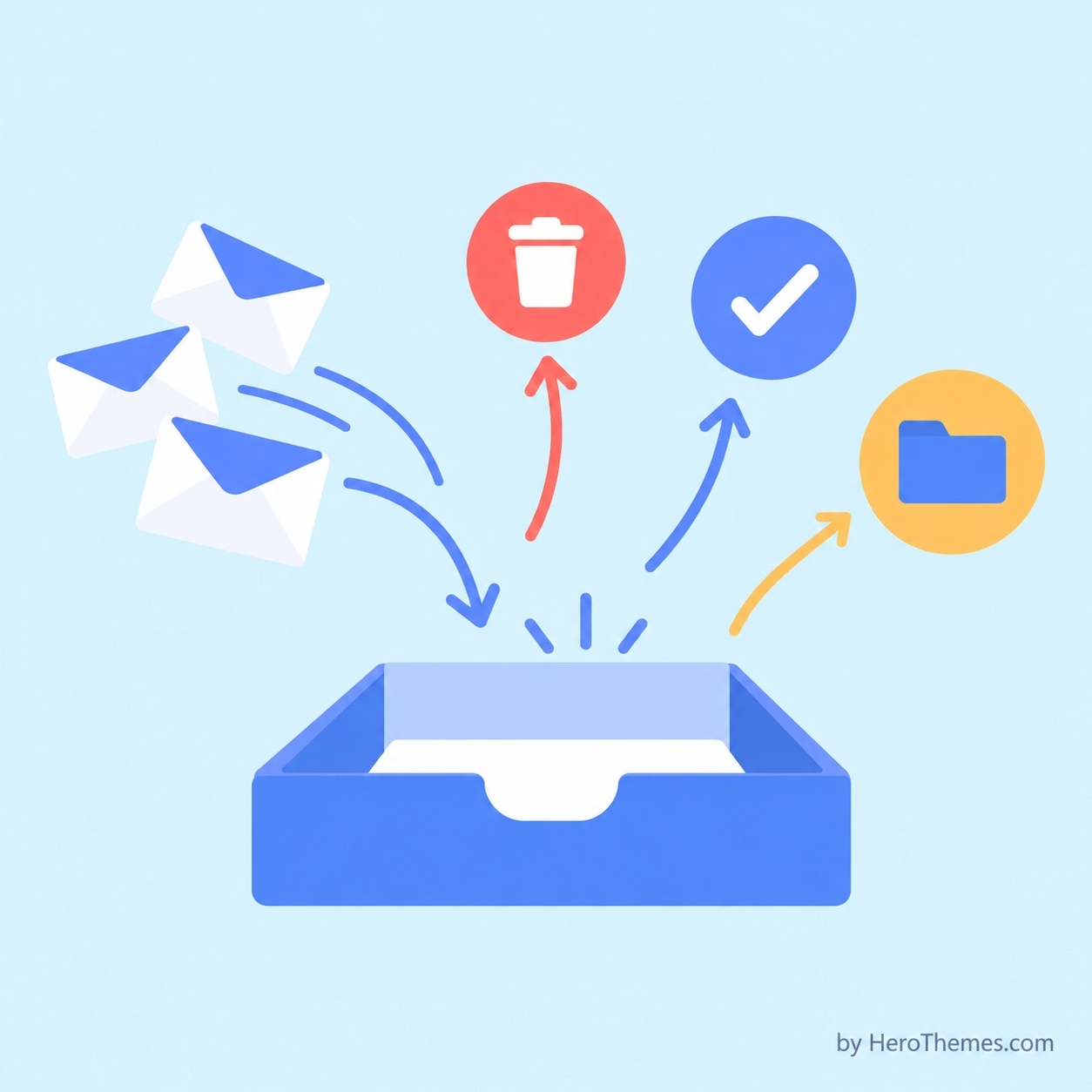
For example: A kitchen counter. Groceries are placed on it all day, but you wouldn’t leave the milk out overnight. Everything goes into the fridge, pantry, or trash, so the counter is clear for the next delivery.
What the “Zero” Means
The name is misleading, and Mann has spent years correcting it. He has said the zero refers to the amount of time your brain spends in your inbox, as The Next Web pointed out when it revisited the idea.
His oldest advice on the subject, from a 2005 post, was blunter still: “don’t live in your Inbox” if you can avoid it.
So an inbox with 12 messages you’ve consciously left for tomorrow morning can be “at zero.” An empty inbox you reached by hitting refresh every four minutes isn’t, because email still owns your attention.
Common Inbox Zero Misconceptions
Much of the criticism of Inbox Zero is aimed at a version that Mann never described. The following are the myths I’d dispel first:
- “Zero means an empty inbox every day.” Mann told readers in April 2006 that the inbox won’t stay at zero, and that it shouldn’t. Treat it as a process you repeat, not a finish line.
- “You have to answer everything.” Responding is one of five options. Archiving and deferring count as processing too.
- “It means checking email constantly.” It’s the opposite: you process in scheduled sessions and ignore email in between.
- “You need an elaborate folder tree.” Mann pushed for fewer folders; each tied to an action. A dozen nested folders usually means you’re sorting instead of deciding.
- “Inbox Zero is a productivity system.” It’s a triage habit, and your tasks belong in a task manager or calendar.
Who Inbox Zero Is For (and Who Should Skip It)
Inbox Zero method helps most when you’re buried in high-volume “mystery meat email,” the kind where requests, CCs, alerts, and newsletters all blur together.
That matches what we see with support teams: the bigger the share of your inbox that’s requests from other people, the more Inbox Zero pays off.
It tends to work well for:
- Managers and operators whose inbox are a queue of requests
- Freelancers and founders juggling client asks, invoices, and leads in one place
- Support agents and team leads, where every unanswered email is a customer waiting on you
- Anyone who feels a little dread before opening email
It’s a poor fit for:
- Low-volume inboxes. If you get 15 emails a day and none of them are urgent, search does the job.
- Conversation-heavy roles. Engineers often pushed back on Mann because their email is ongoing discussion, and threads that never “finish” don’t process neatly.
- People who find the empty count stressful. If chasing zero makes you anxious, aim for “close enough” instead.
Pro tip: Give the Inbox Zero method two full weeks before you judge it. The first few days feel slow because you’re making decisions you used to put off, and that pile of postponed decisions is what made your inbox feel overwhelming in the first place.
Best Tools for Keeping Inbox Zero
Gmail and Outlook are plenty for a personal inbox. Once email turns into customer support, though, you need three things a regular mailbox can’t give you: clear ownership, fast answers to repeat questions, and fewer incoming emails in the first place.
1. Heroic Inbox: Best for Shared Support Inboxes in WordPress
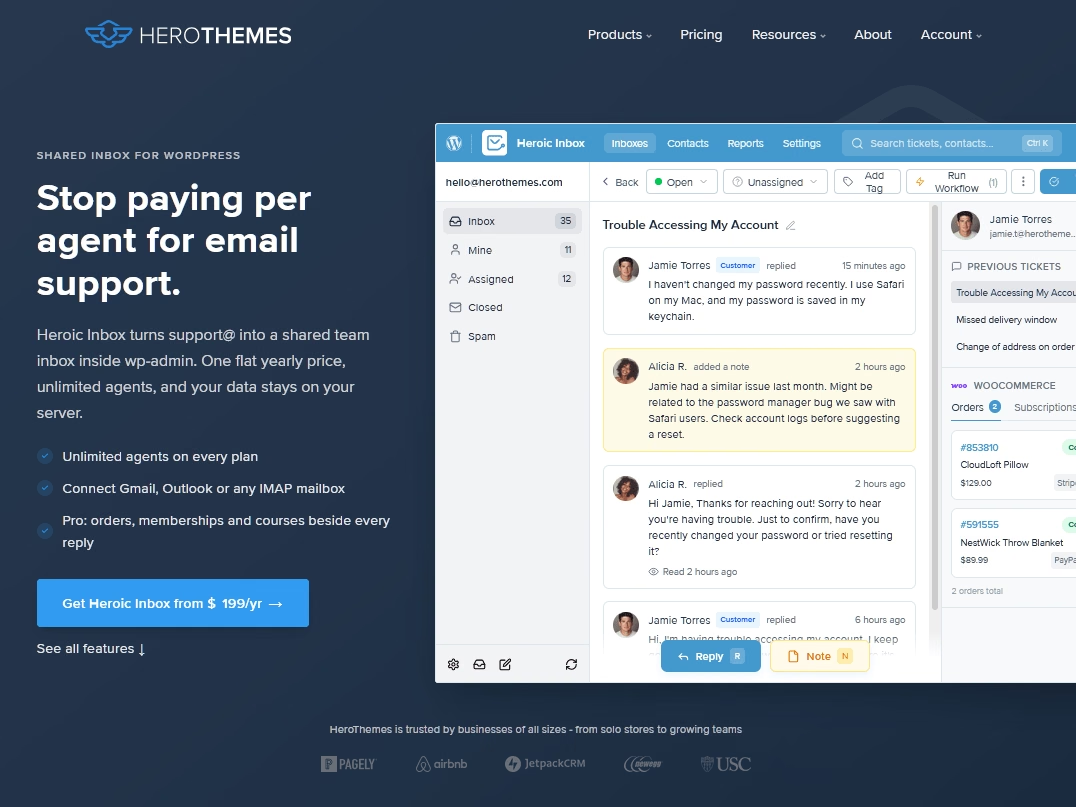
Heroic Inbox covers exactly what team Inbox Zero needs (assignment, statuses, saved replies, and automation) without charging per agent.
It is best suited for small and mid-size teams running support, sales, or billing email from a WordPress site, especially WooCommerce stores.
Key Features for Keeping a Team Inbox at Zero:
- Multiple mailboxes: Connect support@, sales@, and billing@ and work them all from one screen.
- Gmail, Outlook, and IMAP support.
- Assignment and statuses: Every conversation gets an owner and a next step, which is the whole definition of team Inbox Zero.
- Workflows: No-code rules triggered by keywords, sender, or priority can tag, assign, escalate, or auto-reply for you.
- Saved replies plus an AI reply generator that drafts replies and notes for your team to review before sending.
- Collision detection and internal notes, so two agents never answer the same customer.
- Snooze and follow-up reminders for conversations that can wait.
- Customer context: The sidebar shows the customer’s profile and ticket history, plus WooCommerce order details for store owners.
- Saved views like “open VIP tickets,” pinned to the sidebar.
- Heroic KB integration for linking customers to help articles without leaving the inbox.
- No per-user pricing: Adding a fourth agent doesn’t change your bill.
14-Day Money-Back Guarantee | Setup in Under 10 Minutes
2. HelpJet: Best for Answering Repeat Questions Before They Become Emails
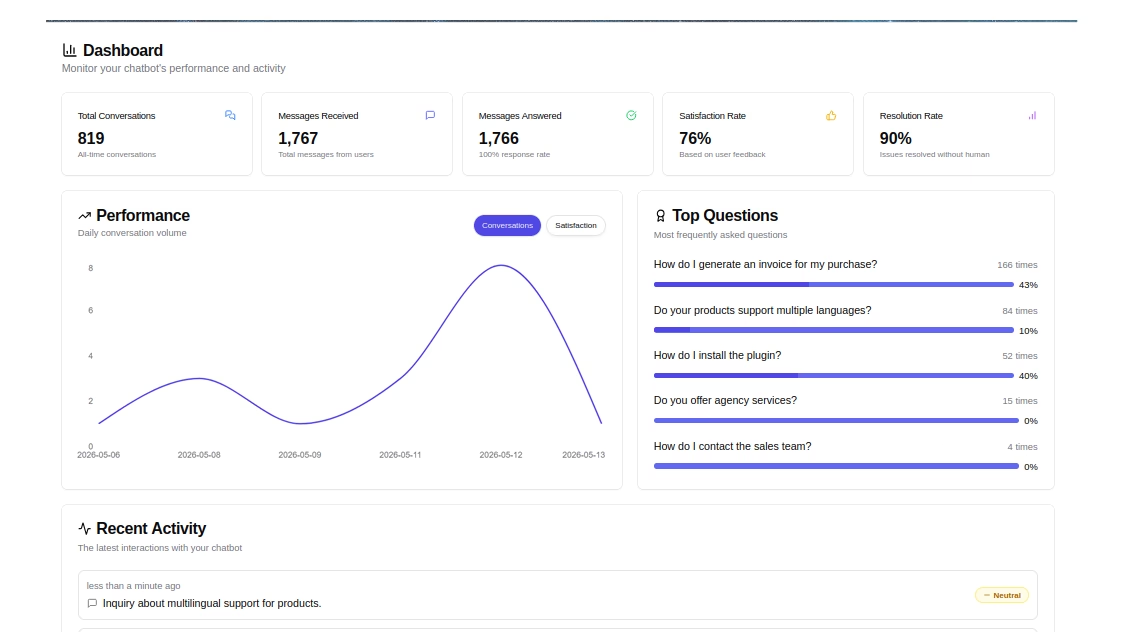
HelpJet is an AI support agent that you train on your own website, help articles, and PDFs, so it can answer those questions in a chat window before they turn into emails.
HelpJet works on the inflow side of Inbox Zero, which most email tools ignore. Setup is light (you paste your URL and it builds its first knowledge set), and the free plan is big enough to tell you within a week whether deflection works for your audience.
Key Features for Reducing Incoming Email:
- Trains on what you already have: URLs, help articles, PDFs, and past chats.
- Fast setup: HelpJet says you can go live in about five minutes.
- Human handoff: When a question needs a person, it points the visitor to your contact form, email, or phone instead of guessing.
- Knowledge refreshes weekly or on demand, so updated docs flow into its answers.
- Real conversations instead of menu trees, so customers can type a question the way they’d write an email.
- Simple pricing: One reply equals one interaction, with no per-seat fees.
HelpJet’s free plan includes one bot and 100 replies a month, and Pro costs $29 a month for three bots and 1,000 replies.
3. Heroic Knowledge Base: Best for Cutting Email Volume at the Source
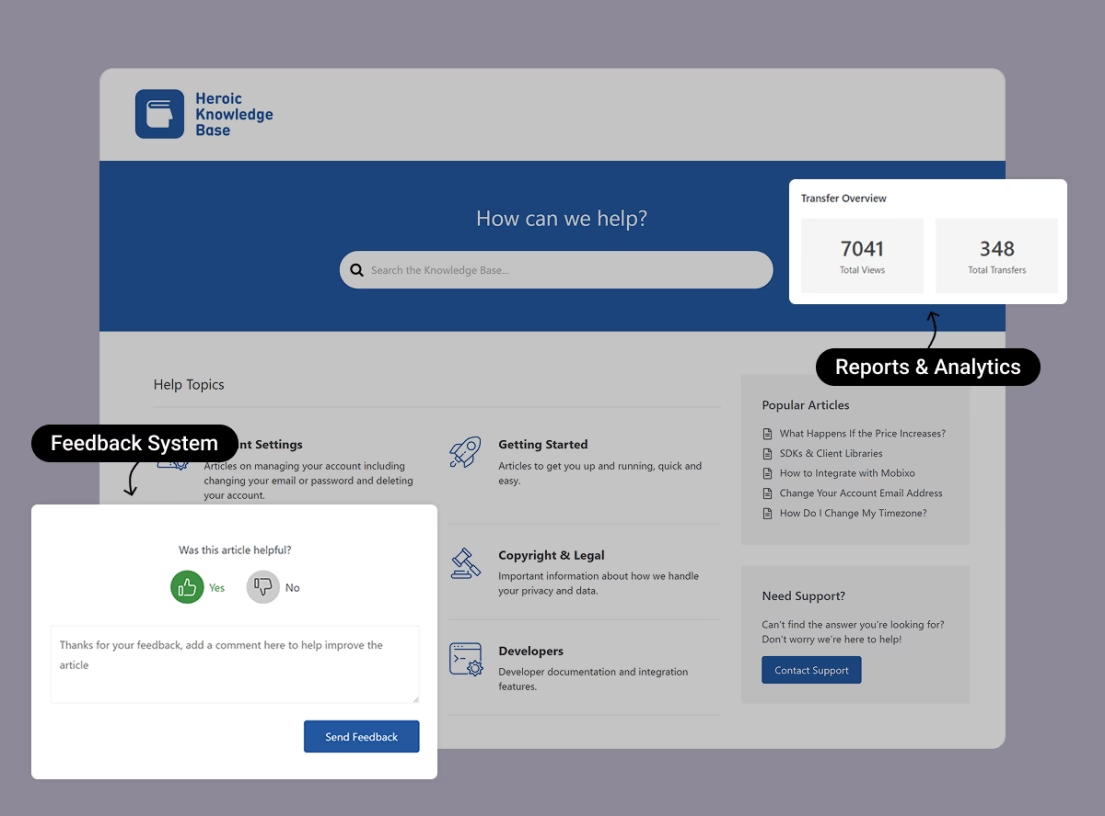
Heroic Knowledge Base (Heroic KB) helps with building a searchable help center on your own site.
It’s also the piece that makes the other two tools better: agents link to its articles from Heroic Inbox saved replies, and HelpJet can train on the same articles, so one well-written answer pays off three times.
Key Features for Reducing Incoming Email:
- Live search: Suggestions appear as visitors type, so they find answers before they reach your contact form.
- Article feedback: Readers mark articles as helpful or not, with an optional comment.
- Search analytics, including “null searches” that returned nothing, which doubles as your to-write list.
- Transfer analytics: See which articles still send people to contact support, so you know which answers aren’t landing.
- An instant answers widget that lets visitors search help articles from any page on your site.
- Automatic table of contents for longer articles.
- Access control at the category or article level, for content only logged-in customers should see.
- A setup wizard with sample content, and it works with any WordPress theme.
For the full setup, our guide on how to create a knowledge base in WordPress covers installation step by step, and the guide to writing knowledge base articles helps with creating effective content.
14-Day Money-Back Guarantee | 50% Off for the First Year
How To Achieve Inbox Zero: The Step-by-Step Zero Inbox Method
The steps below are in the order I’d tackle them.
Steps 1 and 2 take about an hour, once, and Steps 3-8 turn into habits that take a few minutes a day after the first week.
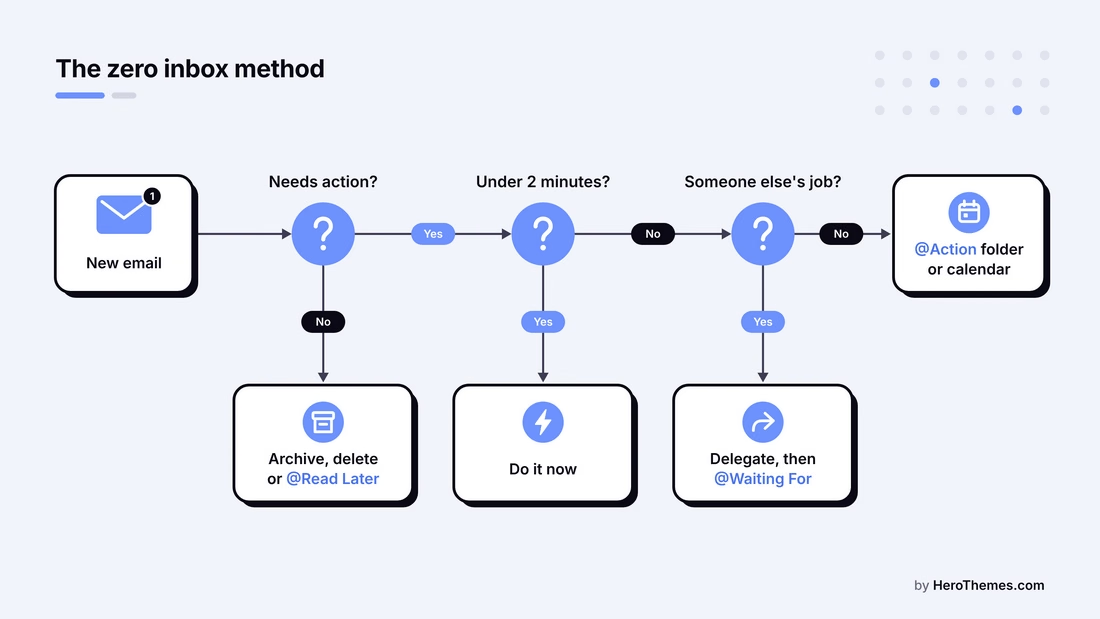
Step 1: Reset the Backlog With Email Bankruptcy
Nobody can process 4,000 old emails one at a time, and you shouldn’t try.
Declare a controlled email bankruptcy instead: move everything older than two weeks out of your inbox in one go. It feels reckless the first time, but archived mail stays fully searchable, so you lose nothing.
In Gmail, it takes about 30 seconds:
- Type in:inbox older_than:14d into the search bar and press Enter.
- Tick the select-all checkbox above the message list, then click Select all conversations that match this search.
- Click Archive.
Outlook takes a little longer. Create a folder called “Old Inbox,” sort your inbox by date, click the first message older than two weeks, Shift-click the last one, and drag the whole selection into the new folder.
If something urgent was buried in there, the sender will almost always follow up, which turns out to be a surprisingly reliable filter.
Pro tip: Before you archive, search for your manager’s name, your top three clients, and words like “invoice” or “contract.” Star or flag anything that still needs action, then archive the rest without guilt.
You’re now left with two weeks of mail, which is small enough to process with the steps below.
Step 2: Set Up Your Inbox Zero Folders
The best inbox zero folders setup is a small one. Every folder you add is another choice you make for every message (and another place to forget about), so I’d start with three action folders plus the archive:
| Folder or label | What goes in it | When you check it |
|---|---|---|
| Inbox | New, unprocessed mail only | Every scheduled email session |
| @Action | Emails that need more than two minutes of work | Daily, during a focus block |
| @Waiting For | Emails where you’ve delegated something or asked a question | Twice a week, plus your weekly review |
| @Read Later (optional) | Newsletters and articles you want to read | Weekly, or never (that’s allowed) |
| Archive | Everything that’s done | Never browse it; search it |
The “@” prefix keeps these folders pinned to the top of your sidebar in both Gmail and Outlook. You can call @Action “Reply” or “To Do” if you prefer, because the names matter far less than keeping the count low.
Why Fewer Folders Work Better
You’ve probably seen (or created) the folder system with one folder for each client, project, and year. While it may look organized, it turns every email into a filing question (“Is this Acme 2026 or Acme Billing?”), when the only question that matters is what you need to do next. Gmail and Outlook search are good enough that topic folders rarely earn their keep.
A few extra folders do make sense, though:
- Legal or compliance retention, where certain categories have to stay together for audits
- Short-lived projects, like a “@Launch-Q4” folder you delete once the launch ships
- Filter-only folders for receipts and alerts, which fill themselves and cost you zero decisions
How To Create Labels in Gmail and Folders in Outlook
In Gmail, scroll the left sidebar, click the + next to Labels, type “@Action,” and click Create. Repeat for the other two, then click the three dots beside each label to give it a color.
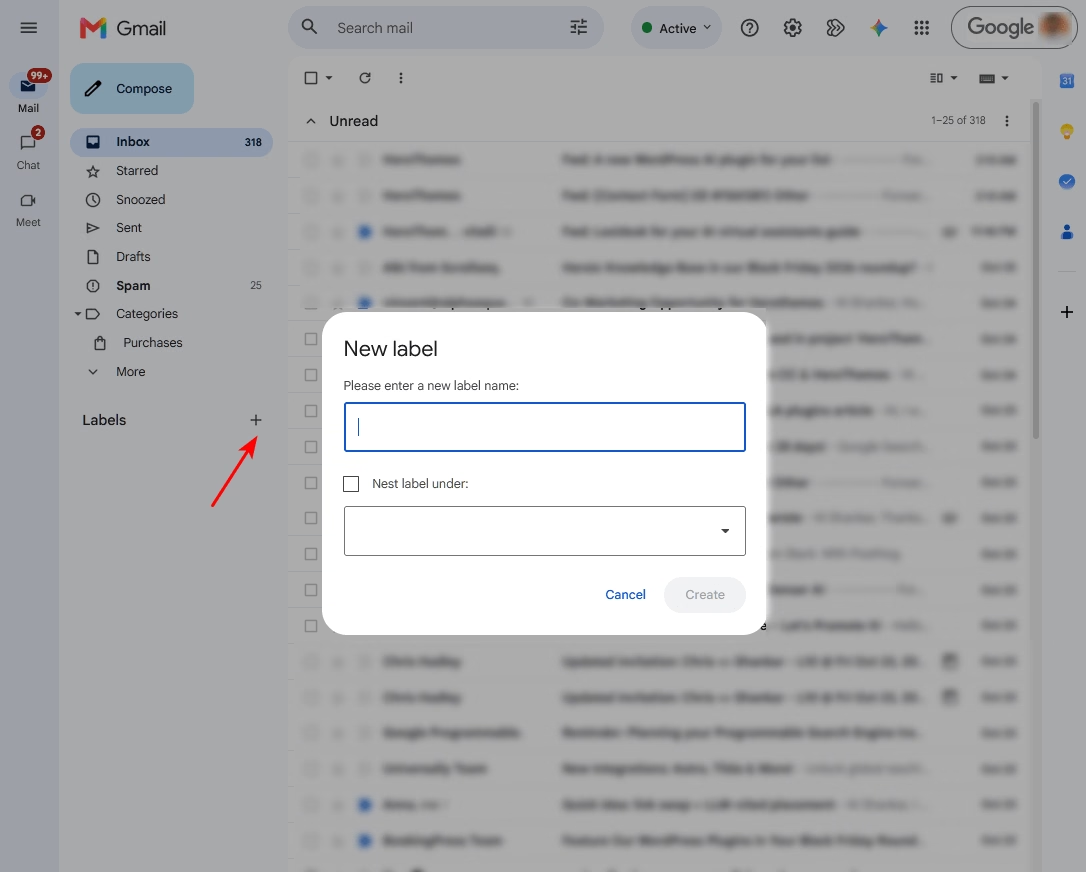
In the new Outlook and Outlook on the web, right-click your mailbox name in the folder pane, choose Create new folder, and name it. Then drag all three folders into Favorites so they stay visible no matter how long your folder list gets.
Step 3: Process Every Email With the 5 D’s
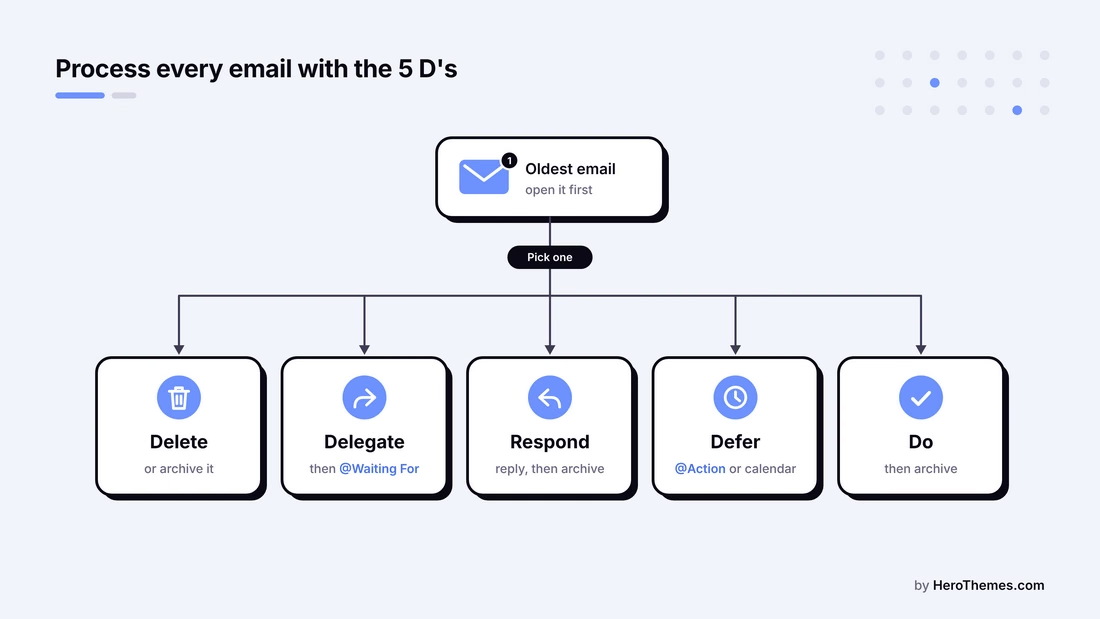
Processing isn’t the same as checking. Checking is glancing at your inbox and leaving everything where it is, which is how one email gets read five times and answered zero times.
Processing means every message you open leaves the inbox with a decision attached.
Open the oldest message first and give it one of these five decisions:
- Delete or archive when there’s nothing to do. Archive anything you might search for later (in Gmail, press E).
- Delegate when it’s someone else’s job. Forward it with a clear ask, then move your copy to @Waiting For.
- Respond when a reply is the whole job and you can write it in under two minutes. Reply, then archive.
- Defer when it needs real work. Move it to @Action, or put it on your calendar with a deadline.
- Do when it’s a quick task, like approving a request or saving an attachment. Do it, then archive.
Here’s what that looks like on a normal morning. Say these five emails are waiting for you at 9:30 a.m.:
| Decision | What you do | |
|---|---|---|
| A newsletter from a tool you stopped using | Delete | Delete it and unsubscribe (more on that in Step 5) |
| A client asking for a revised quote by Friday | Defer | Move it to @Action and block 45 minutes on Thursday |
| A colleague asking if 2 p.m. works for a call | Respond | Reply “2 p.m. works, see you then” and archive |
| A refund request sent to your personal address | Delegate | Forward it to billing and move your copy to @Waiting For |
| A PDF invoice from your accountant | Do | Save it to your finance folder and archive |
That’s five emails handled in roughly four minutes, and your inbox is empty again.
The step people skip is the hand-off. When an email turns into a task, copy the task into your task manager or calendar, then archive the email.
This is one of the inbox zero method’s most important rules, and it’s the difference between an empty inbox and an inbox that’s been moved somewhere else.
Step 4: Apply the Two-Minute Rule
If something takes less than two minutes, do it now, because tracking it would take longer than finishing it.
In email terms, this covers quickly responding with “Yes, Thursday works,” forwarding a file, or confirming a booking.
There’s a catch, though.
This rule applies to processing sessions, not every notification that appears while you’re working on a project. If you use it outside your scheduled email time, you’ve created a new version of the always-on inbox.
For your first week, start a phone timer each time you reply. Most people underestimate how many “quick” replies turn into 10-minute replies, and the timer recalibrates your sense of what belongs in @Action.
Step 5: Unsubscribe and Filter Before Mail Reaches You
The fastest email to process is the one that never reaches your inbox. Remember that 117-a-day figure from Microsoft?
If most of those messages only deserve a few seconds of skimming, a big share of them shouldn’t land in front of you at all.
Unsubscribe in Bulk
Gmail made this much easier with its Manage subscription’s view.
It lists your active subscriptions with the noisiest senders first, shows how many emails each one sent you recently, and unsubscribes you in one click (Gmail sends the request on your behalf).
To find it, open the left menu, click More if you need to, and select Manage subscriptions. Work from the top down, because the first 10 or so senders usually account for most of the noise.
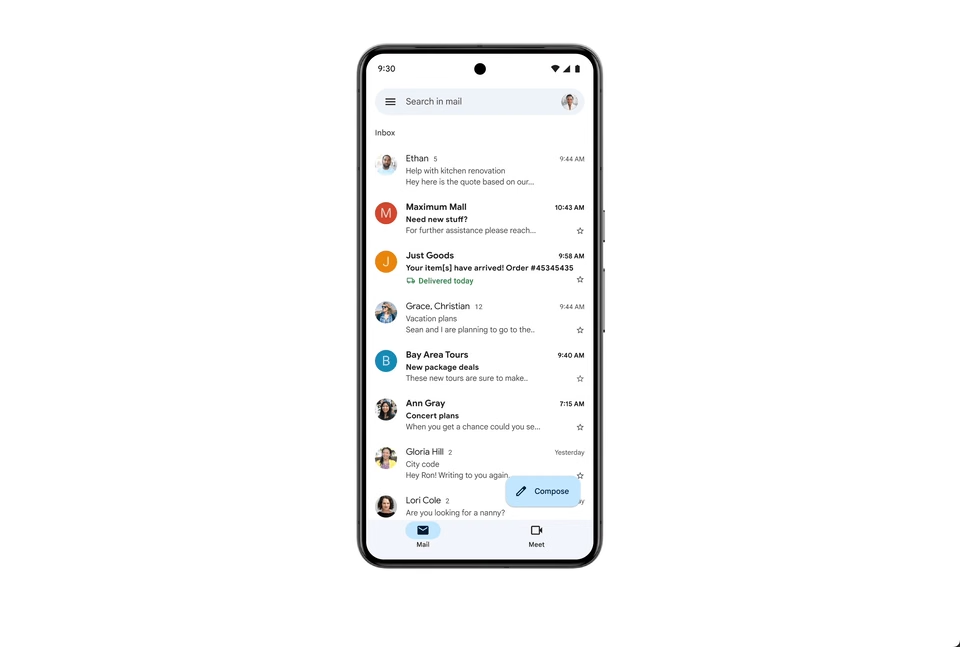
Outlook users get Sweep, which I’d argue is the better tool for senders you don’t want to drop completely. Sweep can clear out everything from a sender, keep only their latest message, or remove messages older than 10 days. It works in Outlook on the web and the new Outlook for Windows, but not in classic Outlook.
Create Filters That Skip the Inbox
Filters (Gmail) and rules (Outlook) are where Inbox Zero starts running itself.
The idea here is to route predictable mail away from the inbox automatically, so only messages that need a human decision land there.
These five filters pay off fastest:
- Receipts and invoices: Skip the inbox and label them “Receipts.” You’ll search for them later, not read them now.
- Newsletters: Send them straight to @Read Later.
- Tool notifications: Calendar acceptances, app alerts, and status updates get their own “Notifications” label.
- CC-only mail: Anything where you’re on CC goes to a “CC” label you skim once a day.
- VIP senders: Star or mark as important anything from your manager and top clients, so it stands out.
Step 6: Batch Email Into Scheduled Sessions
Mann’s original suggestion was hourly dashes of 8-10 minutes. For most office roles today, I’d go with two or three longer sessions instead, because hourly checks still chop your day into pieces too small for deep work:
| Session | When and how long | What you do |
|---|---|---|
| Morning process | 30 minutes, after your first focus block | Process to zero, send two-minute replies, sort the rest |
| Midday check | 15 minutes, after lunch | Handle anything time-sensitive and update @Waiting For |
| End-of-day close | 20 minutes, before you sign off | Process to zero and line up tomorrow’s @Action items |
These settings make the schedule stick:
- Turn off desktop and mobile notifications. In Gmail, go to Settings > See all settings > General > Desktop notifications and choose Mail notifications off.
- Close the email tab between sessions, because an open tab is an open invitation.
- Use Schedule send for replies you write late, so people don’t learn to expect instant answers.
- Learn five Gmail shortcuts (turn them on under Settings > General > Keyboard shortcuts): E archives, B snoozes, ] archives and opens the next message, R replies, and # deletes.
Step 7: Write Templates for Replies You Send Repeatedly
If you’ve typed the same answer three times this month, it should be a template.
Templates turn a “respond” decision into a 30-second job, and they keep your tone friendly on days when you’re running on fumes.
Good candidates for templates include:
- Meeting replies with your availability and booking link
- “I’m not the right person” redirects that hand off politely to the right contact
- Request acknowledgments, like “Got it, I’ll have this to you by Friday”
- Answers to the pricing, process, or onboarding questions you get every week
If you work in support, our collection of canned email templates for customer support gives you a head start on the replies teams send most. For the emails a template can’t cover, the guide on how to write a professional email walks through structure and tone.
Step 8: Maintain Inbox Zero with a Daily Close and Weekly Review
Getting to zero once is easy, and staying there comes down to two small routines plus a bit of honesty.
Shoving 40 emails into @Action and never opening the folder is the same backlog with a new address.
Your daily close (10-20 minutes, at the end of the day):
- Process the inbox to zero with the 5 D’s.
- Open @Action and pick tomorrow’s top three email tasks.
- Scan @Waiting For and nudge anything overdue.
Your weekly review (20-30 minutes, ideally Friday afternoon):
- Empty @Action completely: do it, schedule it, or decide it isn’t happening.
- Follow up on anything in @Waiting For that’s older than a week.
- Skim @Read Later and archive whatever you won’t read.
- Add one filter for any new noisy sender.
- Unsubscribe from at least three senders.
Put the weekly review on your calendar as a recurring meeting with yourself. It’s the step most people drop first, and it’s the one that stops @Waiting For from turning into a graveyard.
The Team Version: Inbox Zero for Shared and Support Inboxes
Everything so far assumes one person owns one inbox. That assumption breaks the moment you share a support@, sales@, or info@ address, and most Inbox Zero guides stop right before this point.
To run a shared inbox at Zero, put these rules in a place, starting this week:
- Assign every conversation in one triage pass. One person (rotate it daily) clears the unassigned view at the start of each shift.
- Use statuses instead of folders. Open, pending (waiting on the customer), and closed replace @Action and @Waiting For the whole team.
- Tag by topic, not by agent. Tags like “billing,” “refund,” and “login” show you which questions deserve a help article.
- Build saved replies for your top 10 questions. Personalize the first line, then insert the tested answer.
- Turn on collision detection. When your tool shows that a teammate is already replying, double replies stop.
- Link to help articles instead of retyping answers. Every answer you publish once is an answer you never type again.
- Review tag reports every week. Your top three tags are your next three knowledge base articles.
A regular Gmail or Outlook mailbox can’t do most of this on its own, so use proper shared inbox software like Heroic Inbox. It provides all the necessary features to efficiently manage tickets.
Our guide to setting up a shared inbox in Gmail covers the free Google Groups route and where it runs out, and the roundup of shared inbox software compares dedicated tools.

Final Thoughts: Inbox Zero
Inbox Zero works when you treat it the way Mann first described it: a quick decision habit that keeps email out of your head, not a race to an empty screen. You don’t need every step at once, either.
If you only do three things this week:
- Archive everything older than two weeks.
- Create your @Action and @Waiting For folders.
- Check email at two or three set times a day and close the tab in between.
Once that feels normal, add the filters, the templates, and the Friday review.
So pick one step and do it today.
Further Reading
How To Reduce Customer Churn Rate: 12 Proven Strategies
How to Respond to Angry Emails: Tips, Strategies, and Examples
10 Customer Service Metrics to Track (+ How To Use Them)
7 Best Customer Service Automation Software
Best Free AI Email Reply Generator (No Sign-Up, Unlimited Use)





Leave A Comment?
You must be logged in to post a comment.