10 Best Email Clients for Outlook in 2026 (Outlook Alternatives)


Outlook works well for managing email, but it isn’t the only option worth considering.
Maybe you want a cleaner interface, better search, fewer distractions, or a free email client that doesn’t lock useful features behind a subscription.
The right alternative can make everyday email management easier without forcing you to leave your Microsoft account behind. However, not every email app supports Outlook in the same way.
In this guide we will explore 10 best email clients for Outlook, including free picks for desktop, mobile, and business use.
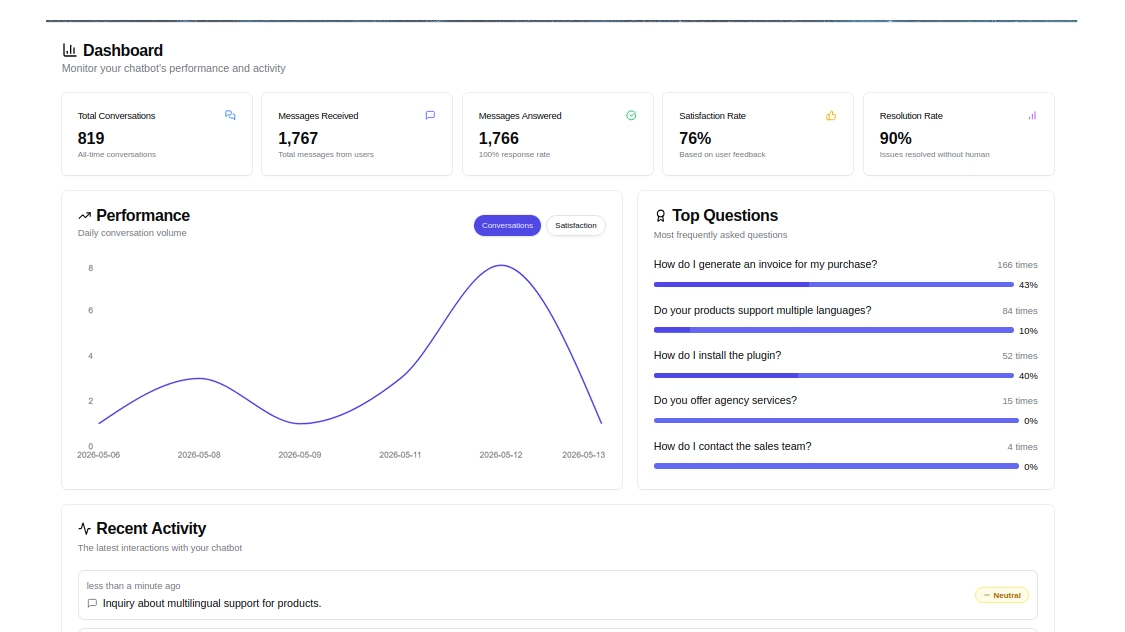
HelpJet – FREE AI Chatbot
Offer instant support beyond the inbox. HelpJet gives customers a convenient way to find answers from your existing support content, without waiting for an email response.
In This Guide
What to Look for in an Outlook Email Client
To me, an Outlook client’s only job is to display your Microsoft email without breaking.
But “works with Outlook” can mean five different things, and the gaps only show up after you’ve switched.
Here’s what matters when you’re shopping:
- Modern sign-in (OAuth 2.0). This isn’t optional in 2026. If the app can’t open a Microsoft sign-in window, it won’t connect to Outlook.com or most Microsoft 365 tenants.
- The right protocol for your account. IMAP is fine for personal Outlook mail. Work accounts on Microsoft 365 now get the most from Graph, while on-premises Exchange still runs best over EWS.
- Calendar and contacts sync. Many free clients sync mail only. If you live in your Outlook calendar, check this before anything else, because it’s where free Outlook clients fail quietly.
- Shared mailboxes. Few free personal clients handle shared or delegated Microsoft 365 mailboxes well. Teams that share an inbox need a different kind of tool.
- Privacy and data routing. Some apps go straight from your device to Microsoft. Others route your credentials and mail through their own cloud servers. For work email, that distinction can matter a lot.
- Honest free plans. Watch for account caps, “personal use only” rules, and in-app ads. We flag all three below.
- PST import. If you’re leaving classic Outlook with years of mail, check whether your new client can read PST files directly, or whether you’ll need an export workflow first.
The Best Email Software for Outlook in 2026

We rigorously test and research every product that we recommend through HeroThemes. Our review process. We may also earn a commission if you make a purchase through our links.
1. Heroic Inbox
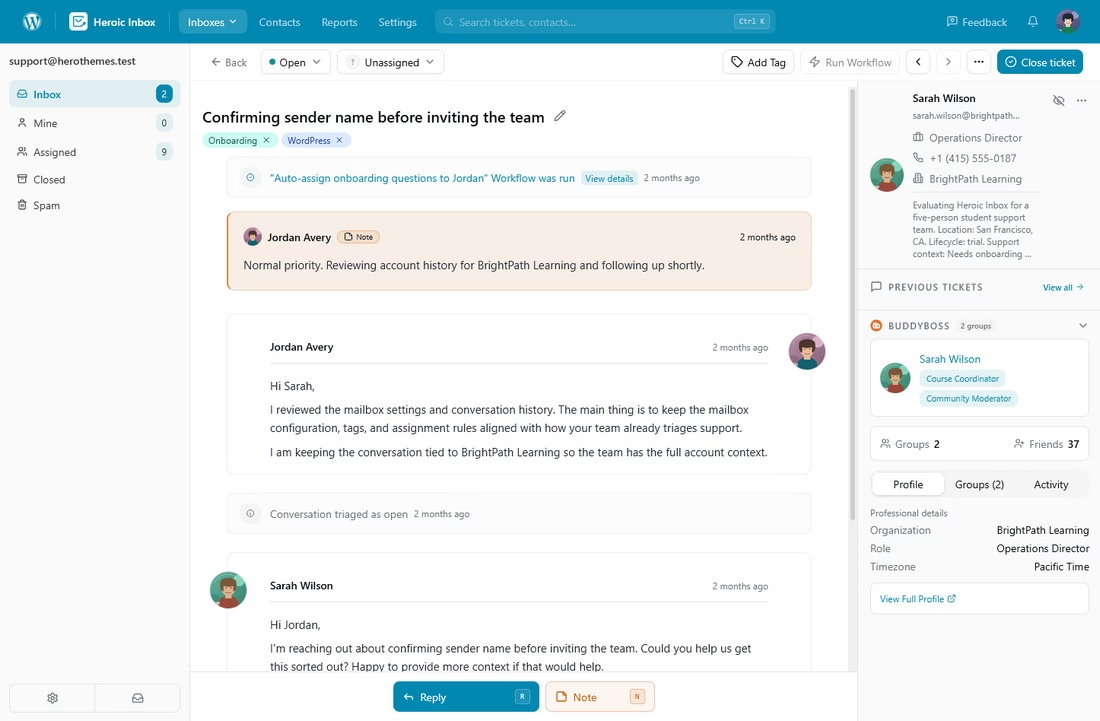
Heroic Inbox is a WordPress help desk plugin that turns Outlook, Gmail, or any IMAP mailbox into a team inbox inside your WordPress dashboard. Every email becomes a conversation you can assign, tag, snooze, and track, with internal notes and saved replies to cut repeat work.
Over the past couple of years, Heroic Inbox has moved from a simple shared inbox into a proper help desk, with workflow automation, collision detection, and role-based permissions. It also pulls customer context from WooCommerce and Easy Digital Downloads, which saves a lot of tab-switching when you’re answering order emails.
Connecting Outlook is straightforward as well.
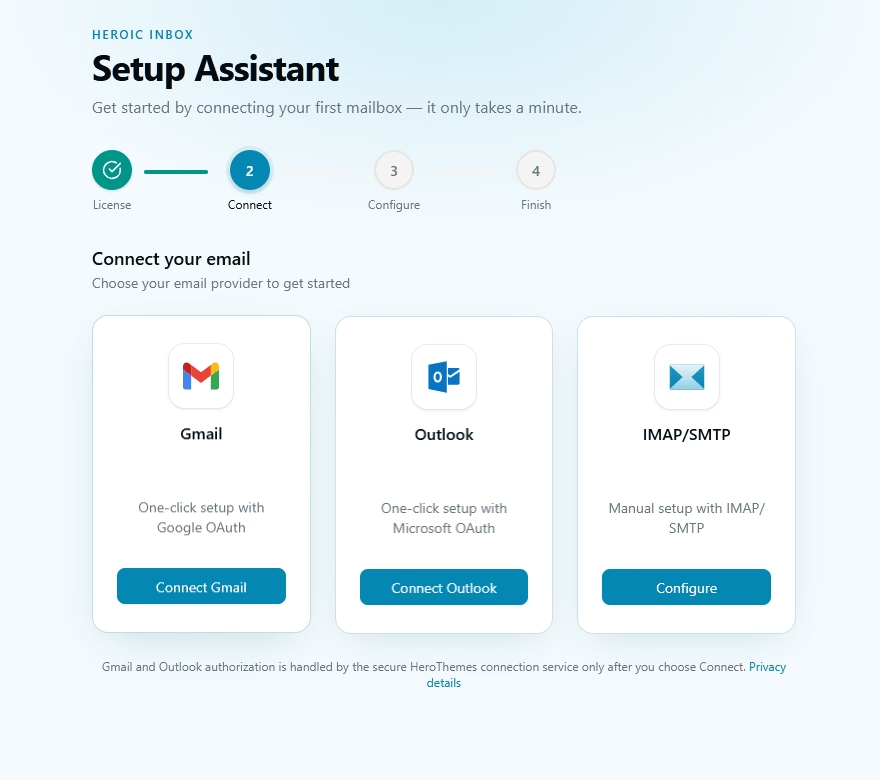
The Setup Assistant has a Connect Outlook button that sends you to Microsoft’s own sign-in page, where you approve read, send, and manage permissions for that mailbox.
Because Heroic Inbox uses Microsoft OAuth and not a stored password, nothing broke for Heroic Inbox customers when Basic Auth went away. If you want a walkthrough with screenshots, our Heroic Inbox setup guide covers the full flow, including how much mail to import on the first sync.
Key Features:
- Outlook OAuth connection: One-click Microsoft sign-in for Outlook.com and Microsoft 365 mailboxes, with IMAP/SMTP for everything else.
- Unlimited users and tickets: No per-agent fees on any plan.
- Collision detection: Shows when a teammate is already reading or typing a reply, so your customer never gets two answers.
- Workflows automation: Auto-assign, auto-tag, and route emails using rules you set.
- Saved replies and internal notes: Reuse answers to the questions you get every week, and leave teammates private notes on any conversation.
- WooCommerce and EDD context: Order history appears in the sidebar as you reply.
- Heroic KB integration: Search your knowledge base and link articles into replies without leaving the inbox.
- Roles and permissions: Admin, Manager, and Agent levels.
- Reports: First response time, volume, and workload per agent.
- Mailbox views: Create a separate mailbox folders based on your tags, users, and other conditions.
- AI reply assistant to help draft replies based on your notes.
Cons:
- No free plan.
- You need a WordPress site and decent hosting to run it.
Pricing
Heroic Inbox is priced at $99.50 for the first year with the introductory offer. Each tier includes unlimited users and tickets.
For a team of four or five that would otherwise pay per seat for a hosted help desk, the savings add up quickly.
14-Day Money-Back Guarantee | Setup in Under 10 Minutes
2. Mozilla Thunderbird
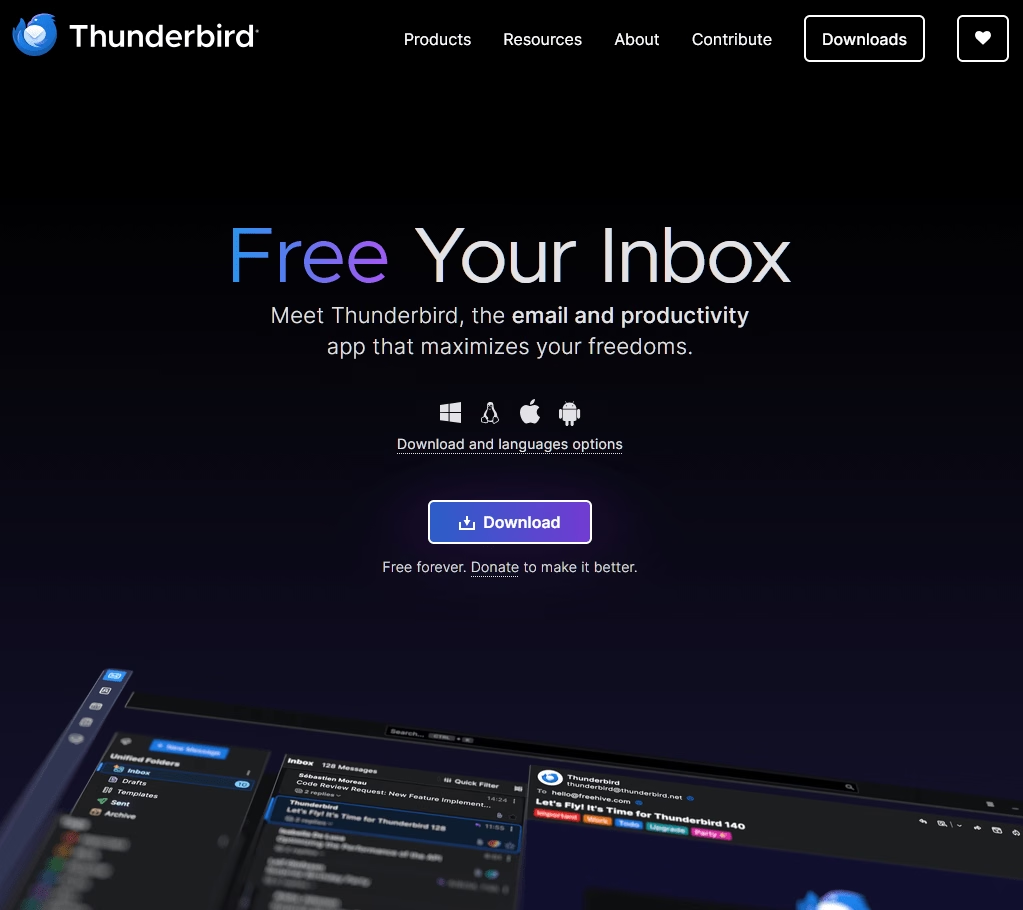
Mozilla Thunderbird is the strongest free email client for Outlook on a desktop in 2026, and it finally earned that title for work accounts too.
Thunderbird has been free and open source for more than two decades. The project runs on donations instead of ads, which is rare in this category and worth saying out loud.
Who should pick it? Anyone who wants a full desktop client without an account cap, ads, or a “personal use only” clause. Thunderbird is also free for businesses, which is better than most of the freemium apps on this list.
Key Features:
- Microsoft Graph support: Connects Microsoft 365 mailboxes natively in version 154 and later.
- EWS support: The right path for companies that still run on-premises Exchange.
- IMAP with OAuth for Outlook.com: Covers personal Hotmail, Live, and Outlook.com accounts.
- Unlimited accounts: No cap, no paywall, no in-product nagware.
- Unified inbox, tags, and filters: Strong tools for a busy mailbox.
- Add-ons: Thousands of extensions, from Grammarly bridges to encryption helpers.
- Built-in calendar: Works with CalDAV calendars, though not with Exchange calendars yet.
Cons:
- No native Exchange or Microsoft 365 calendar and contacts sync.
- No team or shared mailbox features.
Pricing
Thunderbird is free for personal and commercial use, with no paid tier at all. Mozilla asks for donations, and that’s the whole business model.
3. New Outlook for Windows
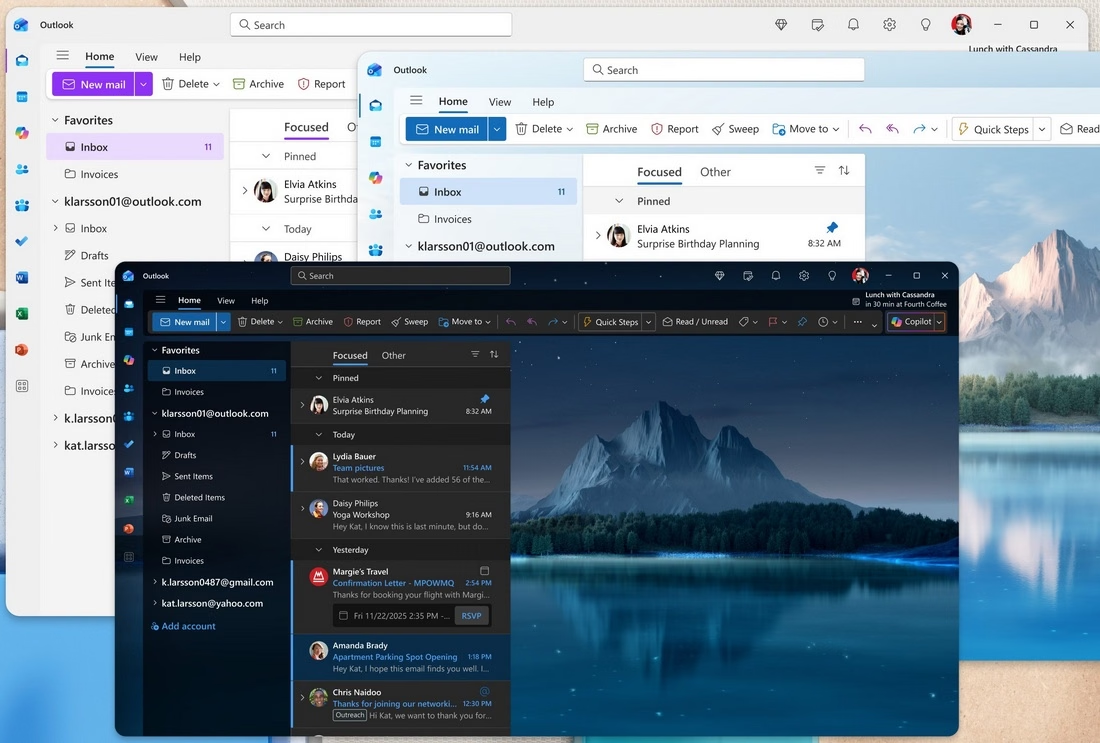
The default Outlook client on Windows 11 is new Outlook, and it’s free with any personal Microsoft account. New Outlook replaced the old Windows Mail and Calendar apps and is slowly replacing classic Outlook too.
Think of it as Outlook on the web wrapped in a desktop window rather than the Outlook most offices are familiar with.
For Outlook.com and Microsoft 365 accounts, the fit is as tight as it gets. You get Focused Inbox, the full calendar, shared calendars, and Copilot features if you pay for them. Work accounts can also open shared mailboxes properly, which is something most free third-party clients can’t do.
Key Features:
- Native Outlook.com and Microsoft 365 support: No protocol worries, now or later.
- Shared mailboxes and calendars: Full delegated access on work accounts.
- Focused Inbox and Sweep: Helpful tools for sorting high-volume mail.
- Built-in calendar and contacts: Everything syncs with Outlook.com and Exchange Online.
- Multi-account support: Adds Gmail, Yahoo, iCloud, and IMAP accounts (through the Microsoft Cloud).
Cons:
- Ads for free users without Microsoft 365.
- Non-Microsoft IMAP credentials and mail route through Microsoft’s servers.
- No COM add-ins or VBA macros, and PST support is partial.
- Offline mode is weaker than classic Outlook’s.
Pricing
New Outlook is free with Windows, and a Microsoft 365 subscription removes the ads and unlocks premium features.
Note: Can you keep using classic Outlook in 2026? Yes. Microsoft supports existing classic installs until at least 2029, and Outlook 2024 one-time licenses stay on classic Outlook with no sunset date yet.
4. eM Client
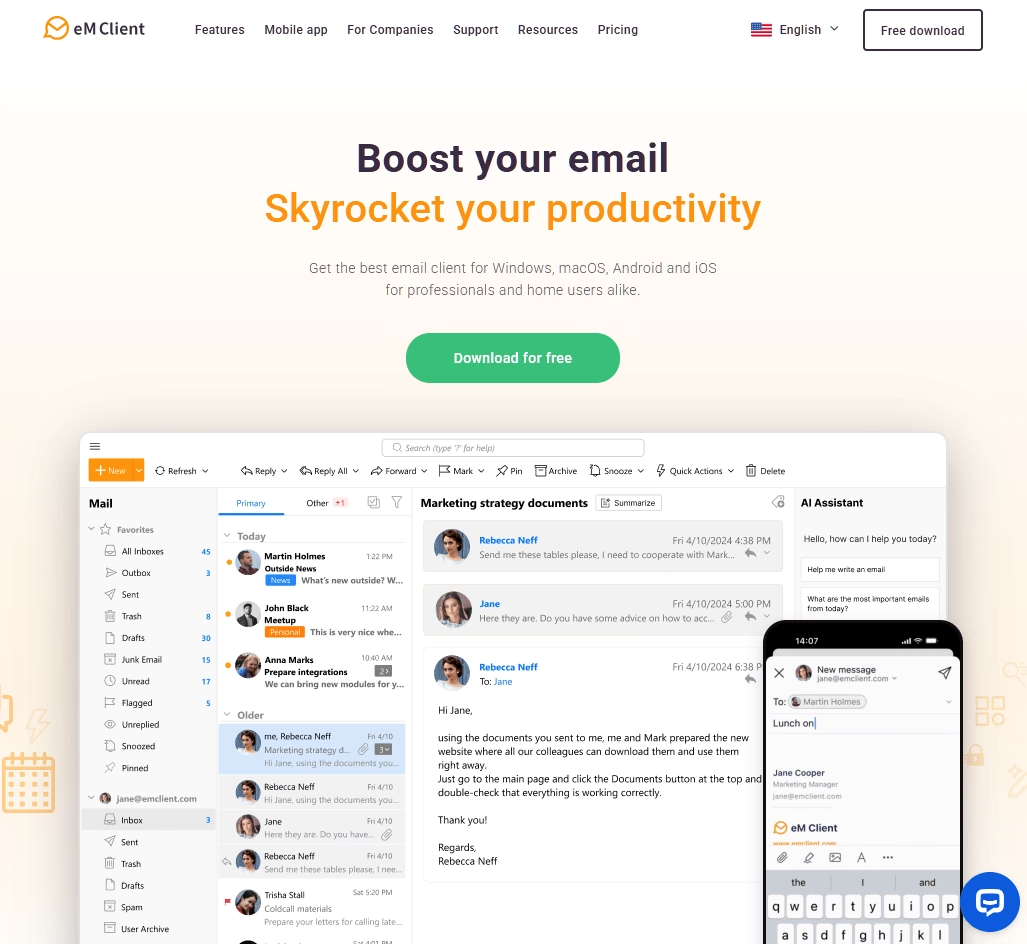
eM Client most feels like the Outlook you remember, minus Microsoft’s cloud. It launched back in 2007 and has quietly turned into one of the most capable Outlook replacements, bundling mail, calendar, contacts, tasks, notes, and chat into one window.
Unlike Thunderbird, eM Client syncs Exchange calendars and contacts, not just mail. It can also import directly from Outlook, which matters if you’re leaving classic Outlook with a thick archive. That combination makes eM Client the closest free replacement for classic Outlook on both Windows and Mac right now.
Key Features:
- Microsoft Graph support: Full Microsoft 365 mail, calendar, and contacts in version 11.
- Exchange calendar and contacts sync: The thing most free clients still can’t do.
- Outlook import: Brings mail and data from classic Outlook into eM Client.
- Translation, snooze, and send later: Useful tools, though some are paid-only.
- PGP and S/MIME encryption: Built in for privacy-minded users.
- Native ARM support: eM Client 11 runs natively on ARM-based laptops.
Cons:
- The free plan is capped at two accounts and personal use only.
- Several productivity features sit behind the paid license.
- Uses more memory than lighter clients like Thunderbird or Claws Mail.
Pricing
eM Client sells Personal and Business licenses as either a yearly subscription or a one-time purchase, and both unlock unlimited accounts.
For a freelancer, the one-time option is good value compared with paying for Microsoft 365 purely to get classic Outlook.
5. Outlook Mobile (iOS and Android)
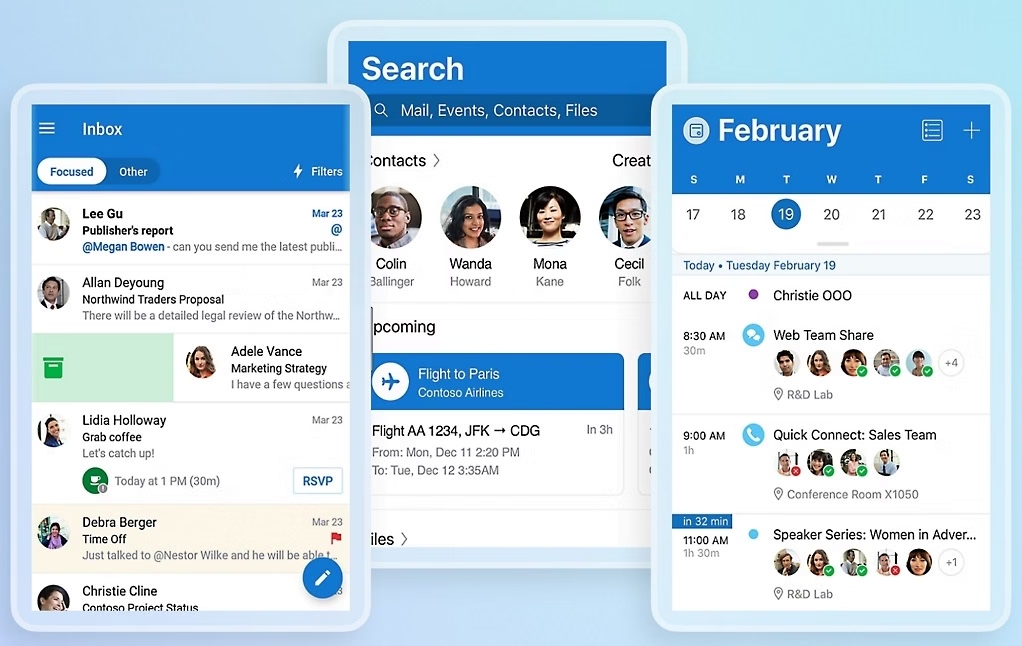
The Outlook mobile app is the easiest way to access Outlook email and calendar on an iPhone or Android device. It supports personal and work accounts and can also add Gmail, iCloud, and Yahoo accounts.
Outlook Mobile behaves a lot like the new Outlook for Windows. Microsoft accounts sync natively, and non-Microsoft accounts sync through the Microsoft Cloud, which means Microsoft stores a copy of that mail.
For Microsoft 365 users, Outlook Mobile also supports Intune, which is often why your IT team requires it.
Key Features:
- Mail and calendar in one app: Full Outlook.com and Microsoft 365 calendar sync.
- Focused Inbox: Splits important mail from newsletters and promos.
- Multiple accounts: Adds Gmail, iCloud, Yahoo, and IMAP accounts.
- Enterprise controls: Works with Microsoft Intune policies for managed devices.
- OneDrive attachments: Share cloud files without downloading them first.
Cons:
- Non-Microsoft accounts sync through Microsoft’s servers.
- Ads for free users.
- Heavier than the old Outlook Lite on budget phones.
Pricing
Outlook Mobile is free on iOS and Android, and Microsoft 365 removes the ads. Most readers will never need to pay.
6. Betterbird
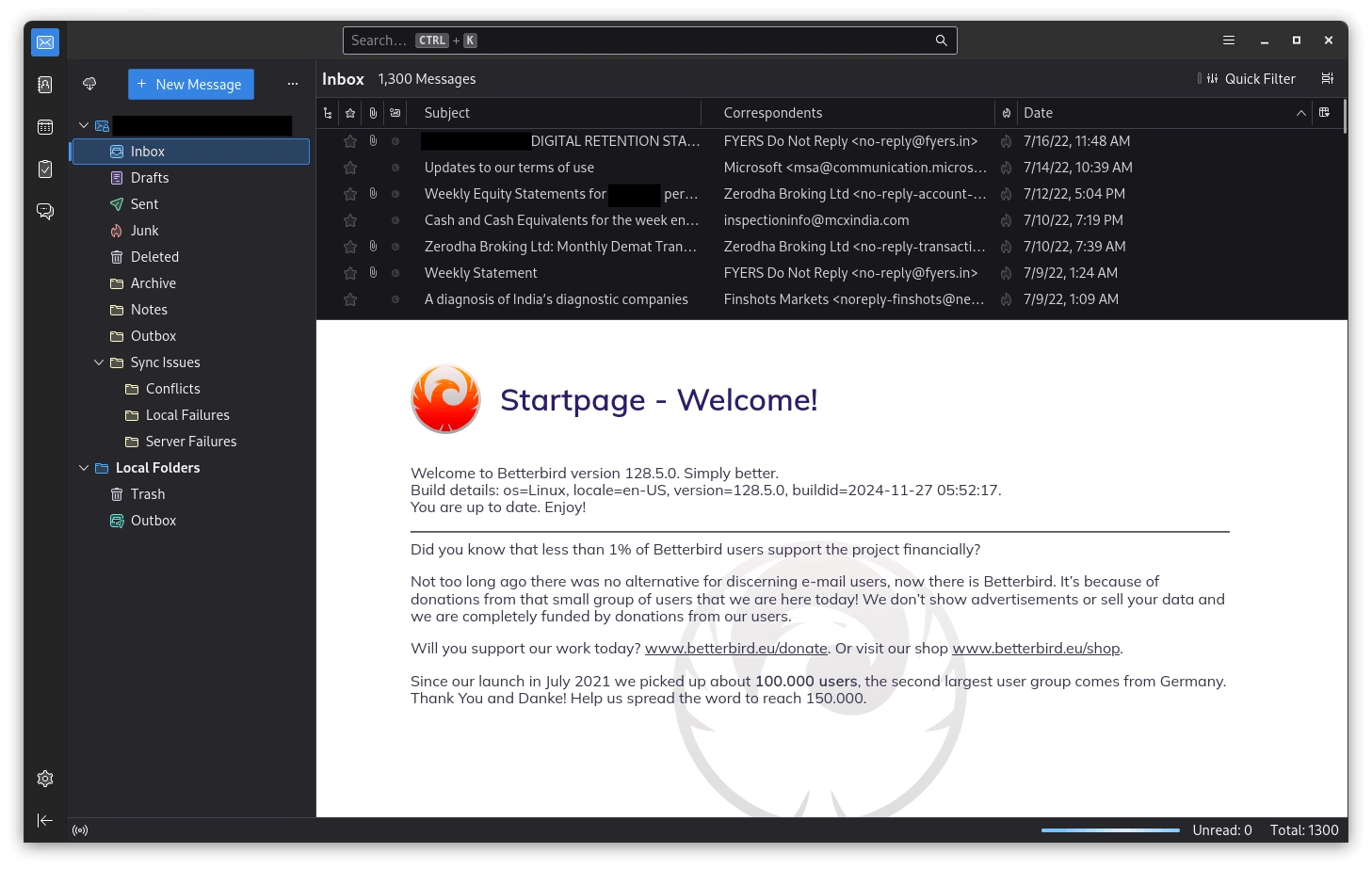
Betterbird is a nice pick for Outlook users who already know Thunderbird and want a few more comforts.
Betterbird is what you get when a small team takes Thunderbird and fixes the things that bug long-time users. It’s a soft fork of Thunderbird, meaning it tracks Mozilla’s code closely but adds its own features and bug fixes on top. The project ships on Thunderbird’s ESR base, and the current build is Betterbird 153.6.0esr-bb12.
The extras are small but much-loved. Betterbird adds a true close-to-tray and minimize-to-tray option on Windows and Linux, a multi-line message list, and a long list of fixes Mozilla hasn’t merged.
There’s also a portable Windows build you can run from a USB stick, which is handy for a technician’s toolkit.
Key Features:
- Close and minimize to tray: The top request from Thunderbird users for years.
- Multi-line message view: More context in the message list.
- Extra bug fixes: Patches that haven’t landed in Thunderbird yet.
- Portable Windows build: Run Betterbird without installing it.
- IMAP OAuth for Outlook.com: Same path as Thunderbird.
Cons:
- No Microsoft Graph support on its ESR base, which weakens it for Microsoft 365 work accounts.
- Smaller team than Mozilla’s, so updates depend on a few people.
- Mac build ships English-only out of the box.
- Same missing Exchange calendar sync as Thunderbird.
Pricing
Betterbird is free and open source, funded by donations. You pay for nothing.
7. Mailspring
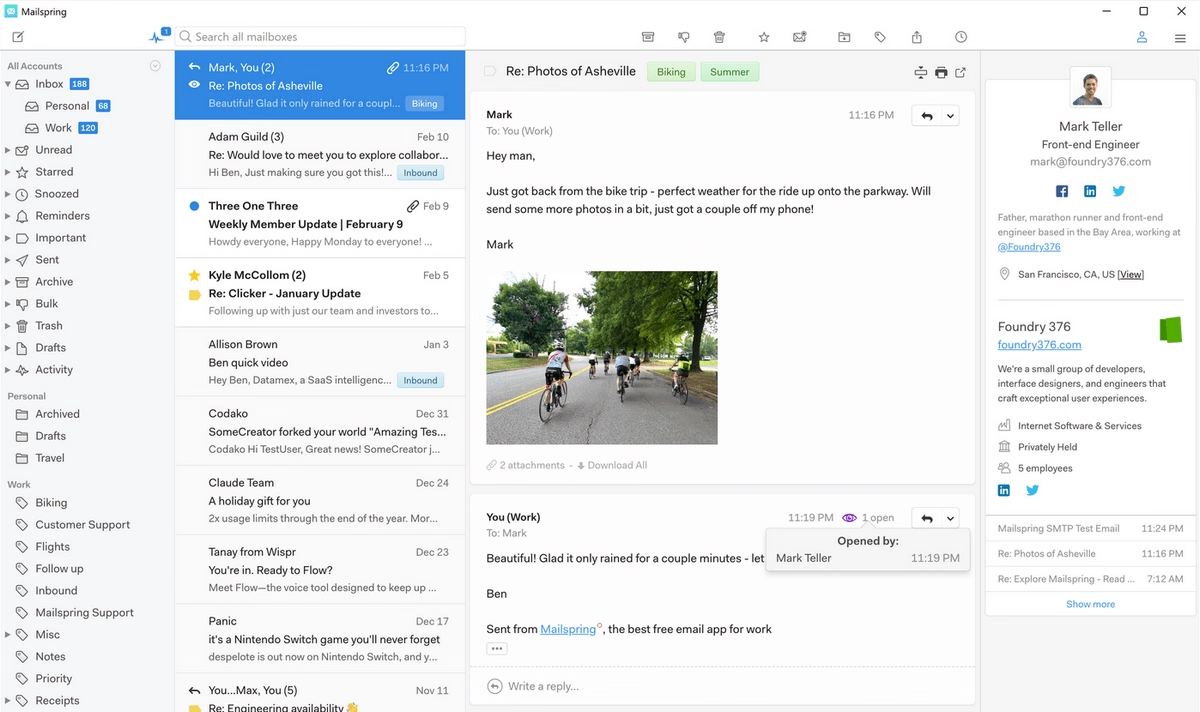
Mailspring grew out of the old Nylas Mail project, and its developer rewrote the sync engine in C++ so Mailspring doesn’t drag the way some Electron-based clients do. It runs on Windows, macOS, and Linux, and the core app is free.
Mailspring connects to Outlook and Microsoft 365 over IMAP with Microsoft’s OAuth sign-in. It doesn’t use EWS or ActiveSync at all, so the EWS shutdown didn’t affect Mailspring.
Mailspring’s free version covers multiple accounts, a unified inbox, fast search, undo send, and themes. Pro features (snooze, send later, read receipts, reminders) work a few times a week on the free plan, which is a reasonable way to see whether they’re worth paying for.
Key Features:
- Microsoft 365 OAuth over IMAP: Zero dependency on EWS.
- Unified inbox and fast search: Searches across every account at once.
- Read receipts and link tracking: Full use is Pro-only.
- Themes and dark mode: Clean, modern design.
- Cross-platform: Same app on Windows, Mac, and Linux.
Cons:
- No Exchange calendar or contacts sync.
- No POP3 support.
- Pro features are capped on the free plan.
- Support is mostly a community forum.
Pricing
Mailspring is free, and Mailspring Pro costs $8 a month or $85 a year. Pro makes sense for sales users who need tracking, but most readers won’t need it.
8. Apple Mail
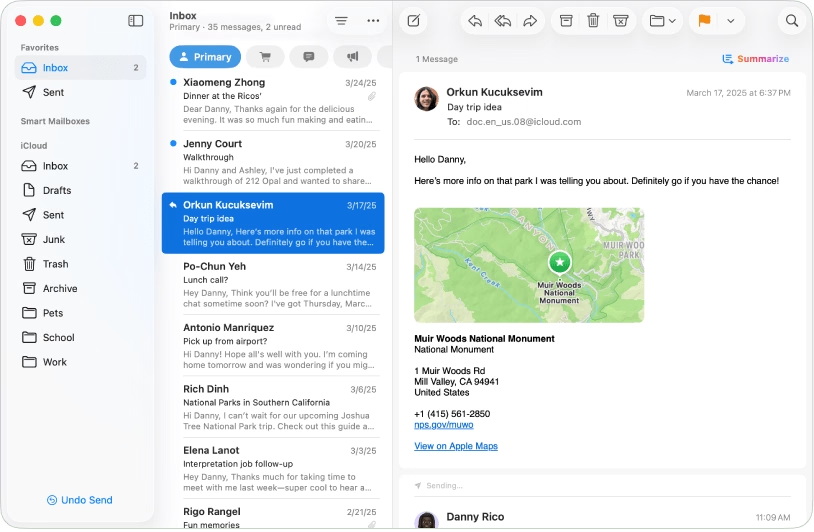
Apple Mail comes free on every iPhone, iPad, and Mac, and for Outlook users it’s often all you need.
Apple supports Microsoft’s OAuth sign-in for Outlook.com and Microsoft 365 accounts, and Apple Mail pairs with Calendar and Contacts for full sync on supported protocols.
Key Features:
- Built-in and free: No download, no ads, no account limits.
- OAuth for Outlook.com and Microsoft 365: Sign-in happens on Microsoft’s page.
- Exchange ActiveSync on iPhone and iPad: Full mail, calendar, and contacts sync.
- Tight Apple integration: Siri, Focus modes, iCloud Keychain, and Universal Clipboard.
Cons:
- Fewer power-user tools than Thunderbird or eM Client.
- No Windows or Android version.
- Shared Microsoft 365 mailboxes are awkward to set up.
Pricing
Apple Mail is free with every Apple device. There’s nothing to buy and no upgrade tier.
9. Gmail App
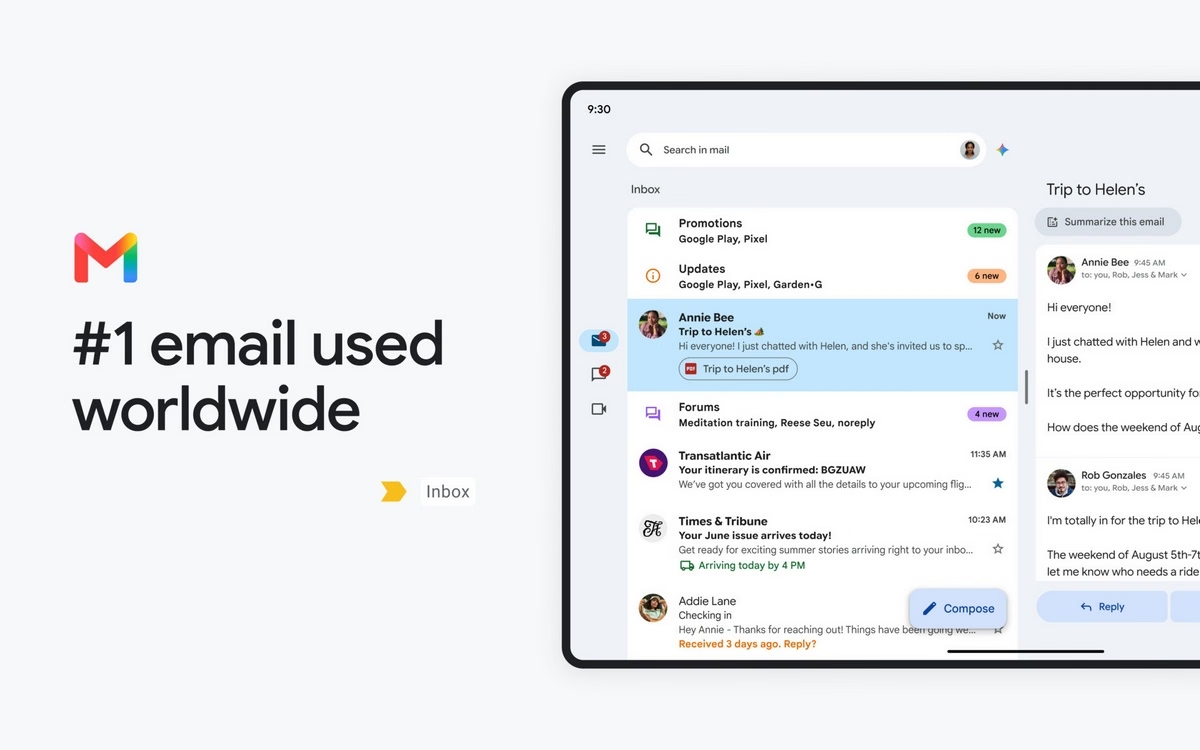
The Gmail app for Android and iPhone can add your Outlook account so Gmail and Outlook sit side by side. On Android, the flow is Add another account, then Outlook, Hotmail, and Live, then sign in on Microsoft’s page.
There are limits worth flagging up front. Google’s help docs say you can no longer add an Outlook account in Gmail on your computer, because Microsoft now requires modern sign-in that the web client doesn’t fully handle.
On iPhone, Google says existing Outlook accounts keep syncing, but Google is less clear about whether new ones can be added smoothly.
Key Features:
- One app for Gmail and Outlook: Both accounts side by side on your phone.
- Microsoft sign-in: OAuth for Outlook.com, Hotmail, and Live.
- Exchange option on Android: For Microsoft 365 work accounts.
- Gmail’s spam filter and search: The tools Gmail users already know.
Cons:
- Gmail on the web can no longer add Outlook accounts.
- The Outlook, Hotmail, and Live path mainly covers mail, not calendar or contacts.
- iPhone support for adding new Outlook accounts is unclear.
Pricing
The Gmail app is free on Android and iOS. Google Workspace adds business features, but you don’t need Workspace to read Outlook mail.
10. Evolution
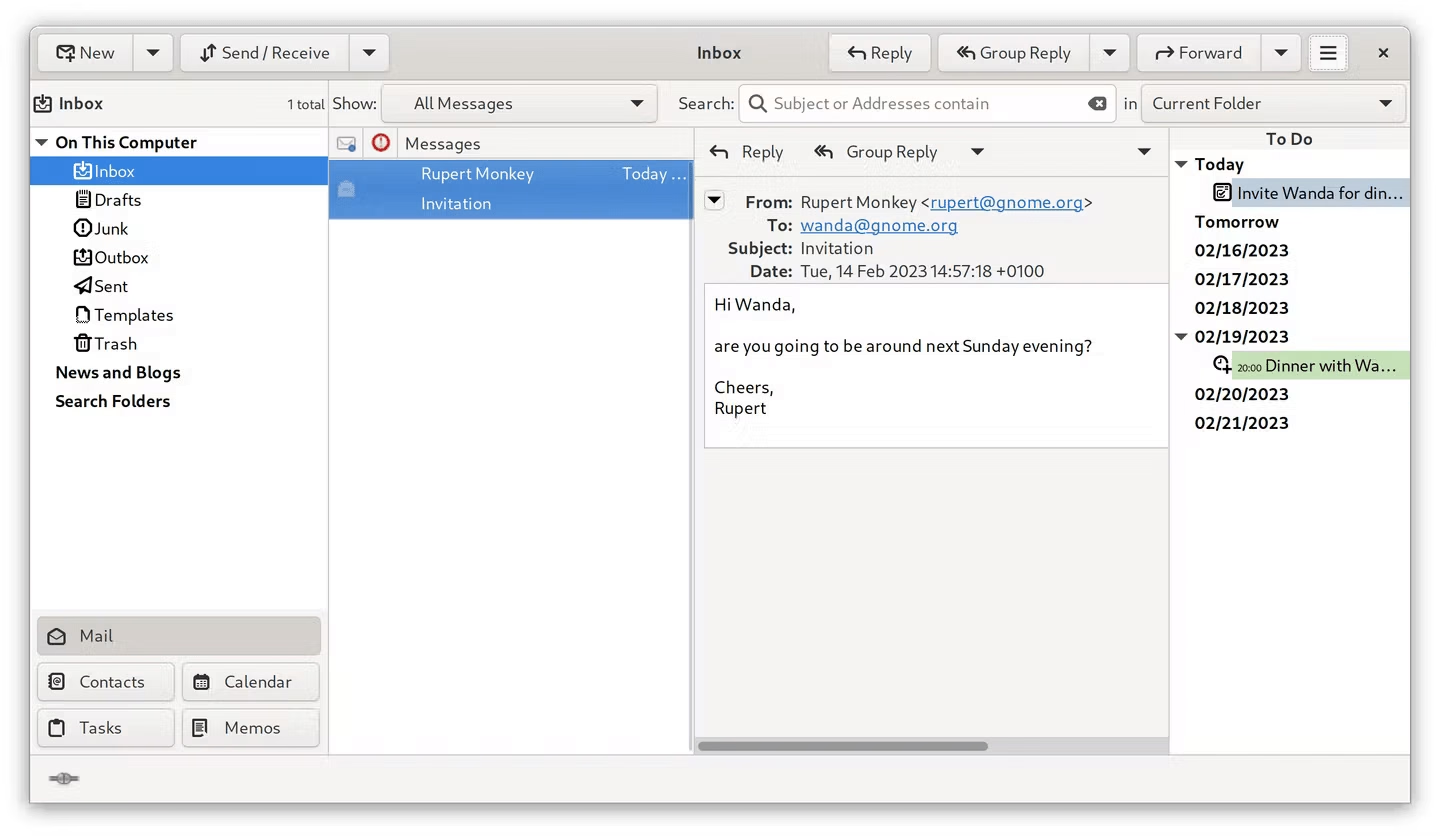
For Linux users, Evolution is the Outlook client that’s been in the GNOME desktop for years and does the whole job: mail, calendar, contacts, tasks, and memos in one app, with the kind of integration classic Outlook has on Windows.
The piece that matters here is the evolution-ews add-on. Once installed, it gives you two account types: Exchange Web Services for on-premises Exchange, and Microsoft 365 for Exchange Online through Microsoft Graph. The Graph support in Evolution has been around for a few years now, which puts it ahead of Thunderbird for calendar and contacts sync on Microsoft 365.
Key Features:
- Microsoft 365 account type (Graph): Mail, calendar, and contacts for Exchange Online.
- EWS account type: For on-premises Exchange servers.
- Full PIM suite: Mail, calendar, tasks, contacts, and memos.
- OAuth2 sign-in with MFA: Works with Microsoft’s multi-factor sign-in.
- Deep GNOME integration: Calendar events show up in the desktop clock.
Cons:
- Linux only.
- No live push notifications for Microsoft 365 accounts.
- Some tenants require custom app IDs from IT.
- The interface is dated.
Pricing
Evolution and evolution-ews are free and open source. Most Linux distributions include them in their app stores.
Final Thoughts: Email Software for Outlook in 2026
A free Outlook email client can cover most everyday needs, but the best choice depends on which features you use.
Thunderbird and Betterbird offer completely free desktop experiences, while Apple Mail provides a capable built-in option for Apple users.
Paid options such as Heroic Inbox make sense when their extra productivity tools justify the cost.
Try one of the Outlook clients from this list today. You might find your new Outlook alternative without losing your email that offers a better user experience and the features you need.
Further Reading
Best Email Clients for Gmail in 2026 (Free and Paid Options)
Top Email Management Software Compared
How To Write a Professional Email: Steps, Tips, and Examples
12 Best Free WordPress Email Plugins
Inbox Zero: A Practical Guide to a Clear, Productive Inbox






Leave A Comment?
You must be logged in to post a comment.