Introducing the WooCommerce Integration for Heroic Inbox

A customer emails your store: “I paid on Monday and still haven’t heard anything. Where is my order?” Another writes, “I think I was charged twice.”
To answer either one properly, you need facts the email doesn’t give you. Did the order go through, or did the payment fail? Is it processing, on hold, or already refunded? Is this their first order or their tenth? Right now, finding out means leaving the inbox, opening WooCommerce, searching orders by email, and clicking into each one.
So the reply goes out half-informed. You ask for an order number the customer already sent, or you say “it’s on its way” when the order is still waiting on payment. For a store, these are the conversations that decide whether someone orders again, and you are answering them without the order in front of you.
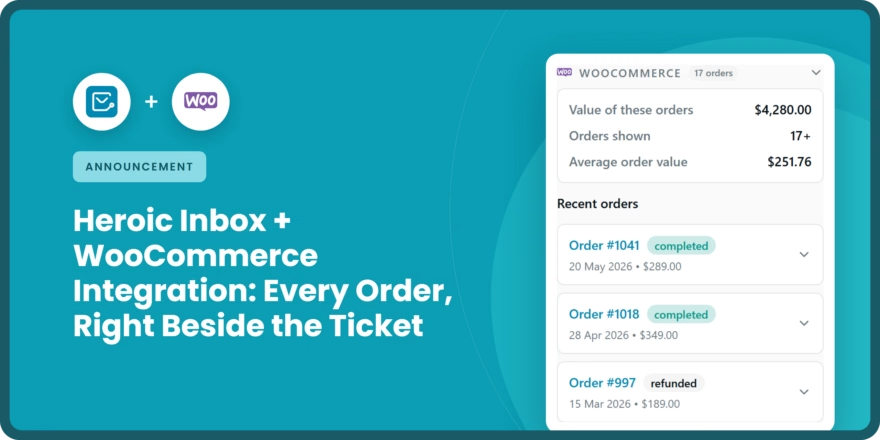
Today, we’re introducing the WooCommerce integration for Heroic Inbox. It matches the customer emailing you to their WooCommerce orders and puts their spend, order history, and order statuses right beside the ticket. You answer “where is my order” without ever leaving the inbox.
What the WooCommerce Integration Does
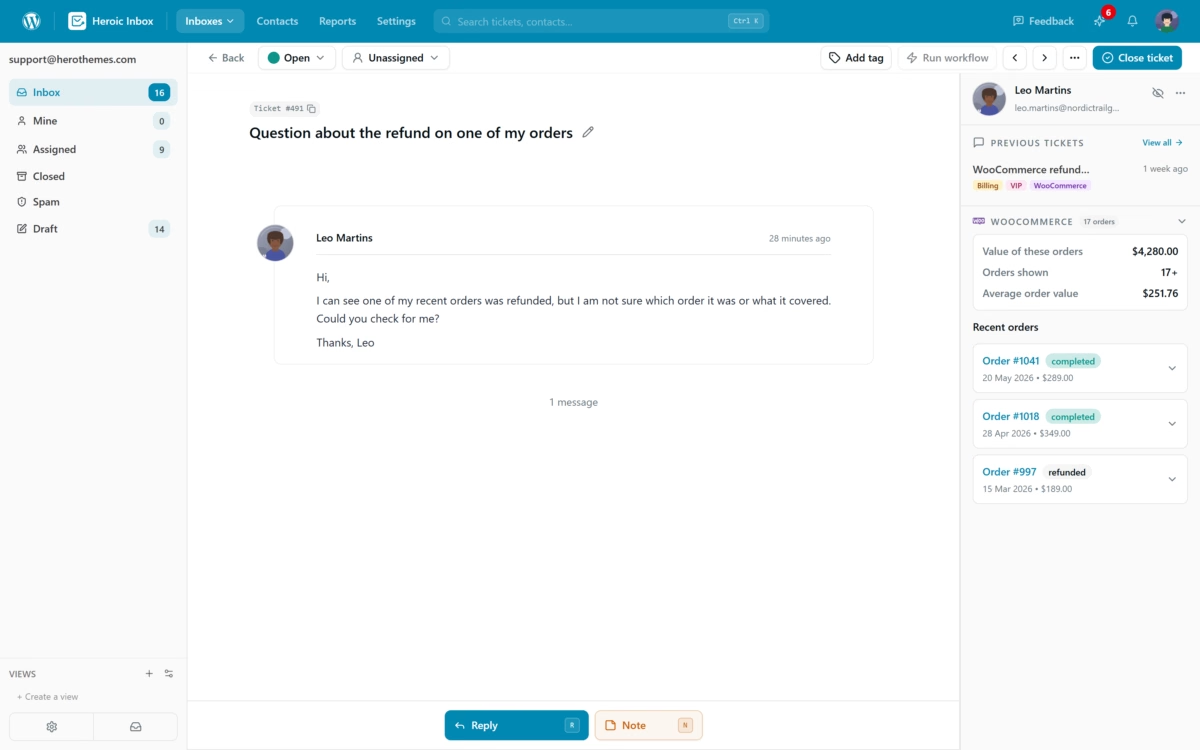
When you open a ticket, Heroic Inbox finds the WooCommerce orders whose billing email matches the sender’s address and builds a panel in the conversation sidebar. You see how much the customer has spent, how many orders they have placed, and their most recent orders with status, date, and total. If the sender has never ordered from you, no panel appears.
Know a Loyal Customer From a First-Time Buyer
A summary card at the top shows the customer’s lifetime value, their total number of orders, and their average order value, in your store currency. A regular on their ninth order gets a different reply from someone who placed their first order yesterday, and now you can tell them apart at a glance. For customers with ten or more orders, the card says plainly that its figures cover their most recent orders, so the numbers never overstate.
See Every Recent Order and Its Status at a Glance
Below the summary, the panel lists the customer’s ten most recent orders, newest first. Each one shows the order number, a color-coded status badge for completed, processing, pending, failed, canceled, or refunded orders, the date, and the total. The first five are visible right away, and one click shows the rest. When the question is “where is my order,” the answer is usually already on screen.
Open the Order in WooCommerce in One Click
When a ticket does call for a change, every order number links straight to that order’s edit screen in WordPress admin, in a new tab. Expand an order and a “View order details” link takes you to the same place. You stay in the inbox to answer, and jump into WooCommerce only to act: issue a refund, fix an address, or resend an order email.
Route Tickets Using Order Data
Since Heroic Inbox 3.11.0, workflows can read WooCommerce data too. Conditions cover whether the sender is a customer, their order count, their total spent, and the status of their last order. The Workflow Builder template gallery includes ready-made examples: tag customers who have spent over $500 as VIPs, flag emails from people whose latest order failed, and tag messages from non-customers as pre-sales.
Who the WooCommerce Integration Is For
This is built for anyone whose inbox fills up with order questions:
- WooCommerce store owners running their own support, who answer “where is my order” in between packing orders.
- Support managers and agents at online stores, who need order context on every ticket without training each agent to search WooCommerce admin.
- Agencies and freelancers running support for client stores, who want order history in front of their agents with no custom build.
If you sell with WooCommerce and your customers email you about their orders, this is for you.
What This Looks Like in Practice
Imagine a ticket lands from [email protected]: “I placed an order this morning but never got a confirmation email. Did it go through?”
Before you reply, the WooCommerce panel shows three orders. The two older ones are completed. The newest, from this morning, is marked failed.
You know the payment didn’t complete, so there is no confirmation to resend. You tell Priya her order didn’t go through, ask her to place it again, and let her know her earlier orders are all fine. One reply instead of three, and you never left the inbox.
How to Turn It On
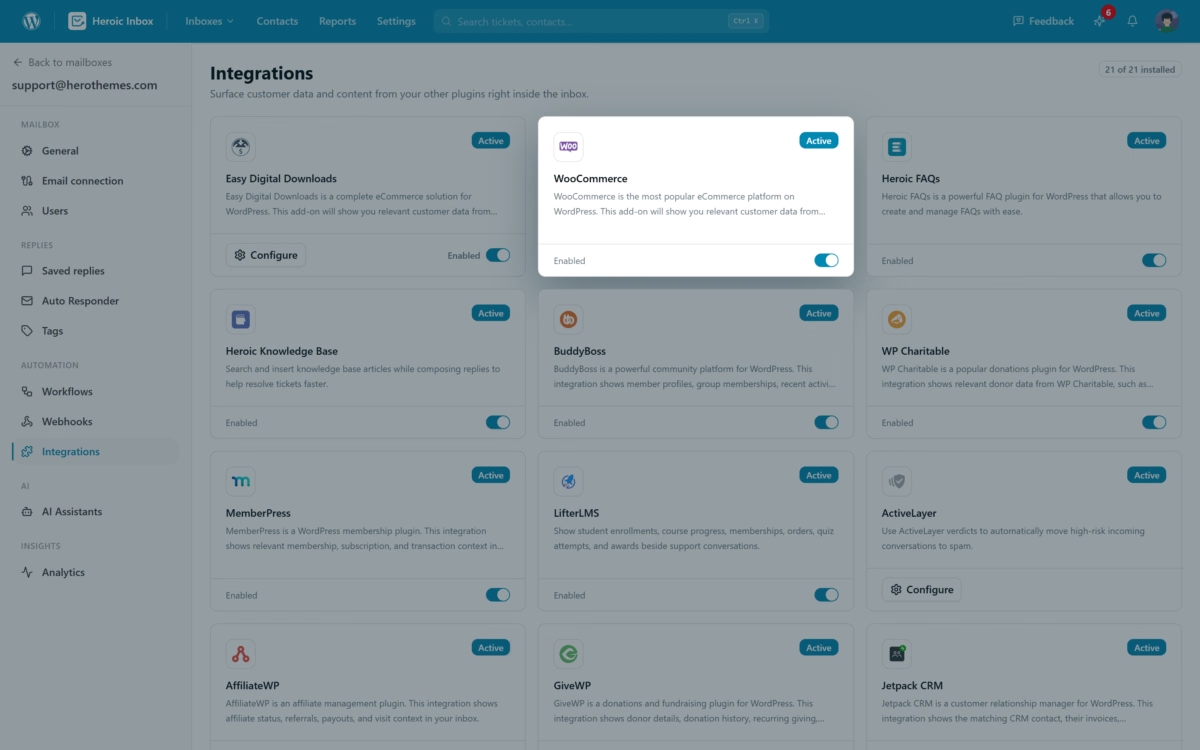
The integration is part of Heroic Inbox Pro and switches on as soon as it detects WooCommerce.
Step 1. Update Heroic Inbox and confirm WooCommerce is active
Update Heroic Inbox to the latest version, and make sure WooCommerce is active on the same site.
Step 2. Open a customer’s ticket
Open any mailbox and view a ticket from someone who has ordered from your store. The WooCommerce panel appears beside the conversation on its own.
Step 3. Turn it off per mailbox if you want
The panel is on by default. If a mailbox never hears from store customers, switch WooCommerce off for it in Mailbox Settings > Integrations.
The integration holds each customer’s order data for a few minutes so the inbox stays fast, and picks up changes as soon as an order is created, updated, refunded, or deleted.
Try the WooCommerce Integration and Tell Us What to Show Next
If you already run Heroic Inbox Pro, update to the latest version, open a ticket from one of your customers, and their order history is right there, with nothing to set up.
Not on Heroic Inbox yet? It is the shared inbox built for teams, and the WooCommerce integration ships with Heroic Inbox Pro.
We built this from the questions store owners answer every day, and we are not done. Try it on your real tickets, then tell us what the panel should show next.
Thanks for building your store with us.




Leave A Comment?
You must be logged in to post a comment.