What is Email Management? 23 Best Practices and Tips (2026)


Most people don’t have an email problem. They have a system problem.
The messages keep coming—and that part won’t change. But how you handle them, how you sort, respond, delegate, and archive, determines whether your inbox supports your work or quietly drains your focus.
Join me in this guide to learn Email Management. Don’t let emails become a nightmare for you.
Instead of letting your inbox control you, take control of it.
Let’s start with the basics.
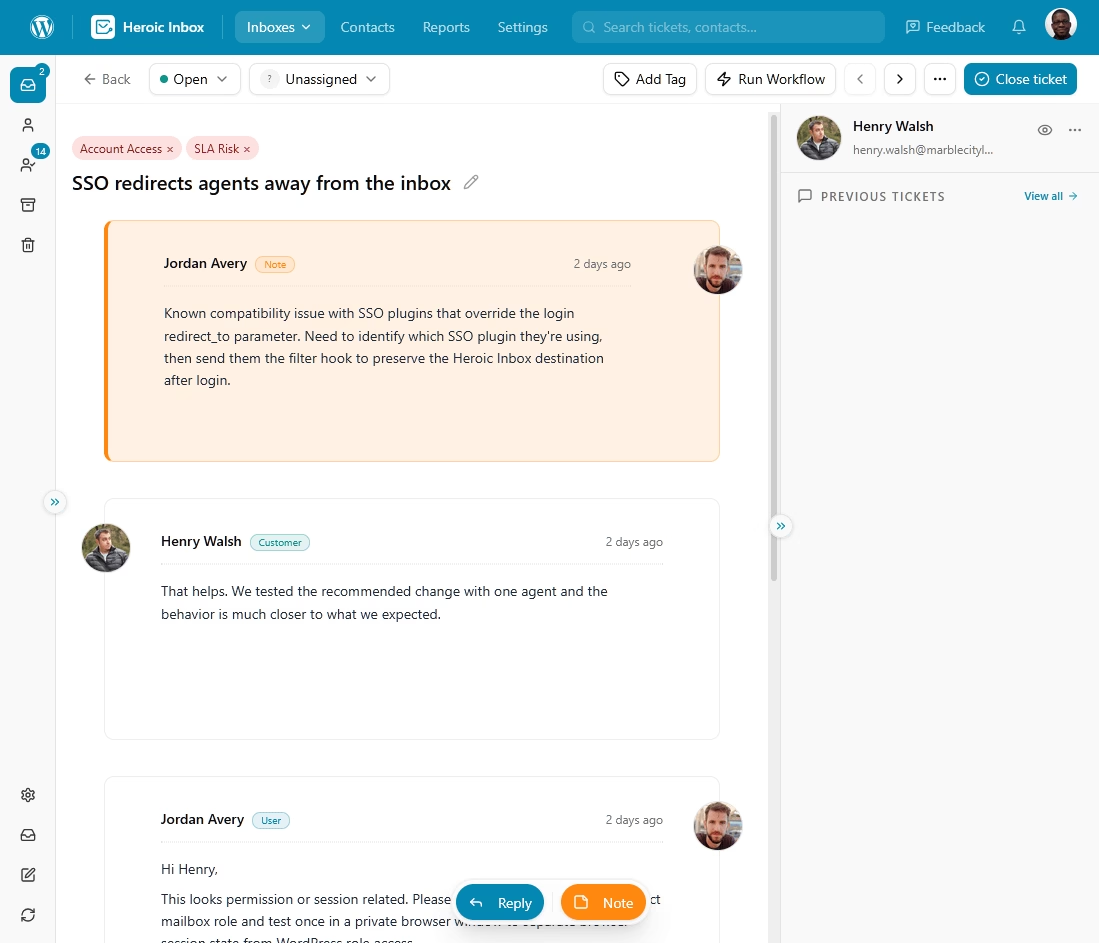
Heroic Inbox
A simple and affordable helpdesk for small businesses.
Unlimited users and powerful features.
In This Guide
What Is Email Management?
Email management is the process of organizing, prioritizing, and handling email so your inbox works for you, not the other way around.
It’s kinda similar to managing a busy restaurant kitchen: orders (emails) come in constantly, and without a system for who cooks what and in what order, you get chaos, cold food, and angry customers.
With a system, the same volume feels routine.
Here’s the distinction that trips people up.
Inbox management usually refers to one person keeping their own inbox tidy, while business email management covers how a whole organization handles shared addresses like support@ or sales@.
Both of these things matter, and they overlap. The difference becomes more important as your team grows:
- Individual email management: At the individual level, email handling is about personal productivity and sanity.
- Team email management: At the team level, it becomes about accountability, response times, and making sure two people don’t reply to the same customer with two different answers.
- Customer support email management: At the support-team level, it turns into a discipline with metrics, service level agreements (SLAs), and reporting attached.
Who Needs Email Management?

We rigorously test and research every product that we recommend through HeroThemes. Our review process. We may also earn a commission if you make a purchase through our links.
Not everyone needs the same system, and that’s the point. Here’s how I think about who needs what:
- Individual professionals: Anyone drowning in newsletters, notifications, and one-off requests needs personal inbox management to protect their focus and hit their own deadlines.
- Small business owners: When you’re the person answering support@, sales@, and your own name@ all at once, you need rules and automation before you burn out.
- Customer support teams: Shared inboxes, ticket assignment, and response-time tracking is a very important part of the support team.
- Sales teams: Lead response speed directly affects close rates, so managing the flow of prospect emails is money.
- Operations and HR teams: These teams field repetitive internal requests all day, and a good email management system keeps those requests from becoming a second full-time job.
Here’s the simple rule: if missing or delaying an email affects customers, revenue, or your team’s productivity, basic inbox organization is no longer enough. That’s when email management becomes a business process rather than a personal habit.
Email Management Pros and Cons
A good email management system is worth the effort, but it isn’t free, and pretending otherwise sets you up to quit in week two.
Here’s the balanced view.
The Pros:
- Nothing falls through the cracks: Every email has a clear next step, whether that’s replying, assigning it to someone else, or scheduling a follow-up.
- Faster response times: Filters, labels, automation, and saved replies reduce the time.
- More focused work.
- Clear ownership for teams: Shared inboxes and conversation assignments make it obvious who’s responsible for each email.
- A more professional customer experience: Consistent, well-organized responses
- Performance you can improve: Once you track response times and volume, you can actually fix bottlenecks instead of guessing.
The Cons:
- Setup takes time: Creating filters, organizing folders, writing templates, and configuring automation requires an upfront investment before you see the benefits.
- New habits take practice
- Business tools add ongoing costs: Shared inbox platforms and help desk software require a subscription.
- Email still has limitations: Email isn’t ideal for real-time collaboration, and it remains a common target for phishing and spam.
Keep it simple: The biggest mistake I see teams doing with email management is that they create a system that’s harder to manage than the inbox itself.
Start with a handful of folders, tags, a few useful filters, and basic automation. As your workload grows, add new rules only when they solve a real problem.
Focus on your requirements, not what software features make it possible.
What Are the 5 D’s of Email Management?
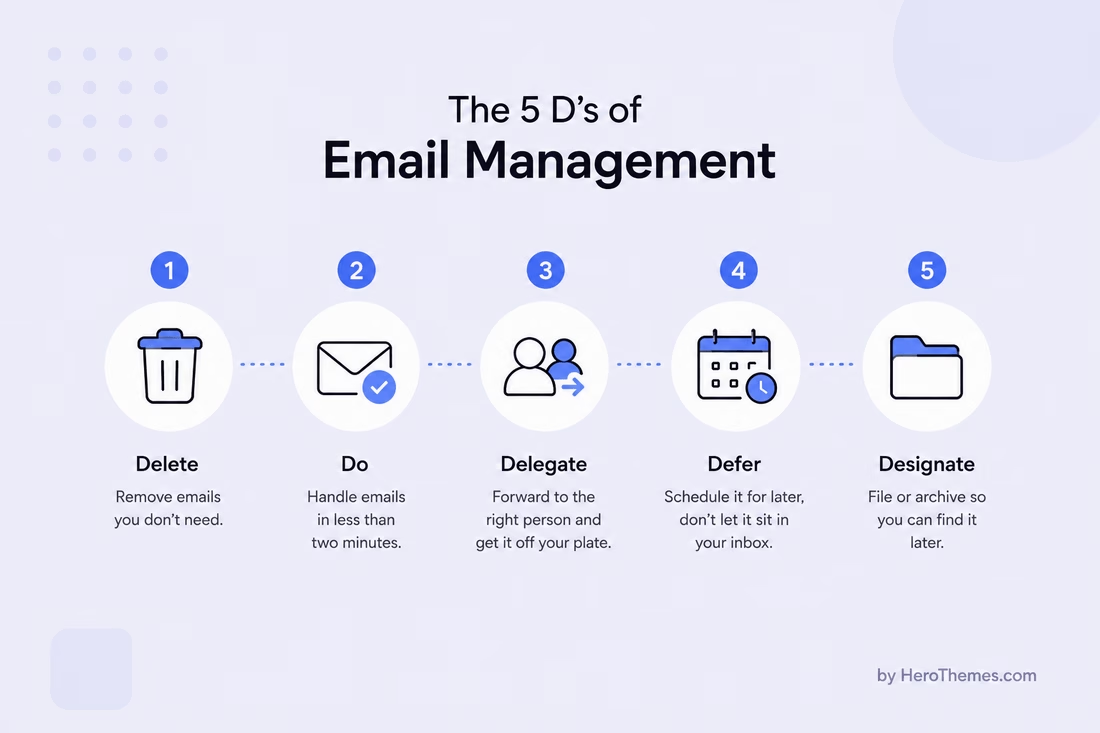
The 5 D’s of email management are Delete, Do, Delegate, Defer, and Designate (or Deal), a decision framework that forces you to take one clear action on every email the first time you open it.
It’s the closest thing to a universal rule I’ve found in this field, and I still teach it to every new support hire on day one.
The framework grew out of the Four D’s of Decision Making from Sally McGhee, founder of McGhee Productivity Solutions, and co-author John Wittry in their book Take Back Your Life! Using Microsoft Office Outlook.
The magic isn’t the letters, it’s the principle underneath: touch each email once and make a decision, rather than reading it, feeling anxious, and moving on.
Here’s how each D works in practice.
Delete (or Defend)
If an email doesn’t need you, it’s gone. Most of us hoard messages “just in case,” and we almost never go back to them.
Be ruthless here. Cleaning inbox starts with aggressive deletion of newsletters you don’t read, notifications you don’t need, and threads that have run their course.
Do
If an email can be handled in less than two, do it right now. This is the single most powerful rule in the whole framework.
The logic is airtight: it costs more mental energy to defer and re-read a quick task than to just knock it out.
Delegate
If someone else is better placed to handle it, forward it and get it off your plate.
For teams, delegation means more than forwarding an email. Make sure the right person has enough context to act without asking follow-up questions. Clear ownership also prevents duplicate replies and keeps work moving.
Shared inbox tools make this process much easier. You can directly assign conversations to team members instead of relying on email forwarding.
Defer
If an email needs real work but not right now, schedule it.
Don’t leave it in your inbox as a reminder that makes you feel guilty, because that’s how inboxes turn into anxiety machines.
Move it to a “today” or “this week” folder, or better yet, turn it into a calendar block or a task.
Designate (or Deal)
The fifth D is about filing what’s left so you can find it later.
Once you’ve acted on an email, archive it into a searchable location instead of letting it clutter your inbox.
I keep my folder structure almost embarrassingly simple, because search in modern email management tools is way powerful. Just type a person name, title or something from the email body and you will find that conversation within a minute.
Email Management Best Practices (2026 Guide)
This is the heart of the guide, so I’m going to give you the practices that actually move the needle, not a padded list of obvious tips.
Some of these are habits you can start from today, some are tools you’ll set up once and forget about, and use of powerful features to save time and focus on what matters the most.
Take what fits your situation and leave the rest.
1. Reduce Incoming Emails with Self-Service
The easiest support email to manage is the one that never reaches your inbox.
A well-built knowledge base can deflect a large share of repetitive questions before they ever reach your inbox, and customers increasingly prefer helping themselves.
Try Heroic Knowledge Base, a WordPress plugin for building a fast, searchable help center without much effort.
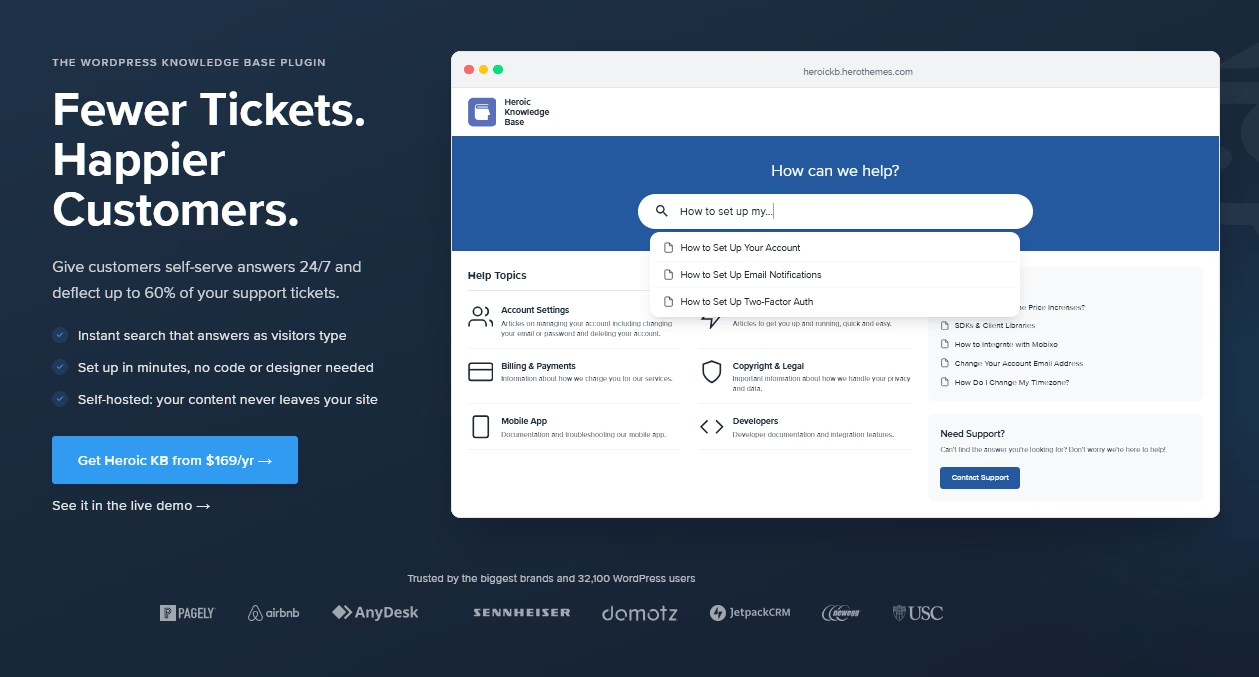
When you answer your top 10 support questions in clear, findable articles; emails simply stop arriving.
That’s not inbox management, that’s inbox prevention, and it’s the highest-leverage move most support teams can make.
For teams that want to push deflection even further, add HelpJet on top of your knowledge base.
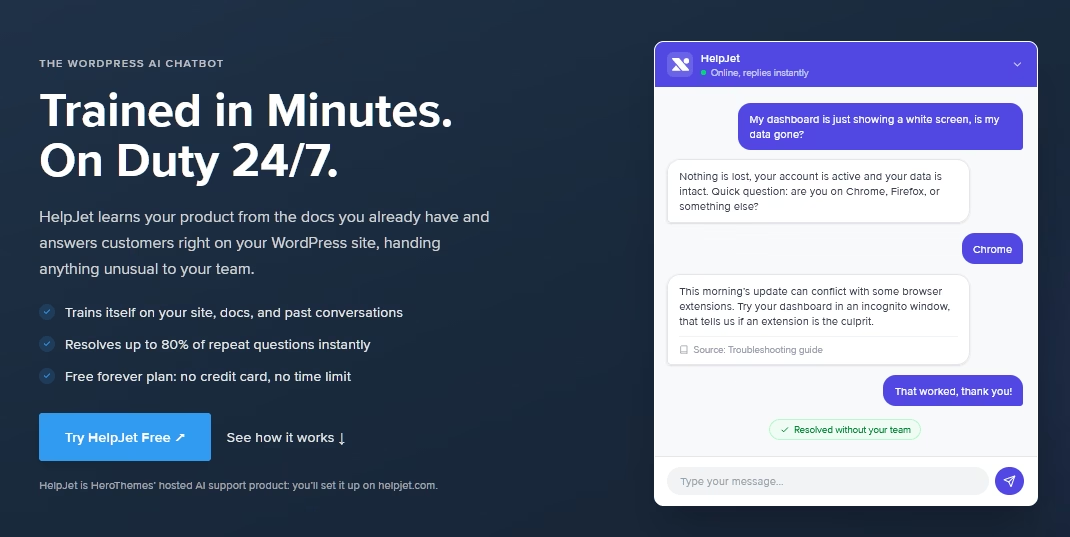
It’s a free AI support chatbot that trains on your existing content and answers common questions through a chat widget, 24/7.
Pro tip: Review your last 200 support emails and identify the questions that appear most often. Those topics should become your first knowledge base articles.
2. Use a Shared Inbox for Team Email
Once multiple people manage the same mailbox, a plain email account stops working.
You get duplicate replies, dropped messages, and the dreaded “I thought you were handling that.”
A shared inbox fixes this with assignment, collision detection, and internal notes so your whole team works from one clean queue instead of forwarding messages around in a game of hot potato.
My go-to recommendation is Heroic Inbox, a shared inbox and help desk plugin that runs inside your WordPress dashboard.
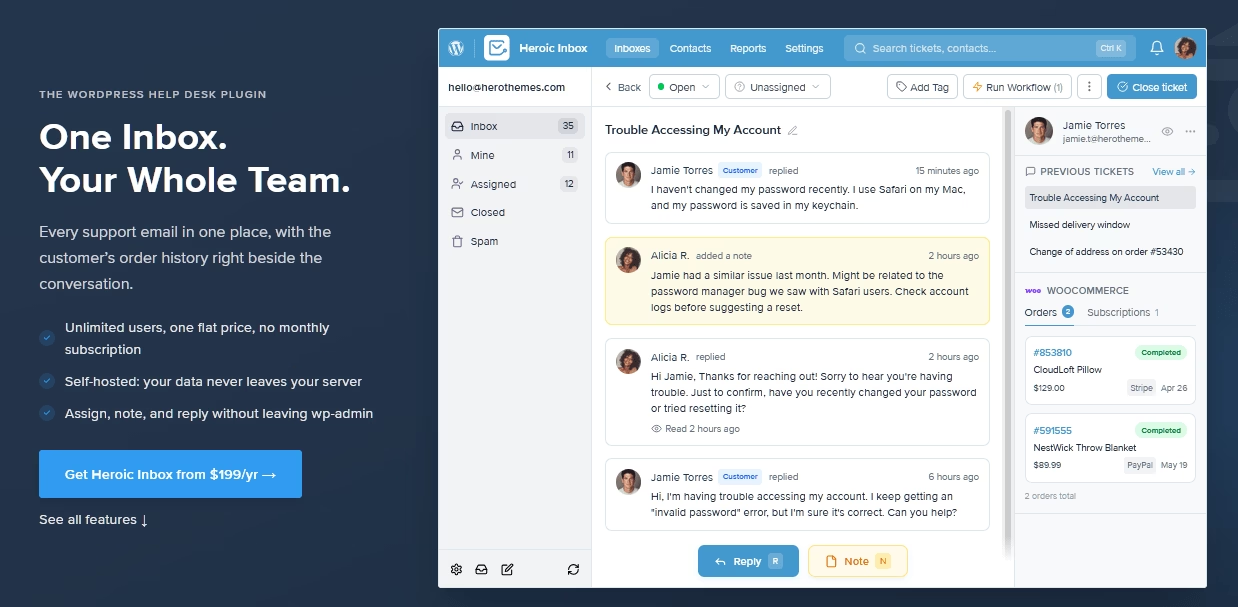
It connects your support@ and sales@ addresses over Gmail, Microsoft 365, or standard email.
Heroic Inbox keeps your data on your own site rather than on a third-party cloud. It also doesn’t charge per user, which is important once your team grows beyond three or four people.
Heroic Inbox Key Features:
- Unified inbox management: Handle support@, sales@, and billing@ from one admin screen.
- Unlimited users and conversations: No per-seat pricing, so scaling doesn’t punish you.
- Collision detection: Two agents can’t accidentally reply to the same customer.
- Assignment and internal notes: Route messages to owners and discuss context without CC’ing the customer.
- Saved replies and templates: Answer common questions in seconds with consistent wording.
- Workflow automation: Auto-tag, auto-assign, and auto-route based on triggers and conditions.
- Reporting: Track response times, ticket volume, and per-agent performance.
- WooCommerce and EDD integration: Pull order details into the conversation sidebar.
- Heroic KB integration: Surface knowledge base articles inside the inbox for one-click self-service links.
Give it a try today and see the difference yourself.
3. Adopt a Single-Touch Rule
Handle each email once.
When you open a message, read it, and close it without acting, you pay the reading cost twice or three times over, and you inherit the low-grade anxiety of knowing you’ll have to come back to it.
The 5 D’s give you the decision tree, but the discipline is on you: decide the moment you open it.
This one habit changed my working life more than any tool ever did. When I stopped “checking” email and started “processing” it, the same volume took half the time.
4. Process Email at Scheduled Times
Stop checking email every time a notification pops. You are basically getting interrupted every two minutes by a meeting, email, or notification. You don’t need to add self-inflicted interruptions on top of that.
Pick two or three windows a day, morning, midday, and late afternoon works well, and process the inbox to empty in each one.
Outside those windows:
- Turn off email notifications.
- Close your email tab.
- Focus on your highest-priority work.
Yes, it feels uncomfortable for about a week, then it feels like freedom, and you’ll wonder why you ever let a little red number dictate your focus.
5. Use Filters and Rules to Pre-Sort
Let software do the first pass. Filters that automatically label, sort, or archive messages based on sender, subject, or keywords are your first line of defense against inbox chaos.
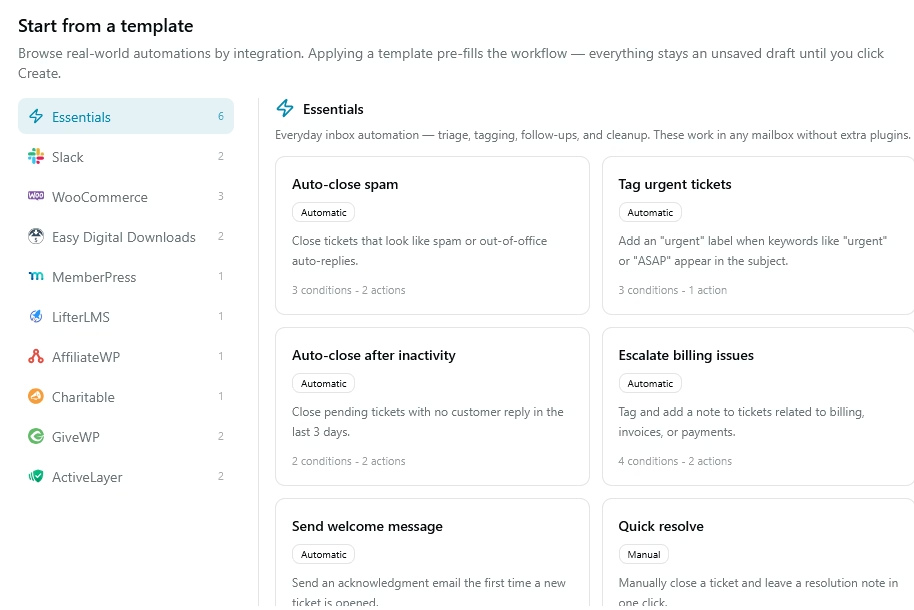
For example, route newsletters to a “read later” folder, receipts to a “finance” label, and internal FYIs out of your primary view so what’s left is what actually needs your brain.
The goal is that when you open your inbox, you see mostly things that need a human decision.
My starter set for anyone building filters from scratch looks like this:
- Receipts and invoices: Move directly to a Finance folder.
- Newsletters and marketing: Send them to a Read Later folder.
- Automated notifications: Filter build alerts, calendar invites, and system emails into their own labels.
- VIP senders: Star or flag messages from your boss, your biggest clients, or anyone whose emails always need a fast reply.
- Internal FYIs: Anything CC’d where you’re not the primary recipient goes to a lower-priority folder.
6. Unsubscribe Relentlessly
Every newsletter you don’t read is a small tax on your attention, paid daily.
Instead of deleting the same promotional email for the 50th time, spend the extra 10 seconds to unsubscribe.
Spam and low-value promotional mail make up roughly half of all global email traffic, and while you can’t stop all of it, you can absolutely stop the stuff you once opted into.
7. Master the Two-Minute Rule (and Its Limits)
If a reply takes less than two minutes, just do it. This is the “Do” from the 5 D’s, and it’s worth its own callout because it’s where most people leak the most time.
Deferring quick replies means reading the email, experiencing friction, closing it, and paying to reread it later. Doing it now costs less.
8. Write Clear, Specific Subject Lines
A good subject line tells the recipient exactly what to expect before they open the message.
For example, vague subjects like “Question” or “Quick Update” tells readers nothing, while “Invoice #4021, need approval by Friday” tells them everything.
Some formats that work well include:
- Action + object + deadline: “Approve budget draft by Thursday.”
- Type + reference: “Question, Q4 marketing plan section 3.”
- Status update: “FYI, no reply needed: shipment delayed to next week.”
- Meeting requests: “15 min: sync on onboarding flow.”
When the topic of a thread changes, change the subject line too.
It’s frustrating to search for a shipping discussion buried in a thread titled “Re: Re: Re: Hello.”

9. Keep Messages Short and Actionable
Respect the reader’s time and lead with the point.
Long, rambling emails waste time on both ends and often bury the one thing you actually need done.
State your request or key information up front, then add context below if needed, and put deadlines and next steps in bold if the platform allows.
If you find yourself writing five paragraphs, that’s usually a sign you should pick up the phone, start a quick call, or move the discussion to a doc.
Email is a poor medium for anything that needs real back-and-forth, and it’s a terrible medium for tone-sensitive conversations.
10. Use CC and BCC With Discipline
CC creep is one of the biggest hidden costs in modern business, and almost nobody talks about it.
Every unnecessary CC steals time from someone who didn’t need to be there, and it dilutes the responsibility of the person who actually should own the reply.
Ask yourself before adding anyone: does this person need to act, or do they just need to know? If neither, leave them out.
BCC has a narrower legitimate use than most people realize.
Use it to keep large recipient lists private (newsletters, announcements to customers), or to quietly loop in a manager on a first-touch reply so they can drop off future messages.
11. Think Before You Click “Reply All”
Reply All should be the exception, not the default.
Before you hit it, look at the recipient list and ask whether every person there actually needs your response, or whether two of them will do.
12. Set Clear Response Time Expectations
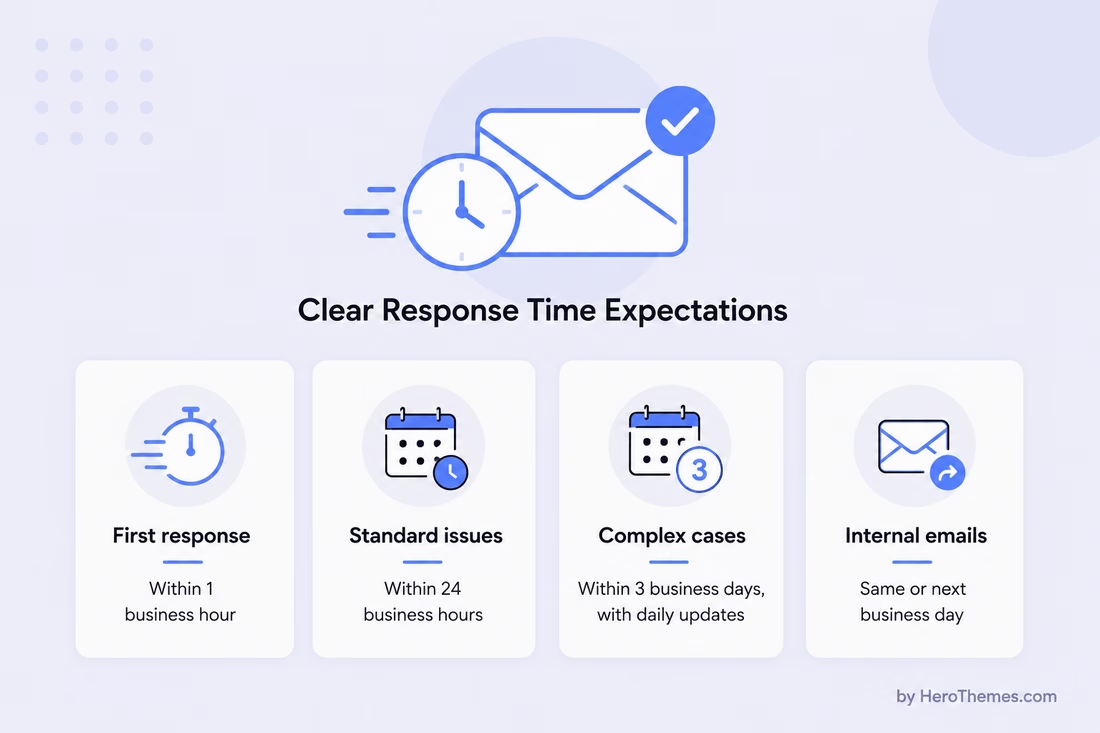
People are usually more patient if they know when to expect a response.
The general etiquette standard is to reply within 24 hours, even if only to acknowledge receipt and say when a full answer is coming.
On a support side, you’ll want tighter targets and a written service level agreement.
A typical framework looks like this:
- First response: Within one business hour during coverage windows.
- Standard resolution: Within 24 business hours for common issues.
- Complex or escalated cases: Within 3 business days, with an interim update every 24 hours.
- Internal emails: Same or next business day depending on urgency.
13. Use Email Templates and Saved Replies
If you’re answering the same question every day or every week, save it.
Canned responses / saved replies, let you answer common questions in seconds while keeping your tone consistent across a whole team.
They’re especially powerful for support work, where the same handful of questions come in daily.
Good templates share a few traits:
- Lead with the answer
- Use plain language
- Include placeholders for personalization
- End with a clear next step
Aim for a starter library of 10 to 20 templates for your most common scenarios (password reset, refund confirmation, feature request acknowledgment, meeting confirmation, follow-up), and review them every quarter to keep the wording fresh.
Personalize each template before you send it.
Explore:
Best Pitch Email Examples (Templates and Writing Tips)
Retention Email Templates That Work (Expert Guide)
Support Ticket Response Templates
14. Create a “Waiting On” System
One of the easiest ways to lose track of work is forgetting about emails that require someone else’s response.
For example, you send a request, you archive it, you assume the ball is in their court, and six weeks later you realize they never replied.
Create a Waiting On folder or label for conversations that are currently in someone else’s hands.
Whenever you send an email that needs a reply before work can continue:
- Move it to your Waiting On folder
- Review that folder once a week
- Follow up on conversations that haven’t received a response after three to five business days
This simple habit prevents projects, customer requests, and important conversations from quietly disappearing.
15. Use Snooze and Schedule Send
Snooze is the feature that makes single-touch email work in the real world. When a message need action later (a bill due next month, a follow-up in three days), snooze it out of your inbox until you can actually handle it.
It disappears now and reappears at the top when it’s relevant, which is exactly when you want to see it.
Schedule send is the mirror image, and it’s underused.
Writing an email at 11 p.m. but don’t want to signal that you work at 11 p.m.? Schedule it for 8 a.m.
Working across time zones and want your message to land at the start of your recipient’s day? Schedule it.
16. Keep Your Folder Structure Simple
Resist the urge to build an elaborate filing cabinet.
Modern search functions are so good that you rarely need more than a few folders or labels. Every extra folder means more decisions for every email.
Complexity compounds against you here.
A simple structure like this works well for most people:
- Inbox: Only things that need a decision or reply right now.
- Waiting On: Conversations awaiting someone else’s response.
- Follow Up: Emails you’ll revisit on a specific date.
- Reference: Completed conversations that you may need later.
That’s it. No project folders, no client folders, no month-by-month sub-folders.
Searching is faster than using a folder tree, and the mental cost of wondering “Where does this go?” is eliminated.
17. Learn Keyboard Shortcuts and Search Operators
Small productivity tip.
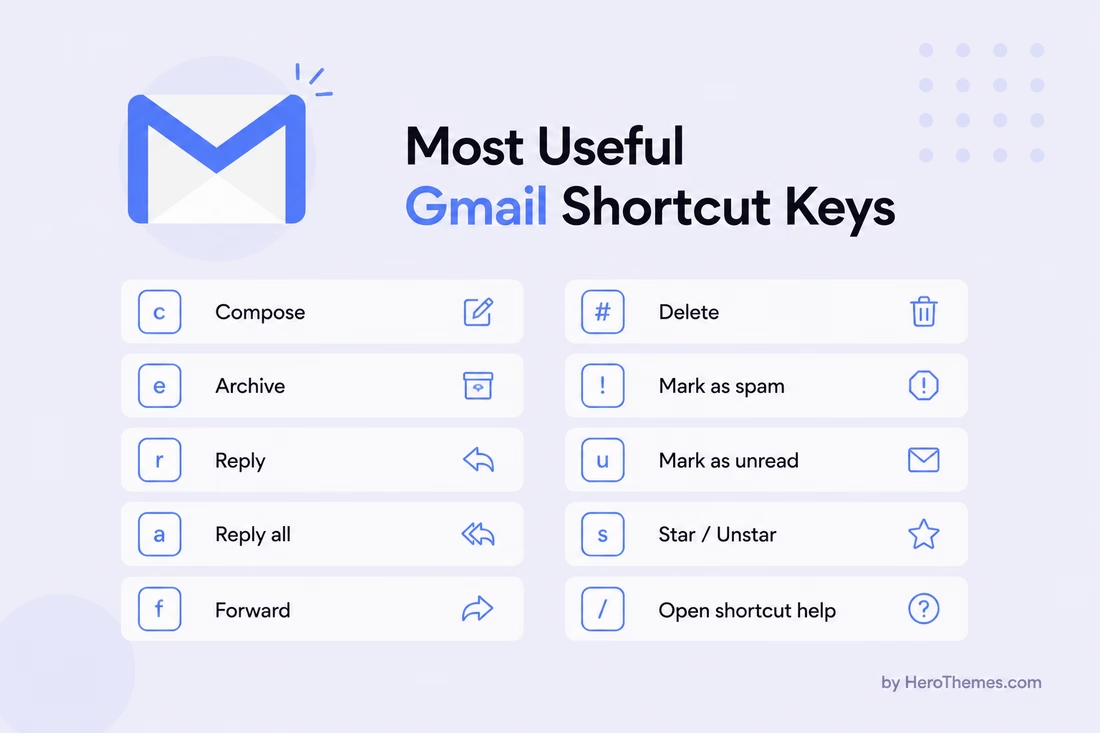
Learning the ten most useful keyboard shortcuts in your email client (e.g., archive, reply, forward, mark as read, snooze, and jump to inbox) can save you several seconds per email.
For those processing a high volume of emails, this can add up to hours per month.
Search operators are just as valuable. Instead of scrolling through months of email, you can search with filters such as:
- from: to find emails from a specific sender.
- to: to locate messages sent to someone.
- subject: to search by subject line.
- has:attachment to find emails containing files.
- Date filters to narrow results to a specific period.
Spend 20 minutes learning your tool’s syntax and experience the difference for yourself!
18. Do a Weekly Inbox Review
Even the best email system needs occasional maintenance.
Set aside 15 to 20 minutes once a week, ideally on Friday afternoon or Monday morning, to keep everything running smoothly:
- Clear the inbox: Push everything to zero using the 5 D’s.
- Scan “waiting on”: Follow up on anything that’s gone quiet.
- Audit filters: Check your junk and promotions folders for anything the filters caught wrongly.
- Cull your templates: Retire any saved replies you haven’t used in three months.
- Unsubscribe cleanup: Kill any newsletters that made it through the week without earning a real open.
This ritual keeps your inbox organized and prevents filters, templates, and workflows from becoming outdated over time.
19. Set Boundaries on After-Hours Email
An effective email system should support your work, not extend your workday indefinitely.
Decide when your workday ends, then respect it, and use tools to reinforce the boundary.
A few simple habits make a big difference:
- Turn off work email notifications outside business hours.
- Use Schedule Send for emails written late in the evening.
- Let your team know that after-hours replies aren’t expected unless something is urgent.
20. Create a Professional Email Signature
Your email signature appears on every message you send, so keep it useful.
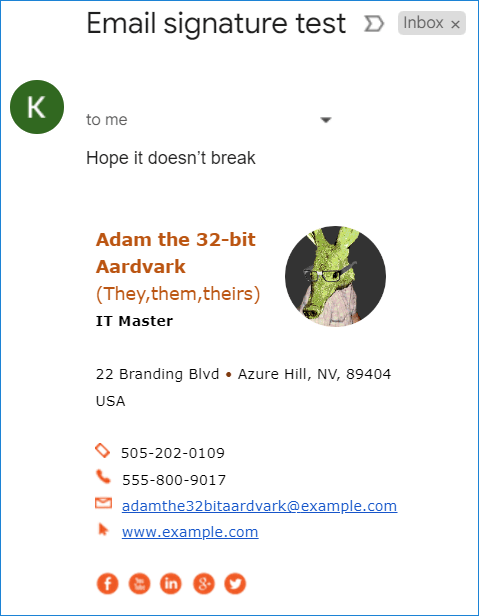
A good signature includes your name, role, company, and one important link (such as your booking page, product, or knowledge base).
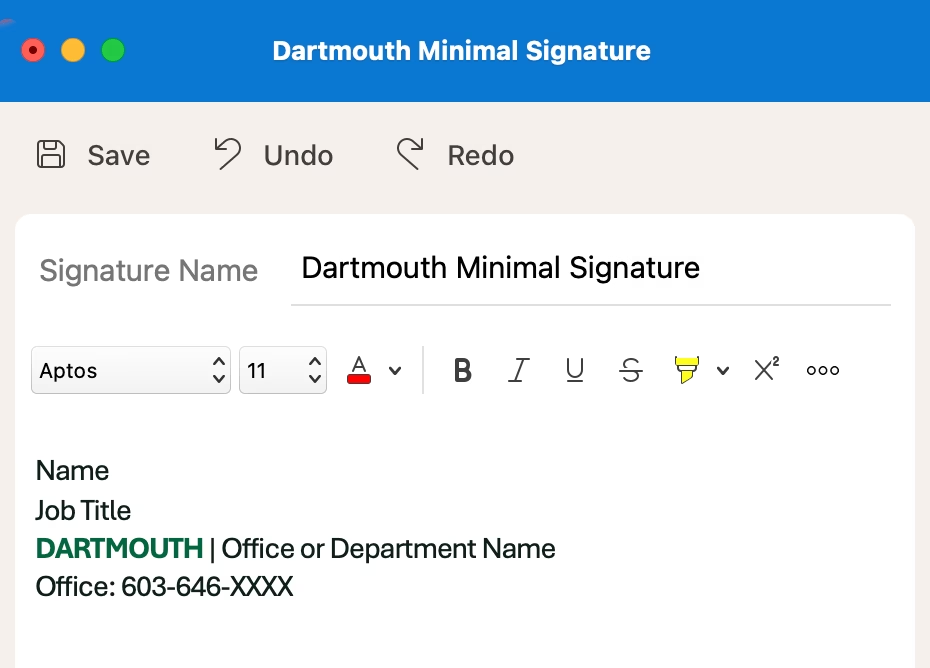
A bad signature is three inches tall and features a full quote from a philosopher. It also includes six social icons that the recipient will never click.
For support teams, a strategic signature can deflect email volume.
A short line like “Looking for a quick answer? Visit our Help Center.” encourages customers to solve simple issues themselves before contacting support.
21. End Long Email Threads Early
Some conversations simply outgrow email.
When an email chain reaches five or six replies without resolution, it’s usually a sign that email is not the right medium for the conversation.
Consider the following:
- Schedule a 15-minute call.
- Summarize the state of play in one clear message.
- Move the discussion to a document where everyone can edit simultaneously.
If the conversation must stay in email, include a brief summary near the top of each reply.
22. Protect Your Inbox from Phishing
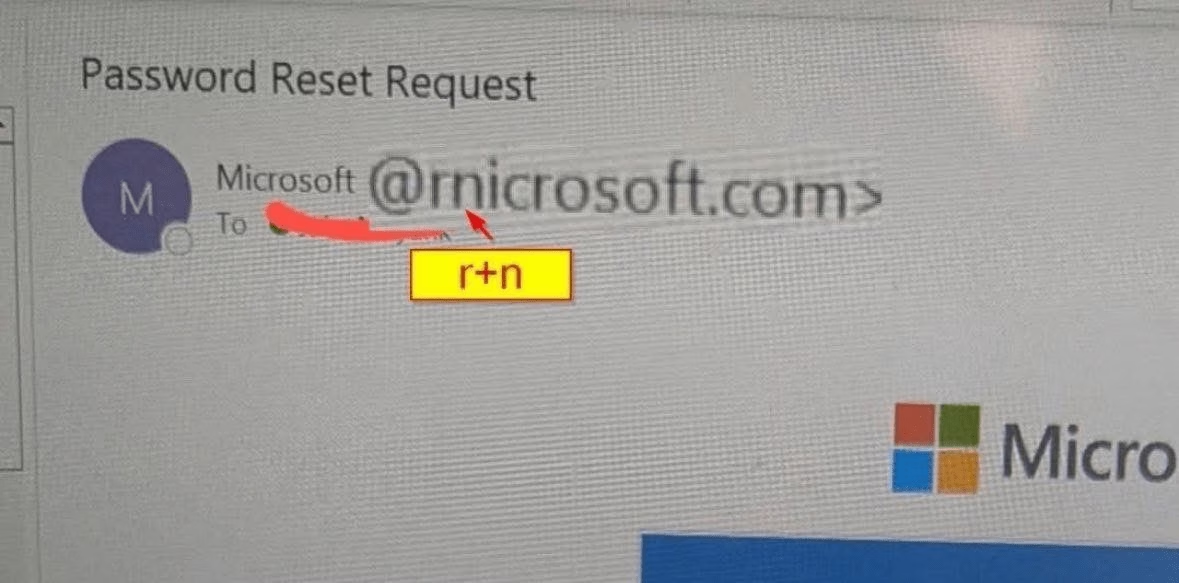
A well-organized inbox is easier to secure because you’re less likely to rush through important messages.
Make these security habits part of your daily workflow:
- Verify the sender’s full email address, not just the display name.
- Hover over links before clicking to see where they really go.
- Confirm unusual financial or credential requests through another communication channel.
- Use two-factor authentication on every email account. This is non-negotiable.
- Report suspicious messages to your IT team or your provider’s phishing report tool rather than just deleting them.
23. Train the Whole Team on Email Etiquette
Email management system only works if everyone uses it.
Create a simple set of guidelines covering topics such as:
- Subject line formats
- Response time expectations
- When to use CC or Reply All
- Shared inbox workflows
- Email tone and formatting
- Escalation procedures
It doesn’t need to be a 40-page policy document, a one-page cheat sheet on your company wiki is often enough.
Walk every new team member through these standards before they begin handling customer conversations.
Final Thoughts: Email Management
After 15 years in this work, here’s what I know for certain: email will not manage itself, and the volume is only going up.
The good news is that you don’t need a complicated workflow to stay on top of your inbox. A few consistent habits often make the biggest difference.
Start with the 5 D’s, add batching and filters, and touch each email once.
If you’re running email as a team, invest in the right email management tools early rather than waiting until you’re overwhelmed:
- A shared inbox like Heroic Inbox gives you accountability and collision detection.
- A knowledge base like Heroic Knowledge Base cuts the repetitive volume at the source.
- A chatbot like HelpJet can answer simple questions around the clock.
Together, these three tools transform a reactive, stressful inbox into a calm, measurable operation.
Further Reading
Best Onboarding Email Subject Lines for New Users, SaaS
Professional Correction Email Examples and Templates
Best AI Email Assistants of 2026 (Free Options Included)
Best Free AI Email Reply Generator
Free AI Email Writer to Draft Professional Emails
Best Free WordPress Email Plugins of 2026




Leave A Comment?
You must be logged in to post a comment.