10 Best Email Clients for Gmail in 2026 (Free and Paid Options)

Gmail’s web app is good. But it is not good enough to be the only way you touch your email, and if you have ever kept four browser tabs open just to watch four inboxes, you already know why.
I have run support inboxes on Gmail and Google Workspace, first as the person answering tickets and later as the person responsible for how fast everyone else answered them. Over that time I have installed, abandoned, and reinstalled just about every Gmail client worth naming.
While some fixed problems I was facing, others created new ones.
This guide covers the 10 email clients for Gmail I would actually recommend in 2026, what each one gets wrong, and which one suits your setup.
Let’s get started.
In This Guide
Why Bother with a Gmail Client at All?
Gmail’s interface is built around Google’s priorities, and those only partly overlap with yours. Google wants you in a browser, signed into one account at a time, seeing the layout it decided on.
A separate Gmail email client gives you that control back.
Most people arrive at this decision because of one of five specific frustrations. See if any of these sound familiar.
1. The account shuffle
You have a personal Gmail, a work Google Workspace address, and maybe an old address you still monitor.
Gmail’s web app makes you sign out and back in, or run separate browser profiles like a spy with three passports.
2. The tab problem
Email in a browser tab competes with the 40 other tabs you have open, and it loses. I have lost half-written replies to a stray refresh more times than I want to admit.
Compare that with a native email application. It gets its own window, its own notifications, and its own place in your alt-tab order.
3. Offline work
There is Gmail Offline, but it only runs in Chrome, requires advance setup, and limits how much email it stores.
With a client that syncs over IMAP, you can read, search, and write emails on a plane, and everything will send when you land because it holds a full local copy.
4. Search that does not phone home
Gmail’s search is genuinely excellent, and I am not going to pretend otherwise. What local clients add is speed on large archives, saved smart folders, and rules that span several accounts at once instead of one mailbox at a time.
5. Team email
This is the one that pushed me toward finding third-party Gmail clients in the first place.
Gmail has no concept of assigning a message to a colleague, leaving an internal note, or warning two agents that they are both typing a reply to the same customer.
A shared login is not a workflow, and if your support address has more than one person reading it.
6. Privacy
Privacy is another consideration, and it cuts both ways.
Some people move to a local email client precisely so their mail sits on their own machine with nothing in the middle.
Others unknowingly move to a client that routes every message through a company’s servers to power push notifications and AI features.
The Best Email Clients for Gmail in 2026

We rigorously test and research every product that we recommend through HeroThemes. Our review process. We may also earn a commission if you make a purchase through our links.
1. Heroic Inbox
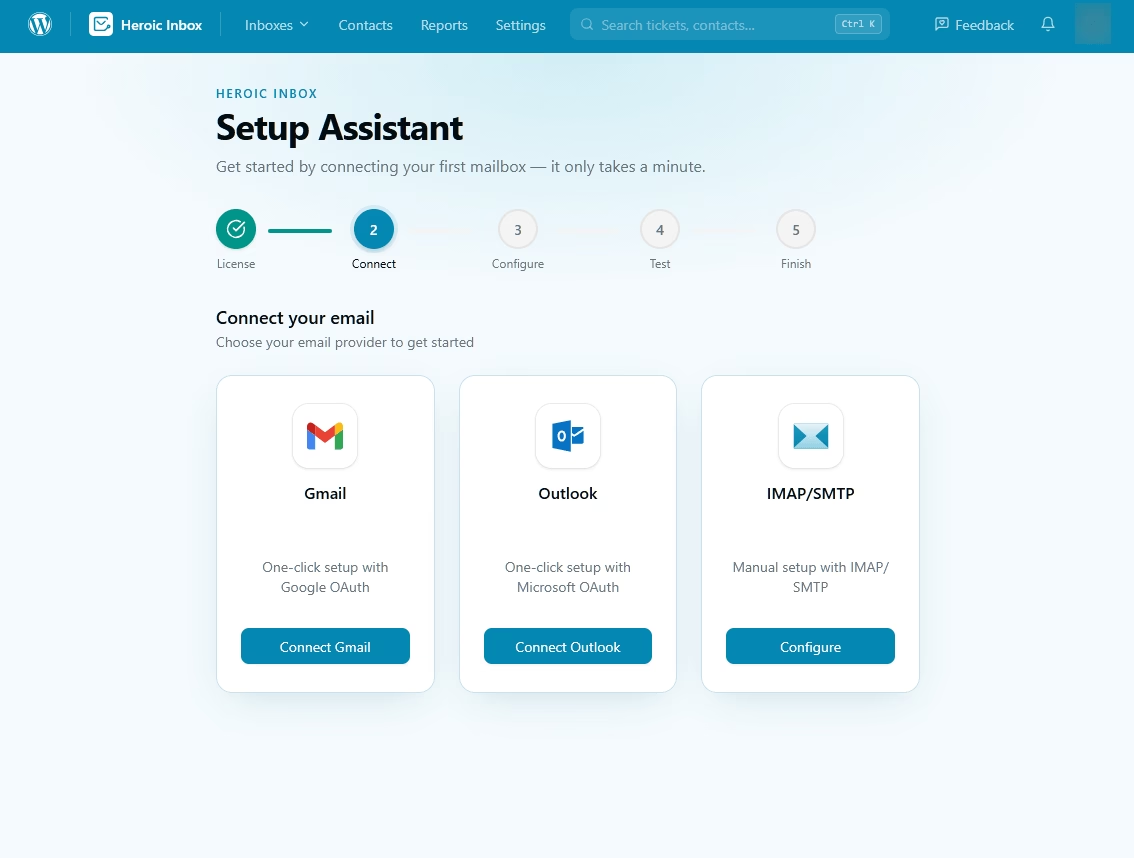
The moment a Gmail address stops belonging to one person and starts belonging to a team, every other Gmail client on this list becomes the wrong tool.
Two people open the same customer email, both reply, and the customer gets two different answers over the same thread.
Heroic Inbox is a shared inbox software that connects with your Gmail and Google Workspace.
From there your team reads, assigns, and answers customer emails.
Connection runs through Google’s official API with OAuth, so you are not handing over passwords or relying on forwarding hacks.
Key Features
- Shared mailboxes with real assignment: Connect support@, sales@, and billing@, then assign conversations to specific people.
- Collision detection: Warns you when a teammate is already replying to the same message.
- Internal notes: Discuss a tricky ticket in the thread without the customer seeing it.
- Saved replies and templates: Reusable answers for the questions you get 30 times a week.
- WooCommerce, Easy Digital Downloads and other eCommerce software integrations: Order details, purchase history, and shipping status in the conversation sidebar.
- Unlimited inboxes, users, conversations, and emails. No per-seat metering, which is rare in this category.
- Heroic KB integration: Surface relevant knowledge base articles inside the inbox and link customers to them in one click.
- Role-based permissions: Admin, Manager, and Agent access levels.
- Reporting on response times and volume.
- Workflow automation to automate huge chunks of repeated tasks.
- AI Assistant for drafting replies.
Cons
- It runs inside WordPress. You will need a working WordPress website.
- No mobile app of its own. You work through the WordPress admin in a mobile browser, which is fine for triage and awkward for long replies.
Pricing
Heroic Inbox is sold as a paid WordPress plugin with an annual license covering updates and support, and there is no free tier.
Introductory pricing starts at $79 per year, and there is a 14-day money-back guarantee as well.
14-Day Money-Back Guarantee | Setup in Under 10 Minutes
2. Mozilla Thunderbird
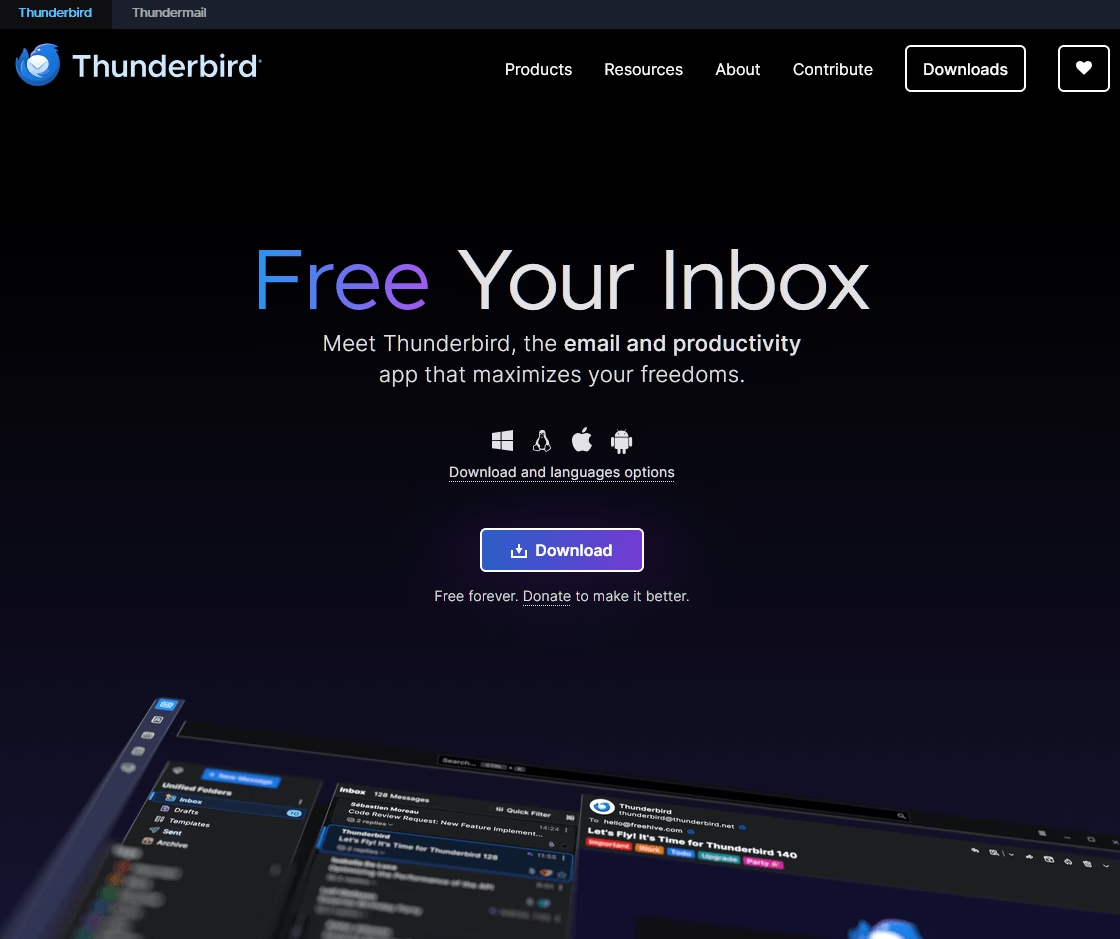
As a Gmail email client, Thunderbird connects over IMAP using OAuth 2.0, which is exactly the sign-in flow Google wants, and there is no middleman. Your mail travels between your computer and Google’s servers.
It offers a native OpenPGP encryption, built in, free. Almost nothing else on this list offers that without a paid tier or a plugin, and it is a strange thing to get for nothing.
Key Features
- Free, open source, donation-funded, with no upsell anywhere in the app.
- OAuth 2.0 sign-in, no app-password workarounds.
- Native OpenPGP encryption at no cost.
- Unified folders across every connected account.
- Complete offline access with local storage.
- A deep add-on library covering snooze, send later, and much more.
- Google Calendar over CalDAV and Contacts over CardDAV.
- Keyboard shortcuts and customization that go far deeper than any commercial rival here.
- Mobile apps
Cons
- The labels-as-folders behavior confuses nearly every new Gmail user, and no amount of documentation fixes the underlying mismatch.
- Snooze and advanced scheduling need add-ons
- The redesign helped, but the interface is still busier than Spark or Apple Mail.
Pricing
Free, across desktop and Android, funded by donations.
3. eM Client
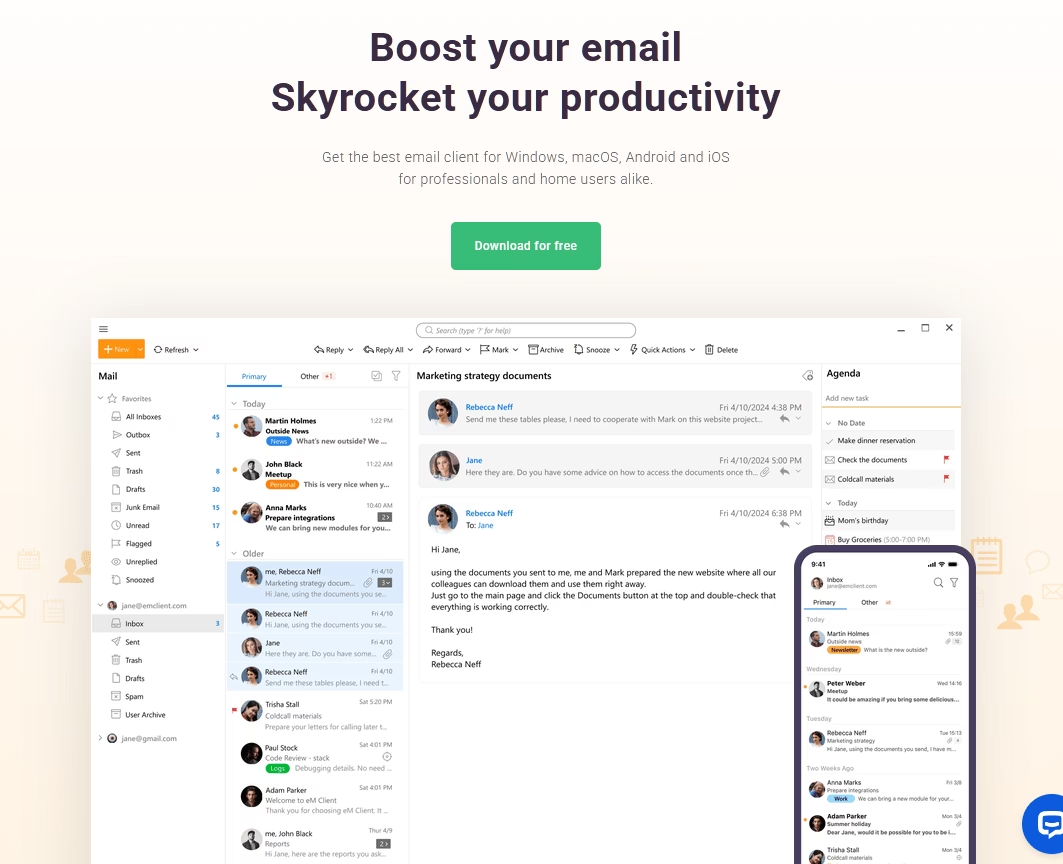
Ask a Windows user who has escaped Outlook where they landed, and eM Client comes up more than anything else. The calendar and contacts sync is the reason.
Most Gmail clients treat Google Calendar as an afterthought bolted on beside the mail; eM Client treats it as half the product, with proper two-way sync that has never dropped an event on me.
Key Features
- Two-way Google Calendar and Contacts sync that genuinely works.
- Unified inbox across all connected accounts.
- Delayed send, snooze, and reusable templates built in, not bolted on.
- Native PGP and S/MIME encryption.
- Built-in translation and AI writing assistance.
- Clean interface with a proper dark mode.
- Windows and macOS versions.
Cons
- The free tier caps you at two accounts and is licensed for personal, non-commercial use only. Business use means paying.
- A minority of users report sync hiccups, usually after major version upgrades.
Pricing
eM Client free version covers personal use with a two-account limit. A Personal single user plan costs $19.95 per year.
4. Apple Mail
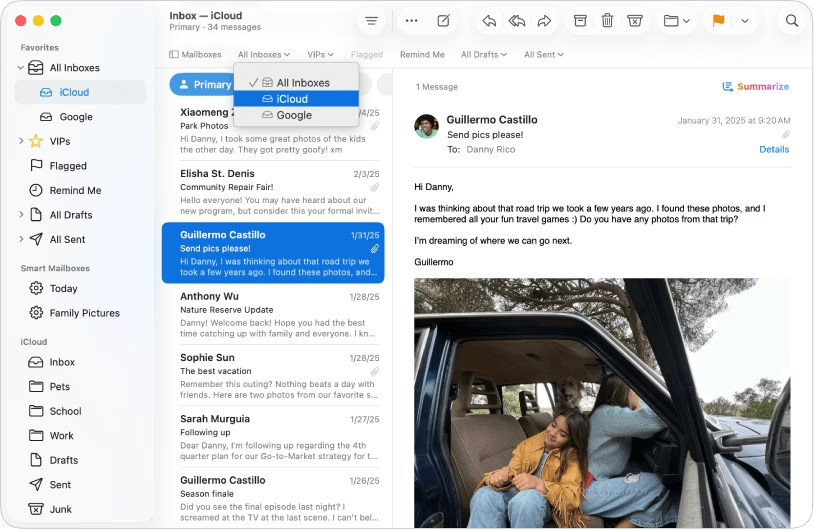
Apple Mail has become a robust Gmail client. For a free email client that comes with the hardware you already own, it has closed most of its feature gaps.
Recent releases added scheduled send, undo send, a remind-me function that works like snooze, and an on-device categorization system that sorts mail into Primary, Transactions, Updates, and Promotions.
On newer devices, Apple Intelligence layers summaries and priority sorting on top.
Setup takes about 30 seconds through system account settings using Google’s OAuth sign-in. That is the whole process.
Key Features
- Free, and already installed on every Mac, iPhone, and iPad.
- Mail Privacy Protection kills tracking pixels by default, which no other free client does as thoroughly.
- Scheduled send, undo send, and snooze in current versions.
- Unified “All Inboxes” view.
- On-device categorization that mirrors Gmail’s tabs without a server seeing your mail.
- System-level Contacts and Calendar sync.
Cons
- Apple hardware only. No Windows, no Linux, no Android, and no plans for any.
- Search is the weakest part of the app and noticeably worse than Gmail’s.
- S/MIME only, no native PGP.
Pricing
Free with every Apple device.
If your devices all have Apple logos on them, start here before you spend money on anything else. Apple Mail covers the features most people switch clients to get, costs nothing, and protects your privacy better than almost anything you could buy.
5. Microsoft Outlook
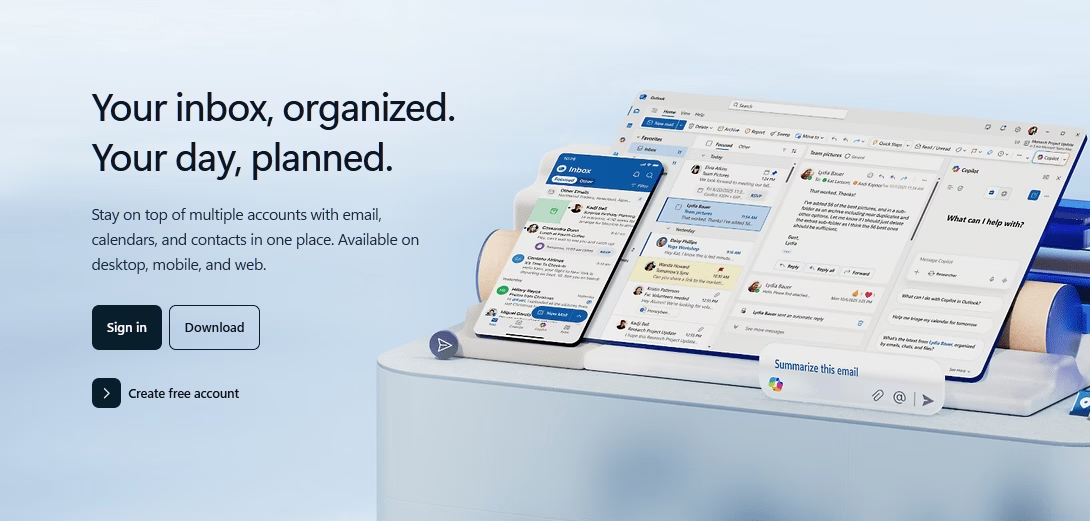
Outlook is still the heavyweight, and it is also the entry where you need to read carefully, because there are effectively two Outlooks in 2026 and only one of them is a good Gmail client.
Classic Outlook, the desktop app that comes with Microsoft 365, connects to Gmail over IMAP with OAuth, stores everything locally, and handles offline work better than anything else here.
Scheduled send, templates, rules, Focused Inbox, and a keyboard shortcut system that veterans have in muscle memory all work as you would expect.
New Outlook for Windows, the app replacing Windows Mail, is the problem. It has historically synced third-party accounts like Gmail by routing them through Microsoft’s own cloud servers, which means Microsoft holds a copy of your Gmail data to power its features.
That is a meaningful architectural difference, not a technicality, and it has drawn steady criticism alongside complaints about missing features and ads in the free version.
Key Features
- Best-in-class offline support and local storage in Classic Outlook.
- Scheduled send, templates, and a rules engine that outclasses most rivals.
- Deep calendar, contacts, and task integration.
- Free on mobile and through Outlook.com on the web.
- Copilot AI features on paid tiers.
Cons
- New Outlook lags Classic on features and offline reliability.
- The free New Outlook experience shows ads.
Pricing
Outlook mobile and Outlook.com are free. The desktop app comes with Microsoft 365.
Microsoft 365 Personal runs $84.99 per year and Family $104.99 per year, with a Basic tier near $19.99 per year.
6. Spark Mail
Spark is the best-looking Gmail client on this list. The Smart Inbox groups and prioritizes mail automatically, and once you have lived with it, plain chronological inboxes feel like a downgrade. What started as an Apple-only app now runs on iOS, macOS, Android, and Windows.
With Spark teams get shared drafts, inline comments, and collaborative threads, which is genuinely rare outside dedicated help desks.
Spark routes your email through Readdle’s servers. That cloud backend is what powers push notifications, cross-device sync, snooze, and the AI features.
Readdle’s privacy policy states it does not read message content.
Key Features
- Smart Inbox that sorts and prioritizes without configuration.
- Genuinely cross-platform, including Windows and Android.
- Team collaboration with shared drafts and comments.
- Send later, snooze, and follow-up reminders.
- AI compose and summarize tools.
- Clean interface, which is a pleasure to use daily.
Cons
- Your mail passes through Readdle’s servers. For some readers this might be deal breaking.
- The free tier limits connected accounts and AI usage.
Pricing
Spark offers a free tier with limits. Premium plans start at $8.25 / month per user.
7. Mailbird
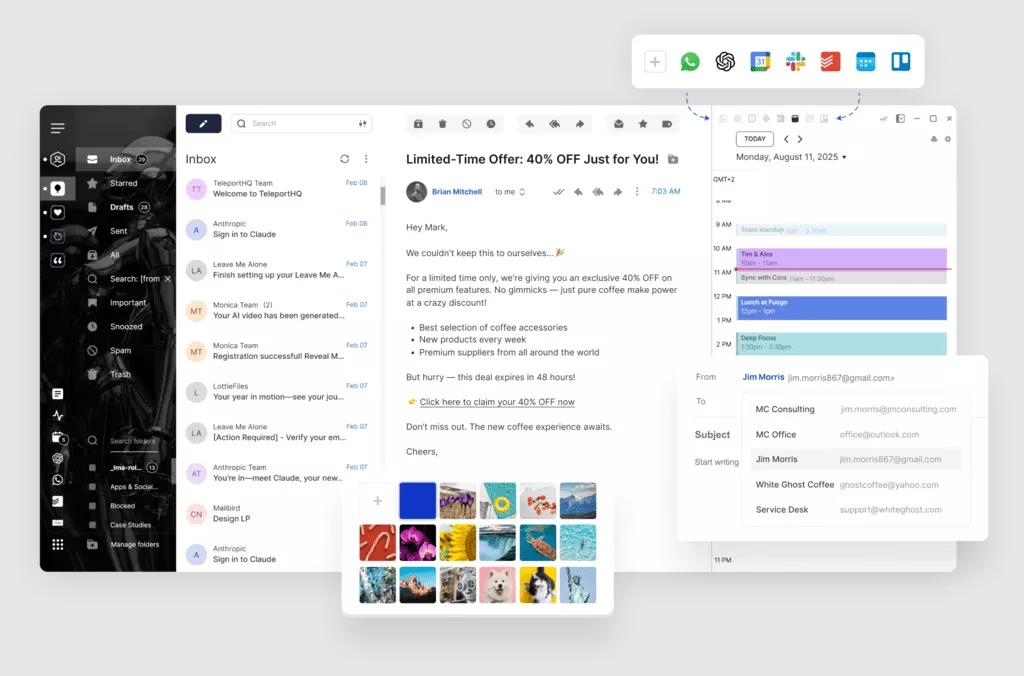
Mailbird is a reasonable choice for Windows users who want their chat apps beside their Gmail, and the unified inbox is well built.
For people whose day is a constant switch between the two, that is the whole appeal.
The Gmail side is standard: IMAP with OAuth, multiple accounts, unified inbox, and a customizable interface you can restyle more than most.
Key Features
- A well-executed unified inbox as the centerpiece.
- Built-in integrations for messaging and productivity apps.
- Snooze, send later, and email tracking.
- Speed reader and heavy interface customization.
- Solid keyboard shortcut support.
Cons
- The Mac version is new and is less mature.
- The subscription shift remains the loudest complaint in user reviews.
- Some users report performance problems and slow support responses.
Pricing
Mailbird offers a free plan with 1 account and knowledge base support. Premium plans start at $5.75 per user per month, which unlocks unlimited accounts, email templates, customer apps, filters/rules.
8. Mailspring
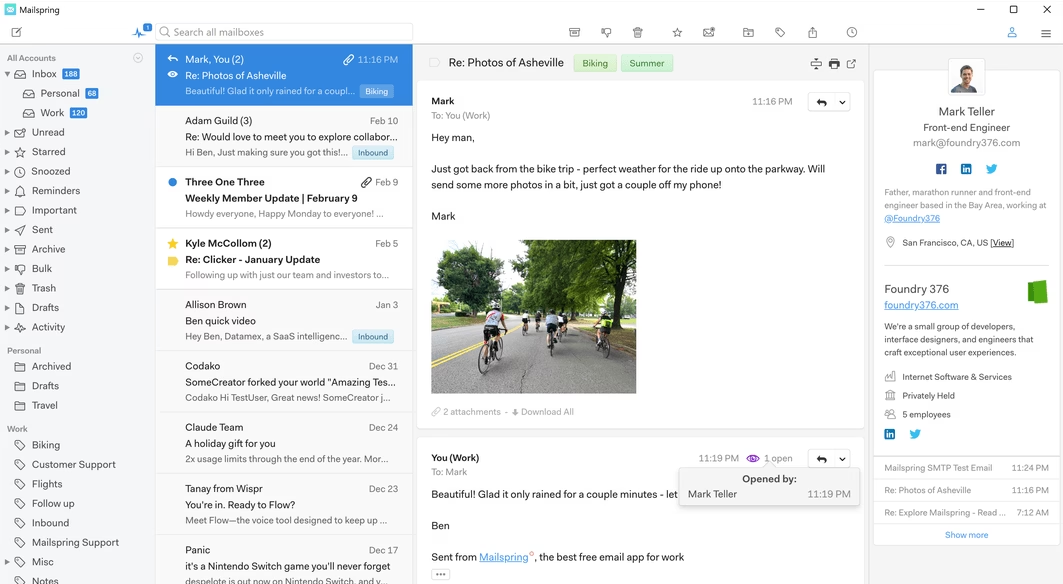
On Linux, Mailspring is the Gmail client I would install first, and the free tier is enough for a lot of people to never pay.
Mailspring is built from the remains of the old Nylas N1 project, it is open source at the core, free to start, and treats Linux as a first-class platform rather than a compatibility afterthought. It runs on Windows and macOS too.
Setup uses IMAP and OAuth, with a local sync engine handling the heavy lifting.
Key Features
- Free tier with unlimited accounts, which nobody else offers.
- A modern interface on Windows, macOS, and Linux.
- Read receipts, link tracking, and send later on Pro.
- Built-in translation and good keyboard shortcuts.
- Real Linux support, maintained rather than tolerated.
Cons
- It eats RAM. On a machine with 8 GB and a browser open, you will notice.
- Tracking and scheduling features touch Mailspring’s servers, not just Google’s.
- No native PGP.
Pricing
Mailspring Basic tier is free with unlimited accounts. Mailspring Pro is $8 per month or $85 per year.
9. Airmail
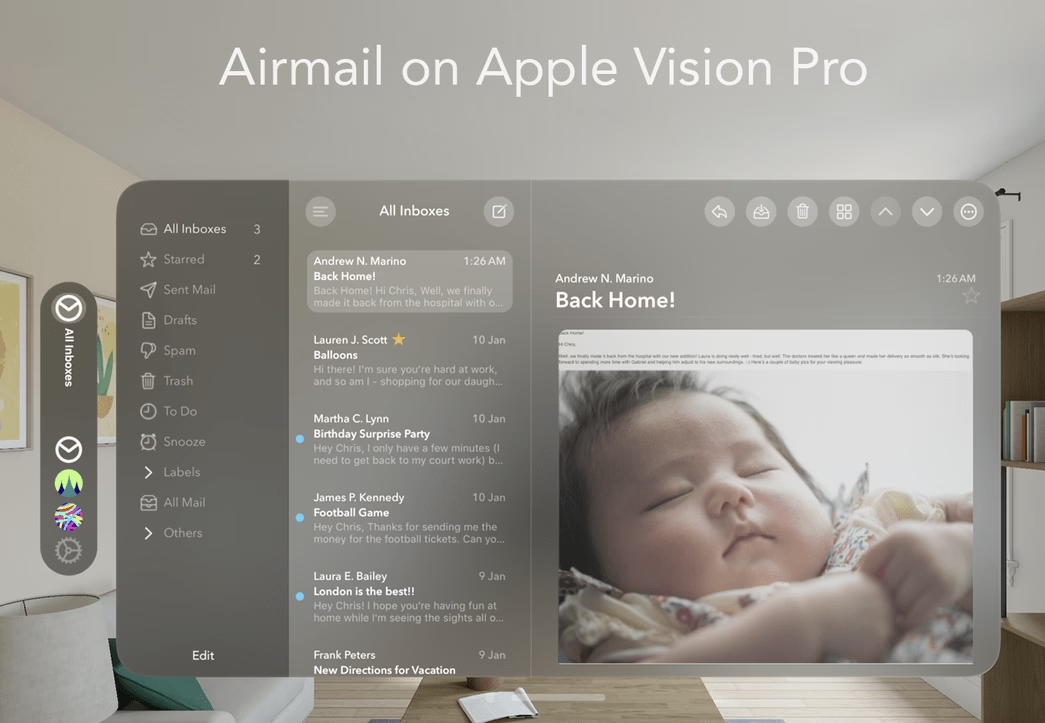
Airmail is for Apple users who want to reshape every gesture, action, and integration in their email client, and on that narrow promise it delivers more than anything else on macOS.
Swipe behaviors, custom actions, third-party app connections, layout options: the dials are all there.
But, Airmail has carried a long-standing complaint history around bugs and sync instability across versions, and some features route through Airmail’s own servers, which muddies its privacy position compared with fully local clients.
Key Features
- Customization of gestures, actions, and layout beyond any Apple rival.
- Unified inbox, send later, snooze, quick replies, and templates.
- Extensive third-party app integrations.
- Strong dark mode and keyboard shortcuts.
Cons
- Apple platforms only.
- A persistent reputation for bugs and sync problems.
- Some features touch Airmail’s servers.
Pricing
Airmail offers a limited free tier, with Airmail Pro historically around $2.99 per month or roughly $9.99 to $14.99 per year.
10. BlueMail
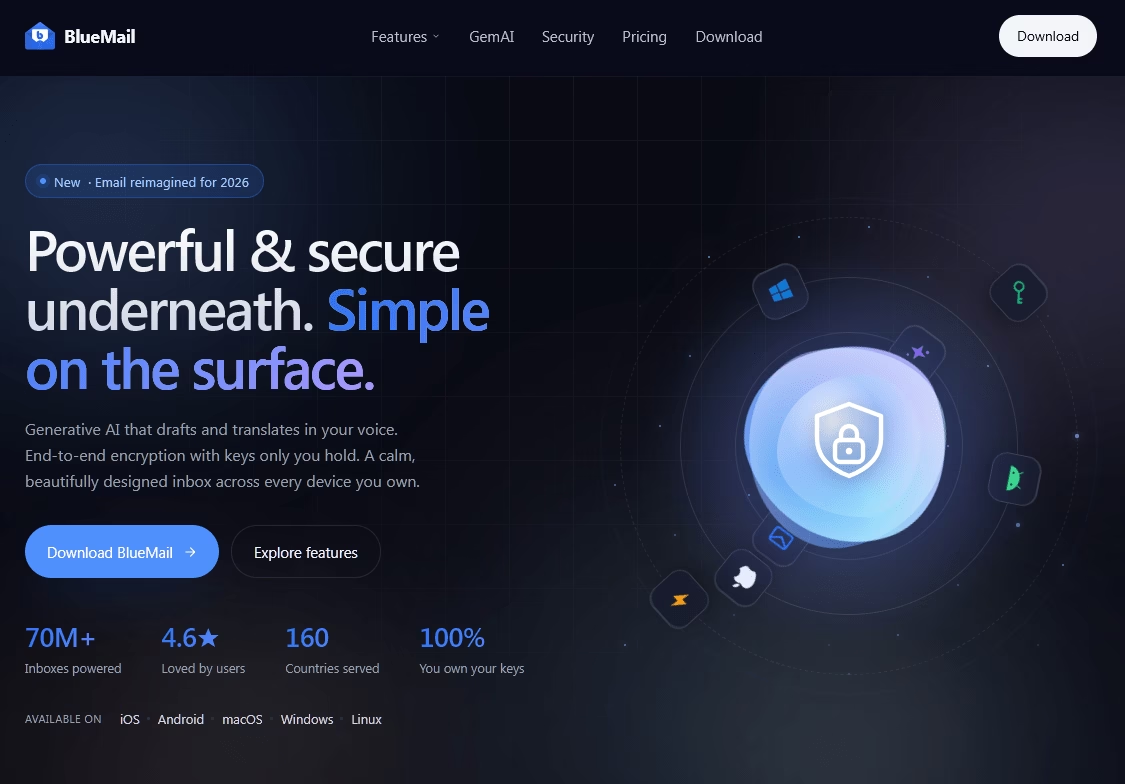
BlueMail earns its place on coverage alone, and if you genuinely switch between five operating systems it may be the only free option that follows you everywhere.
Its “clusters” system groups mail by people and groups rather than folders, which some people find genuinely better and others find confusing.
Gmail setup uses IMAP and OAuth, with a unified inbox, send later, snooze, templates, and a set of AI features branded GemAI.
Key Features
- The widest platform coverage of any client here, and free.
- Clusters that group mail by people and groups.
- Send later, snooze, and templates.
- Cross-device settings sync and dark mode.
Cons
- Push, sync, and AI features involve Blix servers despite the privacy messaging.
- Upsell prompts for AI features appear regularly.
Pricing
BlueMail core app is free. BlueMail Plus, which unlocks GemAI and advanced features, has been priced roughly $4.99 to $9.99 per month.
Final Thoughts: Choosing Your Gmail Email Client
Most people over-research this decision and then keep using Gmail in a browser tab anyway.
Install one of the Gmail clients from this guide and give it five days.
Most are free or offer refunds, so if you don’t like it, it will cost nothing.
You may even find a better Gmail alternative for years to come.
Further Reading
10 Best Email Management Software (2026 Edition)
12 Best Free WordPress Email Plugins
Free AI Email Reply Generator
Top Performing Email Subject Lines for 2026





Leave A Comment?
You must be logged in to post a comment.