The Analytics Dashboard gives you a clear view of how your knowledge base is performing. It includes five main tabs: Dashboard, Feedback, Search, Transfers, and Conversations. Each tab provides different insights with charts, tables, and filters.
The dashboard has been updated with a modern, desktop-optimized design. Metrics are shown in bold, color-coded cards for quick scanning. Charts are interactive, with hover details and daily/monthly toggle options. Tables now support advanced filtering, sorting, and server-side pagination for smoother handling of large datasets. Tooltips explain every metric, and the design uses a clear, consistent style across all tabs, making navigation simple for administrators working in WordPress.
Time Filters
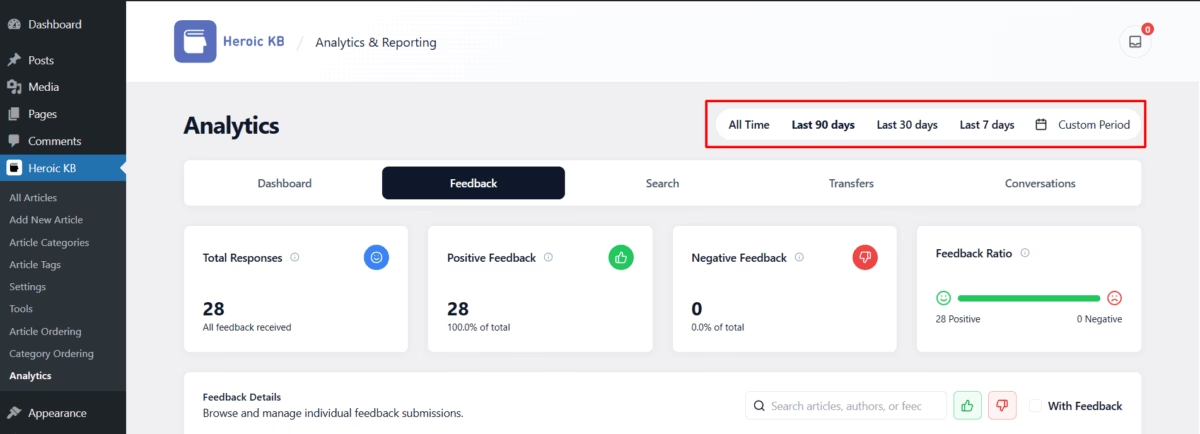
You can view data for all time, last 90 days, last 30 days, last 7 days, or choose a custom range with the calendar picker.
Dashboard
The Dashboard shows the big picture with four main metrics: feedback, searches, transfers, and conversations. Each metric is displayed in a colorful card with icons, tooltips for explanations, and a clean layout that makes it easy to scan quickly.

Feedback
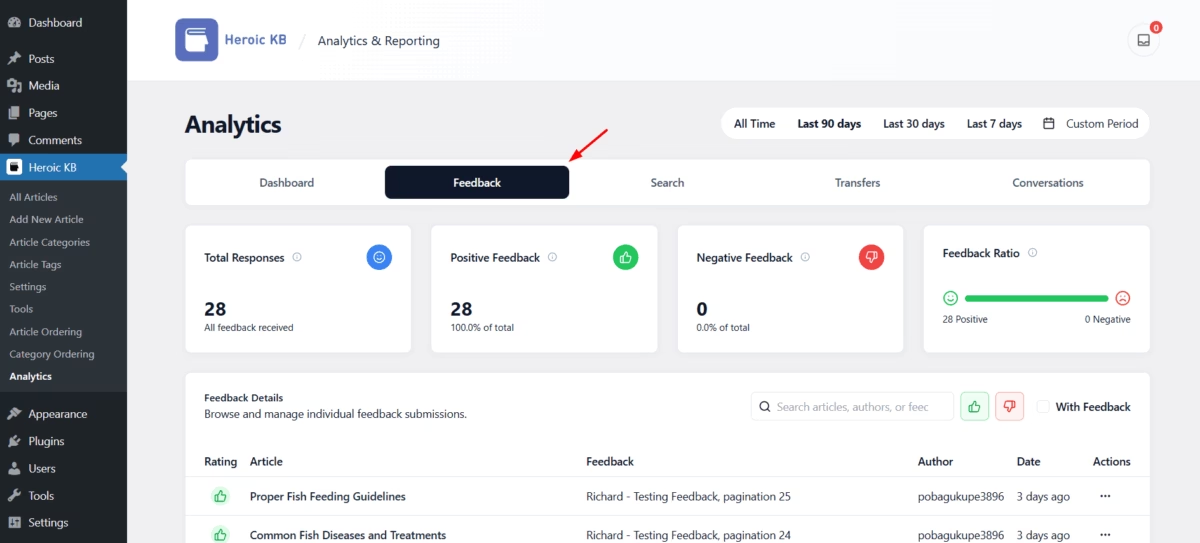
The Feedback tab focuses on how users rate your content. It shows the total number of responses, the split between positive and negative feedback, and a progress bar for quick comparison. A detailed table lists feedback entries with filters for thumbs up, thumbs down, or written comments.
Search
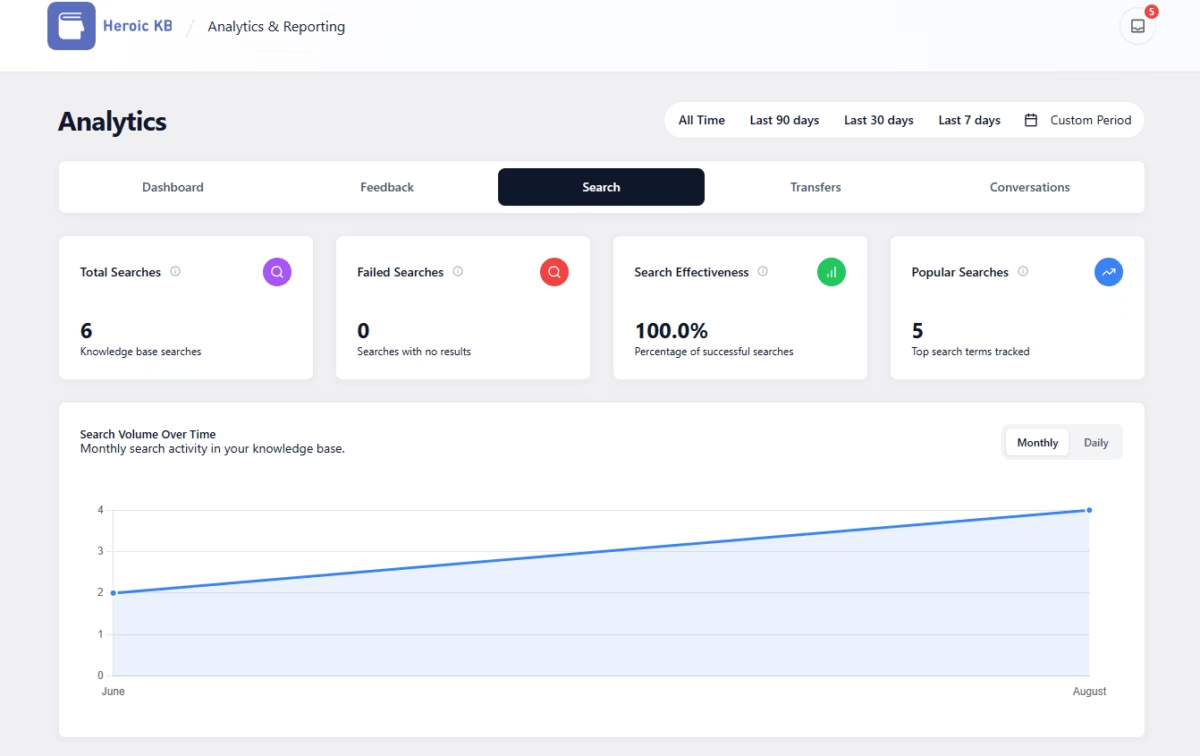
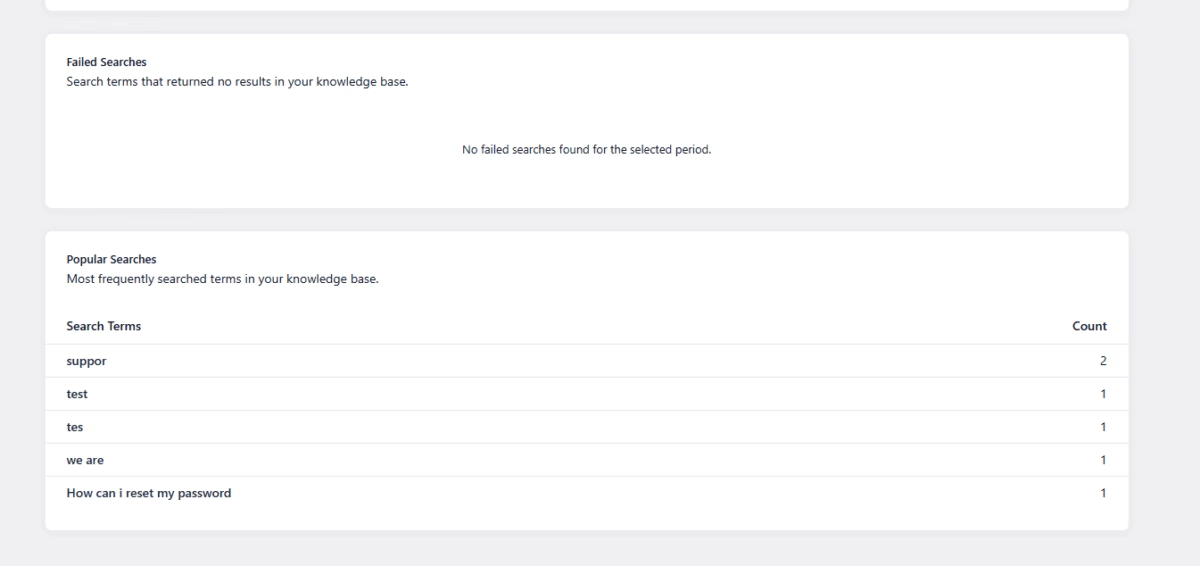
The Search tab reveals how people look for answers. It tracks total searches, failed searches with no results, overall search effectiveness, and popular search terms. An interactive chart shows search activity over time, while tables highlight failed and popular searches.
Transfers
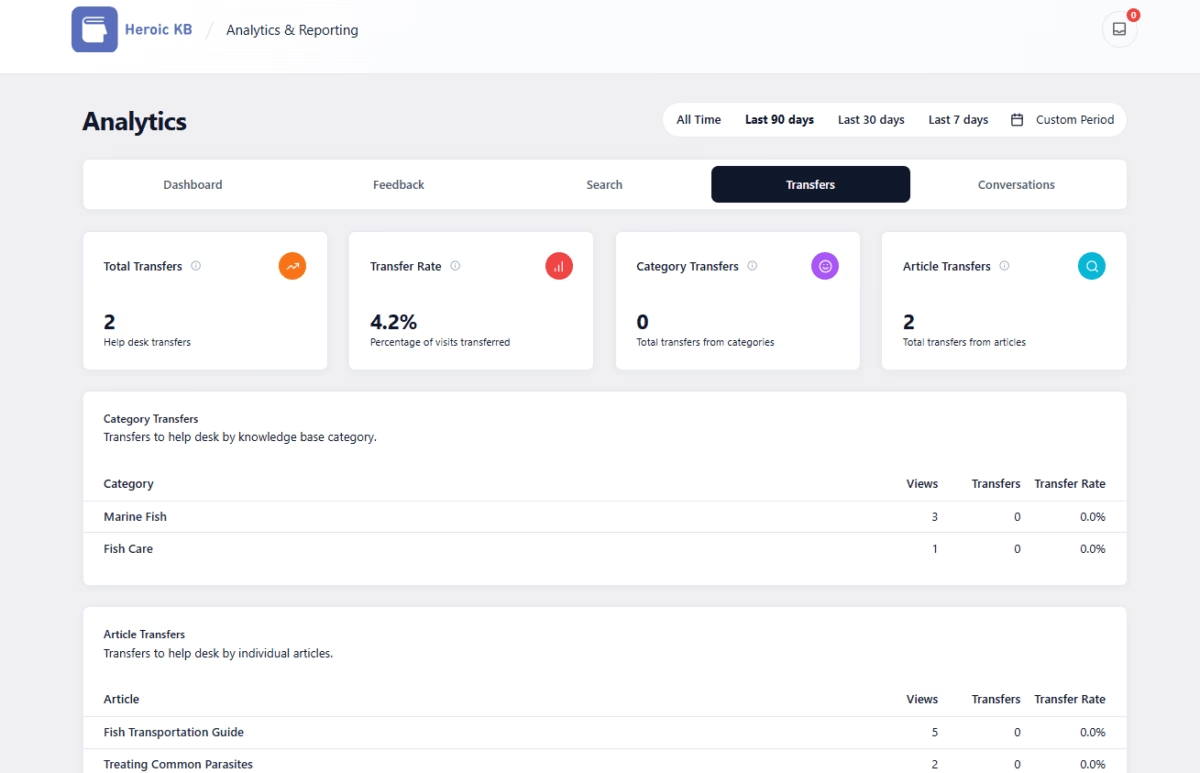
The Transfers tab measures when users move from the knowledge base to your help desk. It shows total transfers, transfer rate, and breakdowns by category or individual articles. Tables make it easy to see which areas are causing escalations.
Conversations
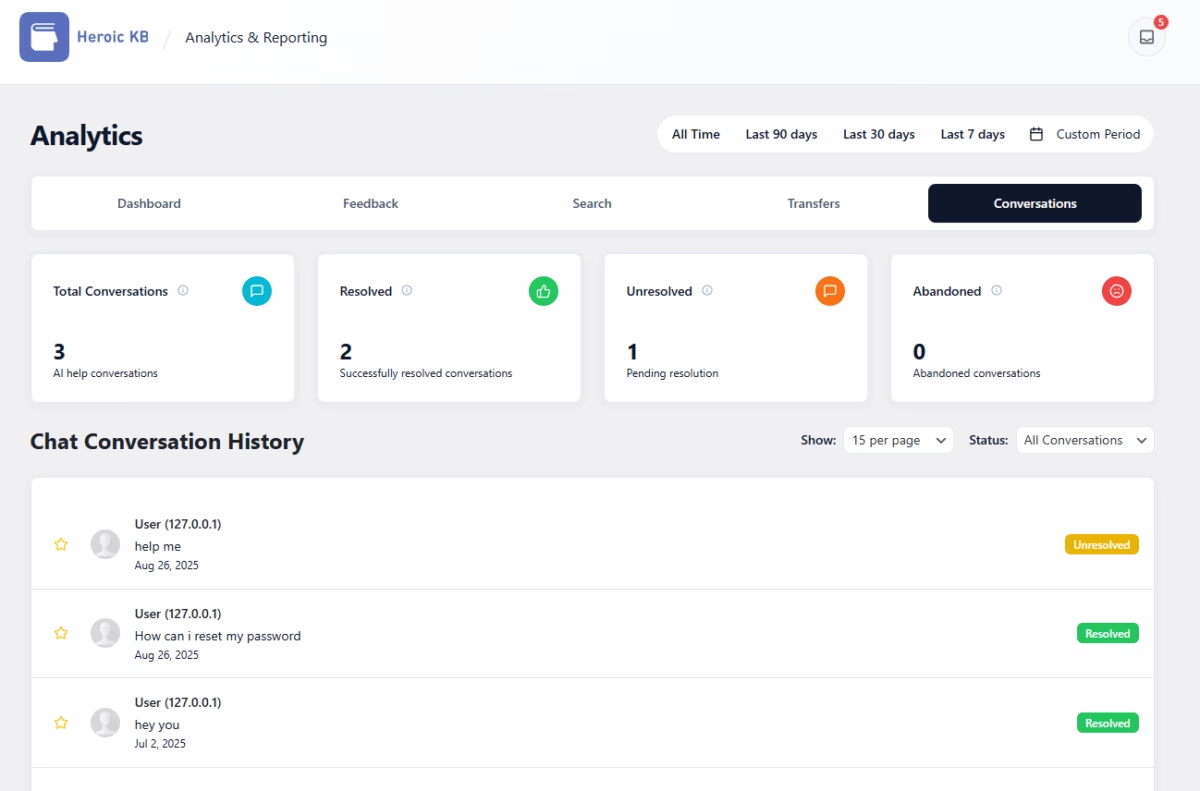
The Conversations tab monitors AI chat interactions. It records total chats, resolved conversations, unresolved sessions, and abandoned ones. You can also open transcripts to review what users asked.

Tips
- Review failed searches to spot missing content.
- Monitor transfer rates to identify weak areas.
- Track feedback ratios to measure article quality.
- Check abandoned conversations to improve AI responses.