License Migration and Upgrades
Your license for support and automatic updates is automatically generated for any purchase made on HeroThemes.com. See our guide on Why is there an annual subscription for support & updates?
This can be managed at any time from your HeroThemes Account, which is where you can find various actions related to your purchase, such as product keys, download links for the latest versions, generate purchase invoices and license management.
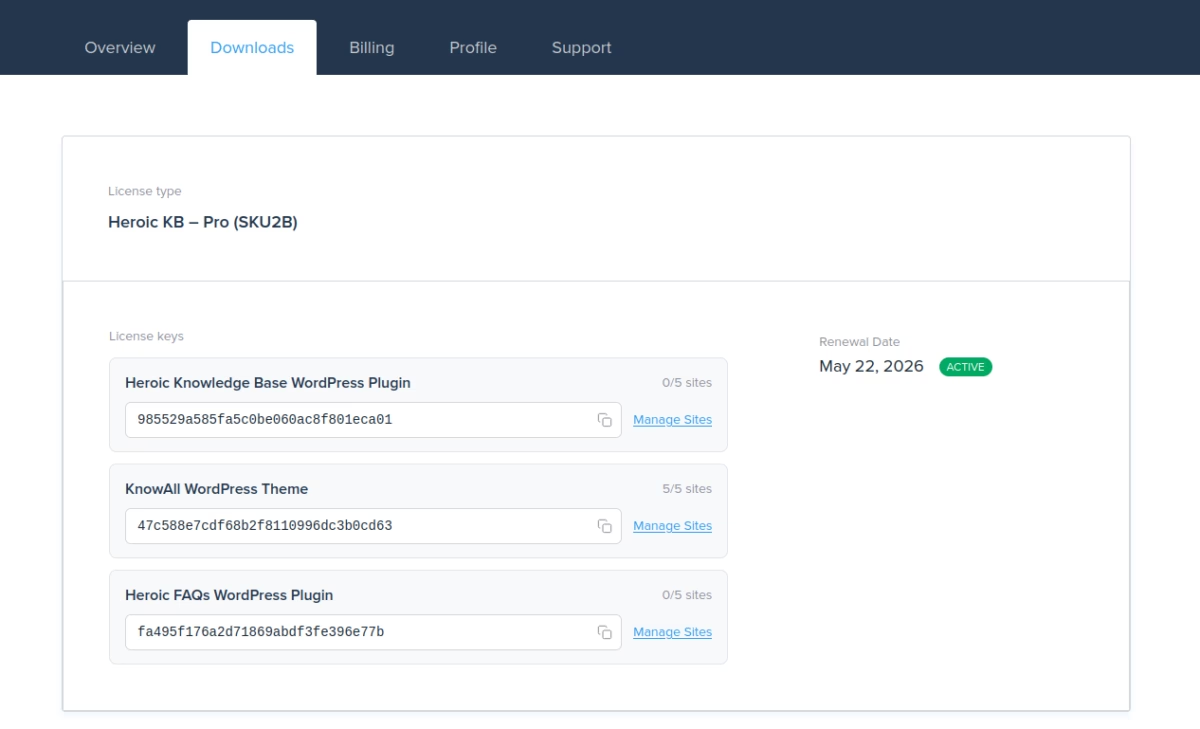
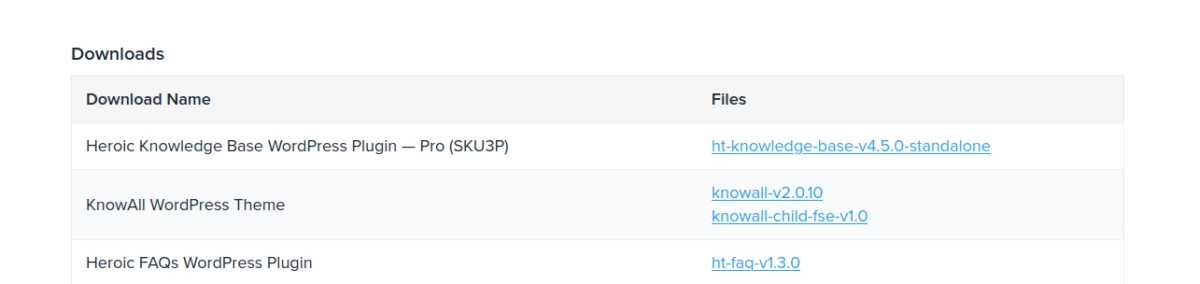
Product download links are also available on the Downloads tab.
Upgrading your License
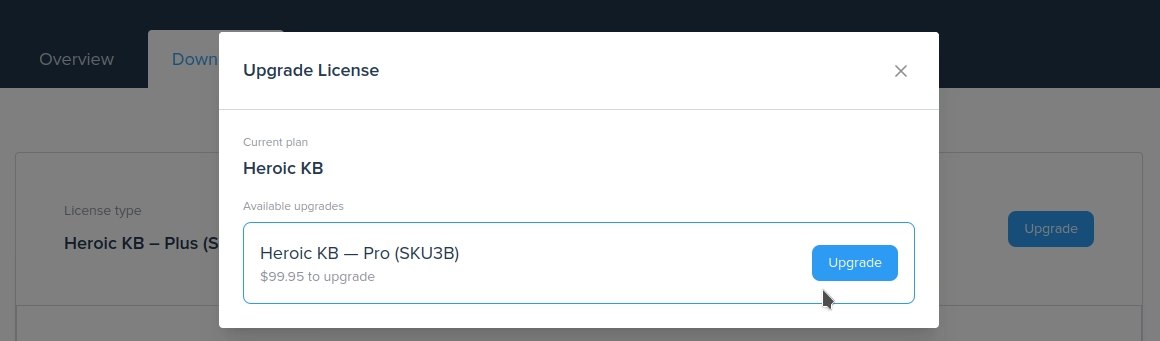
For some HeroThemes products, multiple plans are offered – for example, Basic, Professional and Business. You can upgrade your license at any point from purchase and will be offered a pro-rated upgrade price.
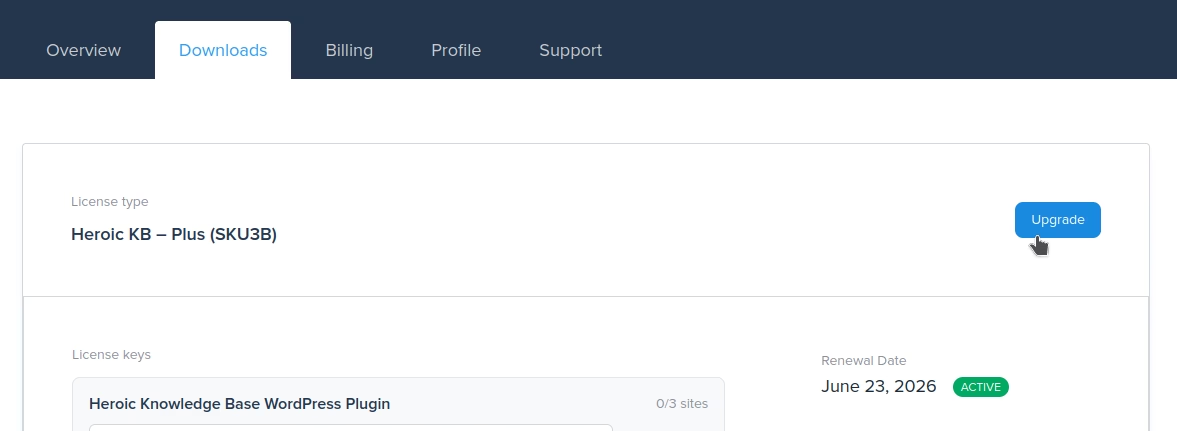
To upgrade your License, log in to your HeroThemes Account, select the Downloads tab then Upgrade button link next to the license you wish to upgrade. You will then see the available upgrades for your current plan.
Note it’s not currently possible to switch licenses between products, only upgrade to the next tier of the same product. Some products are currently only offered with one tier.
Migrating your License
If you wish to move your site to another domain, you may manage this from the Downloads tab in your HeroThemes Account area. Select the Manage Sites link next to the license you wish to manage.
If you are moving domains, you need to first deactivate your old site from the list of sites, before activating the new site.
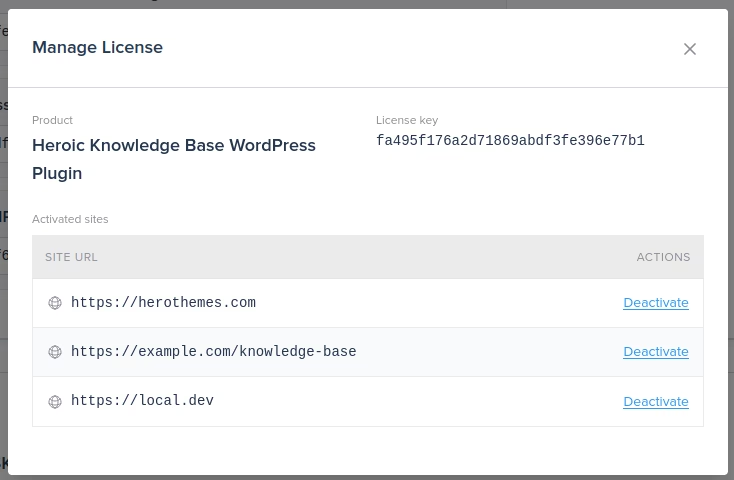
In the list of sites, you can view the active sites and manually deactivate a site. You can also deactivate a site by clicking on the Deactivate Site button on the license management page of an active site.
When it comes to activating a site, it’s best practice to activate directly through the site’s WordPress administration as advised in the plugin or theme documentation, to ensure the correct site URL is assigned to the activated sites. Ensure you use the correct license key for the product you have purchased and are wishing to activate.
If you receive a message that the license is invalid, check the list of active sites to ensure you have not exceeded the available activations or the site is already active. If required, deactivate the site, remove obsolete sites and try activating the key again.
Note that in a multisite environment, each sub-site is considered separate and count towards the site count. Product licenses must be activated on a per-site basis.