Introducing the MemberPress Integration for Heroic Inbox

A member emails your support inbox with five words: “I can’t access the course.” Another writes, “Why was I charged again?” These are the tickets that decide whether someone stays a paying member, and they are the ones you are least equipped to answer.
To reply responsibly, you need facts you cannot see. Are they active or expired? Did their last payment fail? Are they in a trial, a grace period, or canceled? Right now, finding out means leaving the inbox, opening MemberPress admin, searching by email, and matching their subscriptions against their transactions. For every billing ticket.
So the reply goes out on guesswork. Sometimes that means a slow answer. Sometimes it means the wrong one: “Your account looks fine,” when their card failed two days ago. For a membership business, these are revenue-critical conversations, and you are answering them without the payment facts in front of you.
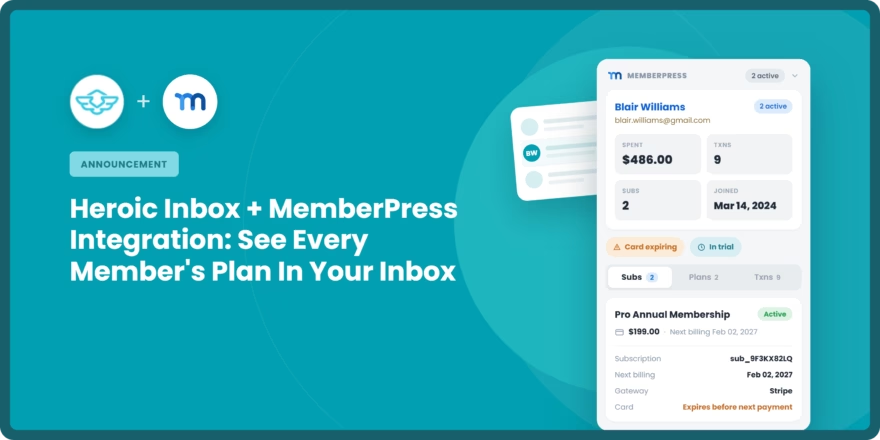
Today, we’re introducing the MemberPress integration for Heroic Inbox. It matches the member emailing you to their MemberPress account and pulls their membership status, billing alerts, subscriptions, and payment history into the ticket. You answer the access and billing questions without ever leaving the inbox.
What the MemberPress Integration Does
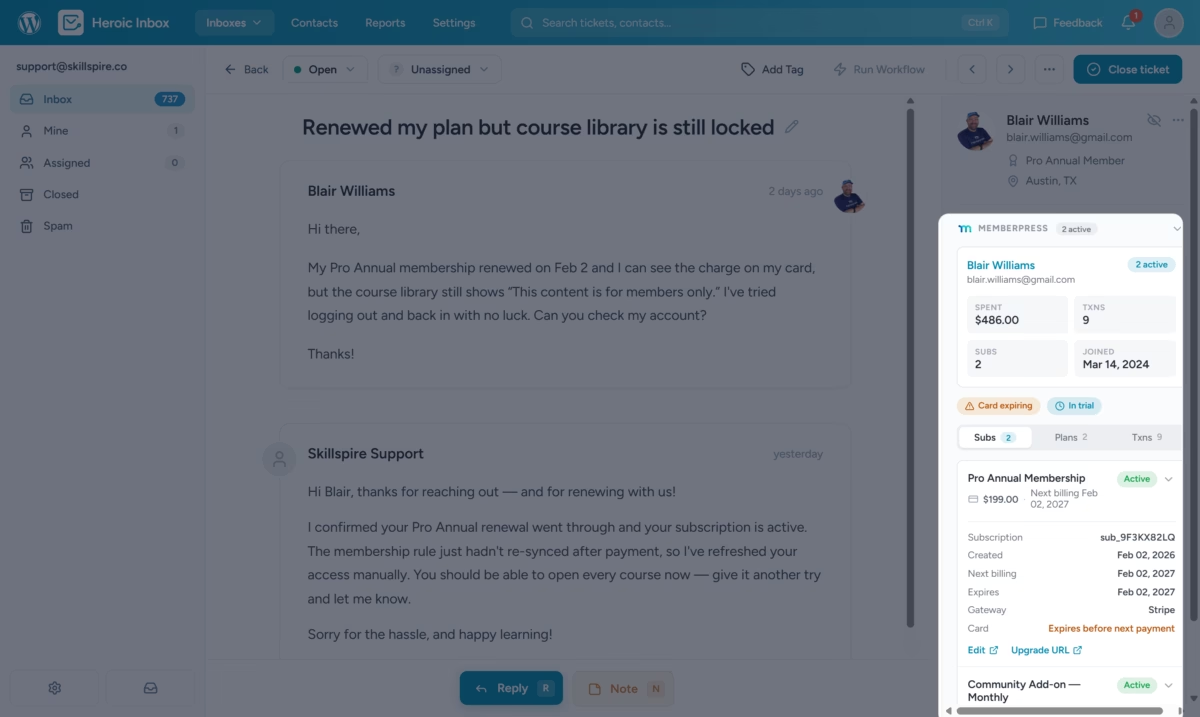
When a ticket arrives, Heroic Inbox looks up the sender’s email in MemberPress and builds a member profile beside the conversation. You see who they are, what they pay for, whether anything is wrong with their billing, and their recent subscriptions and transactions, all without opening a second tab.
Know Who You’re Talking To at a Glance
Before you type a word, a summary card tells you who is on the other end of the ticket: the member’s name, when they registered, how many active memberships they hold, their lifetime transaction count, and their total spend in your store currency. A member who has been with you for two years and spent hundreds is a different conversation from someone three days into a trial, and now you can tell them apart at a glance.
Spot Billing Problems Before You Read the Ticket
An alerts row sits at the top of the card and flags the issues that actually change your answer: a failed payment, a refund, a canceled, suspended, or expired subscription, an active trial, a grace period, or a card due to expire before the next payment. The alerts are color-coded by severity, and the card shows only the top five so it stays scannable. Often you know what the ticket is really about before you have finished reading it.
See Plans, Subscriptions, and Payments Without Leaving the Ticket
A tabbed view gives you the rest of the picture on demand: the member’s active memberships, their five most recent subscriptions with status, next billing date, expiration, trial or grace state, and gateway, and their ten most recent transactions with status, amount, and type. Each list is capped, so you get the recent history without the panel slowing your inbox down.
Act in MemberPress Only When You Need To
When a ticket does call for a change, every row carries a deep link straight into MemberPress, pre-filtered by the member’s email. Edit a subscription, edit a transaction, or open the member record in one click, instead of searching for them by hand. You stay in the inbox to answer and jump to MemberPress only to act.
Who the MemberPress Integration Is For
This is built for the people whose inbox is mostly billing and access questions:
- MemberPress site owners running their own support. Course creators, membership and subscription businesses, and paid communities live in these tickets every day. They get the most out of it.
- Support managers and agents at subscription businesses, who need to tell a billing emergency from a routine question fast, without training every agent to navigate MemberPress admin.
- Agencies and freelancers managing client membership sites, who run the help desk on top of a MemberPress build and want payment context delivered to their agents out of the box.
If you answer support for a MemberPress site, where “can I access this” and “why was I charged” are the questions that fill the inbox, this is for you.
What This Looks Like in Practice
Imagine a ticket lands from [email protected]: “I can’t log in to the course.”
Before you reply, the sidebar already shows you Sam Carter, a member since March 2024, with one active membership and $312 in total spend, and a single red alert: Latest payment failed.
In about two seconds, you know this is a billing problem, not a login bug. Instead of escalating to your developer, you send the renewal link and Sam is back in the course within minutes. You never left the inbox, and you never had to guess.
How to Turn It On
The integration is part of Heroic Inbox Pro plan and is available to turn on the moment it detects MemberPress.
Step 1. Update and confirm MemberPress is active
Update Heroic Inbox to version 3.9.0 or later, and make sure MemberPress is active on the same site.
Step 2. Open a member’s ticket
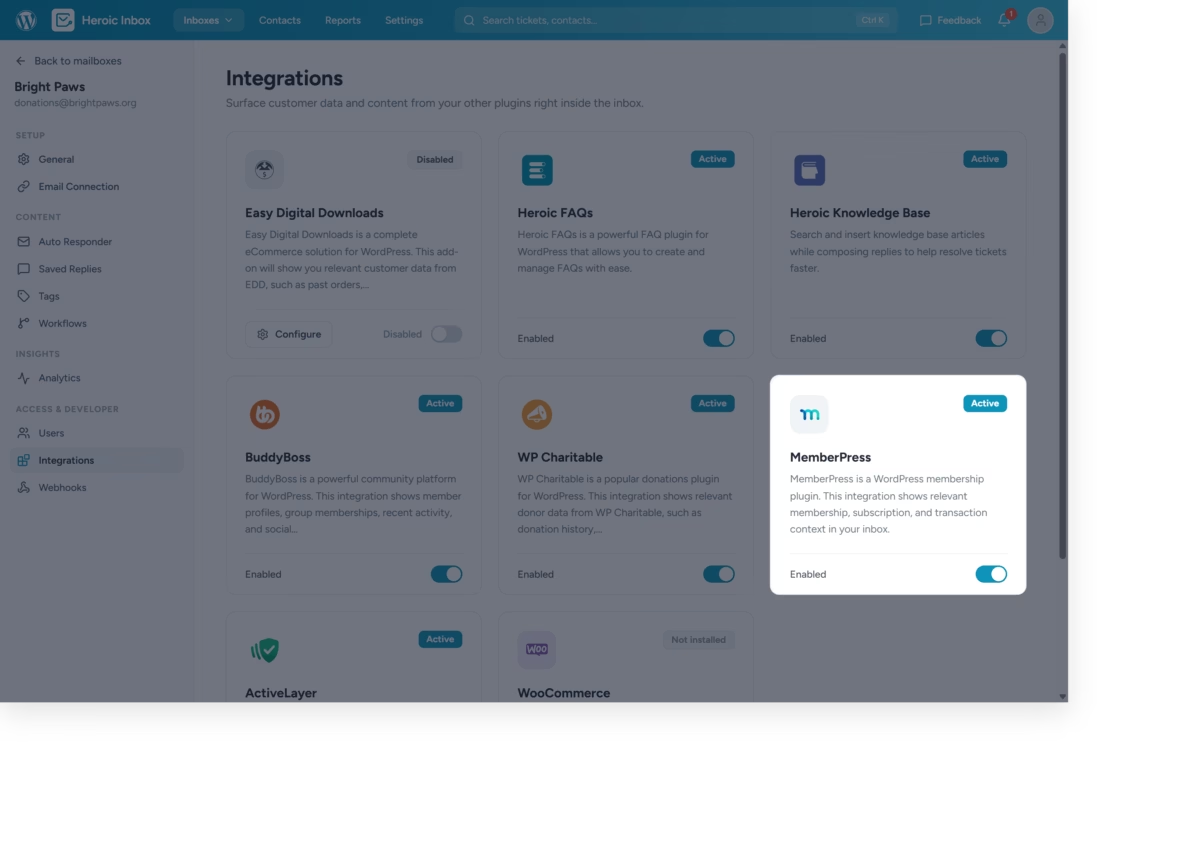
Open any mailbox and view a ticket from a member. The MemberPress panel appears beside the conversation on its own.
Step 3. Toggle it off per mailbox if you want
Prefer it off for a particular mailbox? Switch it off in that mailbox’s settings.
The integration stays quiet and out of the way. It caches each member’s data so it never slows the inbox down.
Try the MemberPress Integration and Tell Us What to Surface Next
If you already run Heroic Inbox, update to the latest version, open a billing ticket from a MemberPress member, and the panel is right there, with nothing to set up.
Not on Heroic Inbox yet? It is the shared inbox built for teams, and the MemberPress integration ships with Heroic Inbox Pro. If you run support for a membership site, this is the context your agents have been missing.
We built this from the billing questions support teams answer every day, and we are not done. Try it on your real tickets, then tell us what the panel should show next.






Leave A Comment?
You must be logged in to post a comment.